How to Delete, Close or Merge a Google Business Profile

Google has no button that deletes a business from Google Maps. "Remove Business Profile" only takes the profile out of your account, and the listing can stay live without you. So decide first what you actually want: stop managing the profile, show it as closed, hand it to someone else, or get a listing taken down.
If you run an agency, you've had the "just delete it" call. This guide matches each situation to the right action, using steps from Google's help pages as of November 2026. It shows what happens to reviews before you touch a setting, and adds an offboarding checklist and 2 client scripts.
Can You Delete a Google Business Profile?
No, you can't fully delete a Google Business Profile yourself. You can remove it from your account, mark it closed, or ask Google to take the listing down, and only Google decides on that last option. A profile has 3 layers, and each action touches different ones:
- Your access: the owners and managers who can edit the profile.
- Owner content: the posts, photos, videos and review replies those people added.
- The public place listing: the name, address, map pin, customer reviews and customer photos. The listing exists whether or not anyone manages it.
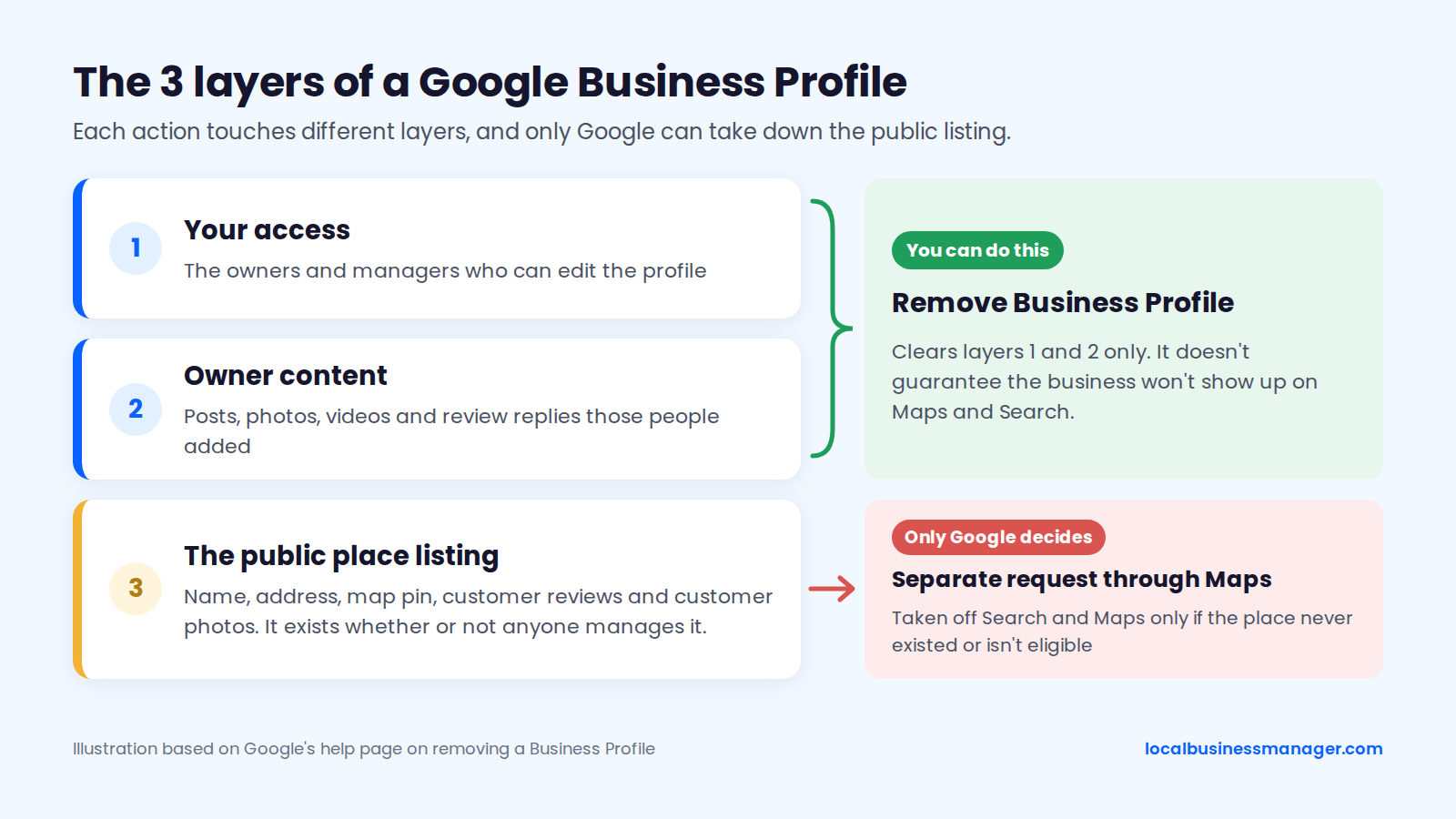
Google's help page on removing a Business Profile says that removing every owner and all content "doesn't guarantee that the business won't show up on Maps and Search." Google takes a listing off Search and Maps only when the place never existed or isn't eligible for a profile. That requires a separate request made through Maps.
Older guides written for Google My Business, the product's name until 2021, describe a "Delete Business" option. The current option is Remove Business Profile, and it only clears the first 2 layers.
Which Option Do You Need?
The right action depends on 2 things: whether the business still exists, and whether the listing is yours. The first table below matches each situation to an action. The second shows what each action does to the listing, the reviews and the owner content.
Match Your Situation to an Action
Find your situation in the first column; the second column is the action that does what you want. As of November 2026, Google's help pages name who can start only some actions: the primary owner for removal and transfers, managers for removing themselves, and anyone signed in for Suggest an edit. Elsewhere the cell reads "Not published". Rows run from changes to your own business, through access, to listings that shouldn't exist.
A merge, a Suggest an edit removal and a redressal complaint all ask Google to remove or change a listing, and each needs Google's approval. A permanently closed listing fades out of results instead, slowly and with no timeframe that Google states.
Situation | Right action | Who can start it |
|---|---|---|
Business closed for good | Mark it permanently closed | Not published |
Business paused, reopening later | Mark it temporarily closed | Not published |
Business sold | Transfer primary ownership to the buyer | The primary owner |
Business moved | Edit the address on the same profile | Not published |
Business rebranded | Edit the name to the new real-world name | Not published |
Home address showing, no customer visits | Hide the address and set a service area | Not published |
Agency or manager leaving | Remove yourself once the client holds primary ownership | Any manager; the primary owner only after a transfer |
You want to stop managing the profile | Remove profile content and managers | The primary owner, after their first 7 days |
Someone else controls your profile | Request ownership | Not published |
Duplicate of your own profile, with reviews | Merge request through Business Profile support | Not published |
Duplicate of your own profile, no reviews | Remove it as a duplicate | Not published |
Place never existed or isn't eligible | Removal request through Suggest an edit | Anyone signed in to a Google Account |
Fake listing using your name, phone or website | Business redressal complaint form | Not published |
If the real goal is getting rid of bad reviews, no row in this table does that. The reviews section below explains why and covers what works instead.
What Each Action Does to the Listing and Reviews
Of the 8 actions people usually mean by "delete", removing yourself, transferring ownership, and removing content and managers all leave the public listing in place. Marking the business temporarily or permanently closed changes its status. A merge, a Suggest an edit removal and a redressal complaint can remove or change a listing, and only if Google approves.
Customer reviews stay through every action you control. The table follows Google's help pages as of November 2026 and is sorted from least to most drastic for the listing.
Action | Public listing | Customer reviews | Owner posts, photos and replies | Can you undo it? |
|---|---|---|---|---|
Remove yourself | No change | Stay | No change | Yes, if an existing owner adds you back |
Transfer primary ownership | No change | Stay | Stay | Only if the new primary owner transfers it back |
Remove profile content and managers | Can stay live with no owner | Stay | Deleted permanently | No |
Mark temporarily closed | Stays | Stay | No change | Yes, by reopening |
Mark permanently closed | Stays, labeled closed, then gradually removed (no Google timeframe) | Stay | No change | Yes, by reopening |
Merge request | Duplicate removed, 1 profile kept | Combined | Replies may be lost | Not published |
Suggest an edit removal | Removed if Google approves | Not published | Not published | Not published |
Redressal complaint form | Removed or corrected if Google acts | Not your listing | Not your listing | Not published |
How to Remove a Business Profile From Your Account
Removing a profile from your account permanently deletes your owner content and every user's access. Google's help page says the content can't be recovered. Only the primary owner can do it, and someone added as an owner in the last 7 days may be blocked from doing it.
Pre-Removal Checklist
Run these 8 checks before you remove anything, because owner content can't be brought back afterward:
- Confirm who the primary owner is. Only that account can remove the profile.
- Decide whether the business is actually closed. If it is, mark it permanently closed while you still have access (the removal flow also offers this option).
- Download the photos and videos you own, and copy any posts you want to reuse.
- Record the profile's performance data (calls, direction requests, website clicks) for your own records.
- Save any review replies you want to keep, since they're deleted with your content.
- Check whether a Google Ads or Local Services Ads account uses this profile, and talk to whoever runs it before you act.
- Update the website and major directory listings so they don't contradict the change.
- Write down the profile URL and place ID, and take a dated screenshot of the profile.
Desktop: From Google Search or Maps
To remove a Business Profile on desktop, open it from Google Search or Google Maps while signed in as the primary owner. As of November 2026, Google's official steps on its removal help page are:
- Sign in to the Google Account that holds primary ownership.
- Search your exact business name on Google, or open the profile in Google Maps.
- Select More (or the three-dot icon) and choose Business Profile settings.
- Select Remove Business Profile.
- Choose Remove profile content and managers.
- If the business has shut down, turn on the option to mark it permanently closed.
- Select Continue, then Remove, then Done.
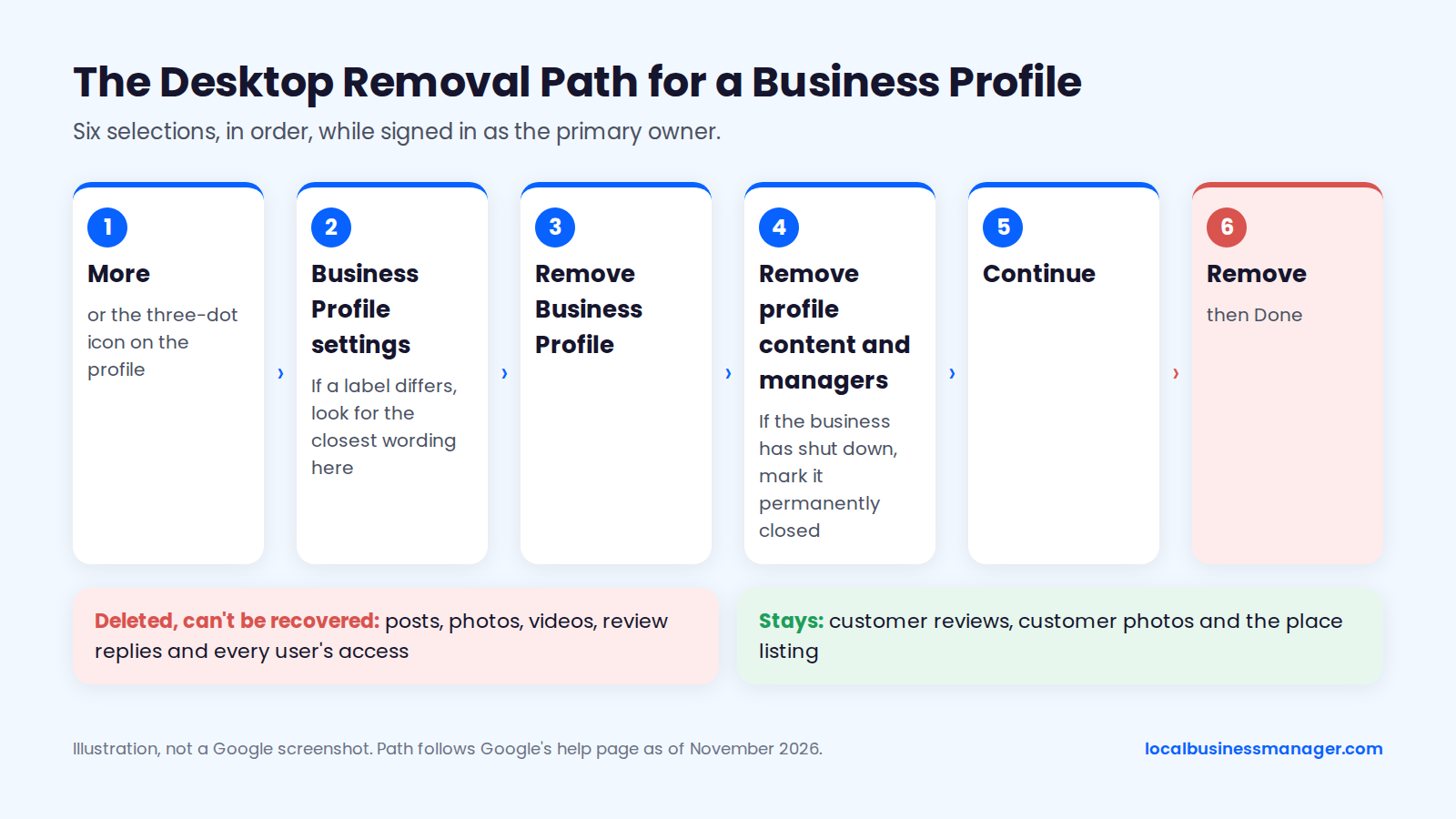
Illustration, not a Google screenshot. The path follows Google's help page as of November 2026.
Google renames menu items from time to time. If a label doesn't match, look for the closest wording under Business Profile settings. Don't follow an older guide's "Delete Business" or "Users" instructions, which come from the Google My Business interface.
On Your Phone (Android or iPhone)
Google's removal help page documents the steps from Google Search and Maps, not separate app steps, so check each label in the Google Maps app on your device as you go. Google's photo help shows how much labels vary between devices: Android uses a trash icon where iPhone uses More > Delete this photo.
Sign in with the primary owner's account, open the profile and look for More or the three-dot icon. Then look for Business Profile settings, Remove Business Profile and Remove profile content and managers, in that order. The result is the same on any device: your content and managers go, and the public listing stays. If you want the business off Maps, check the decision table first.
Several Profiles at Once in Business Profile Manager
Agencies and multi-location brands can remove profiles in bulk from Business Profile Manager at business.google.com. That view is built mainly for accounts with many locations. As of November 2026, the path is:
- Select the profiles in the Businesses list.
- Open Actions and choose Remove businesses.
- Confirm with Remove.
If the bulk action returns an error, remove the profiles one at a time. Keep a location log as you go (the agency checklist below lists the columns). Before a bulk cleanup, switch the Businesses view to Duplicate, and merge any duplicate that has reviews instead of removing it (see the duplicates section).
What Is Deleted and What Stays
According to Google's help page, removing a profile deletes owner content: posts, photos, videos and review replies. Customer reviews, customer photos and the place listing stay. Plan for what happens next:
- Removed content can't be recovered, and every user's access goes with it. To manage the profile again, you verify it from scratch.
- The listing left behind has no owner. Someone else can claim an unmanaged live listing or edit it through suggested edits, which is why the agency checklist ends with a recheck routine.
How to Mark a Business Permanently or Temporarily Closed
Marking a business closed is the right action when a real business stops operating, either for good or for a while. A permanently closed listing stays on Search and Maps with a closed label, and its reviews stay with it. You can reverse the status while you still manage the profile.
Permanently Closed
Mark a business permanently closed only when it has stopped trading for good. As of November 2026, Google's "Mark your business as closed" help page gives these steps:
- Go to your Business Profile.
- Select Edit profile > Hours.
- In the Business hours section, next to Hours, select Edit (the pencil icon).
- Select Permanently closed.
The removal flow also offers a "Mark your business as permanently closed" option. Some third-party guides put the setting under Business information; Google's current page doesn't.
Google's closed-business page says the profile may still appear on Search and Maps for people who search for it, clearly labeled as closed. Google's removal help page adds that a closed business slowly drops out of search results and is then completely removed. Google gives no timeframe. Practitioner reports on Local Search Forum show how slow the fade can be:
- A closed car dealer still showed for its brand name more than 4 months later (around 2022).
- A closed store still ranked first 6 months later (around mid-2026).
Mark the business closed before you remove yourself, so you still control the profile while it fades. Don't mark an operating business closed to hide wrong details; edit the details instead.
Temporarily Closed vs Special Hours
Google's "Mark your business as closed" help page says to use Temporarily closed when a business is closed for more than 7 days, for the off-season or indefinitely, and Special hours when it's closed for 7 days or less. To mark it temporarily closed, go to Edit profile > Hours, then select the edit icon next to Hours in the Business hours section.
Special hours suit a business that keeps different hours on specific dates, such as a holiday. If a temporary closure turns permanent, switch the status to permanently closed rather than leaving the business marked temporarily closed indefinitely.
How to Reopen
A closed business can be reopened while you still manage the profile, from the profile's Hours settings (check the current label). If the business moved or rebranded rather than closed, don't treat it as a closure: edit the address or name on the profile instead (see the moved and rebranded sections below).
Some older guides claim a permanently closed listing can't be edited or reclaimed. That isn't true while you still manage the profile. If you've already removed yourself, request ownership or verify the listing again before you change its status.
How to Get a Listing Removed From Google Maps
Getting a listing off Maps takes a removal request that Google reviews, and Google approves it only when the place never existed or isn't eligible for a profile. Fake listings that misuse a real business's name, phone number or website go through a separate complaint form.
Using Suggest an Edit
Suggest an edit is Google's route for asking it to remove a place that never existed or isn't eligible. Anyone signed in to a Google Account can use it. As of November 2026, Google's help page on requesting removal from Search and Maps gives these steps:
- Sign in to your Google Account and open Google Maps.
- Select the business.
- Choose Suggest an edit.
- Select Place is closed or not here, then the reason that fits.
- Submit.
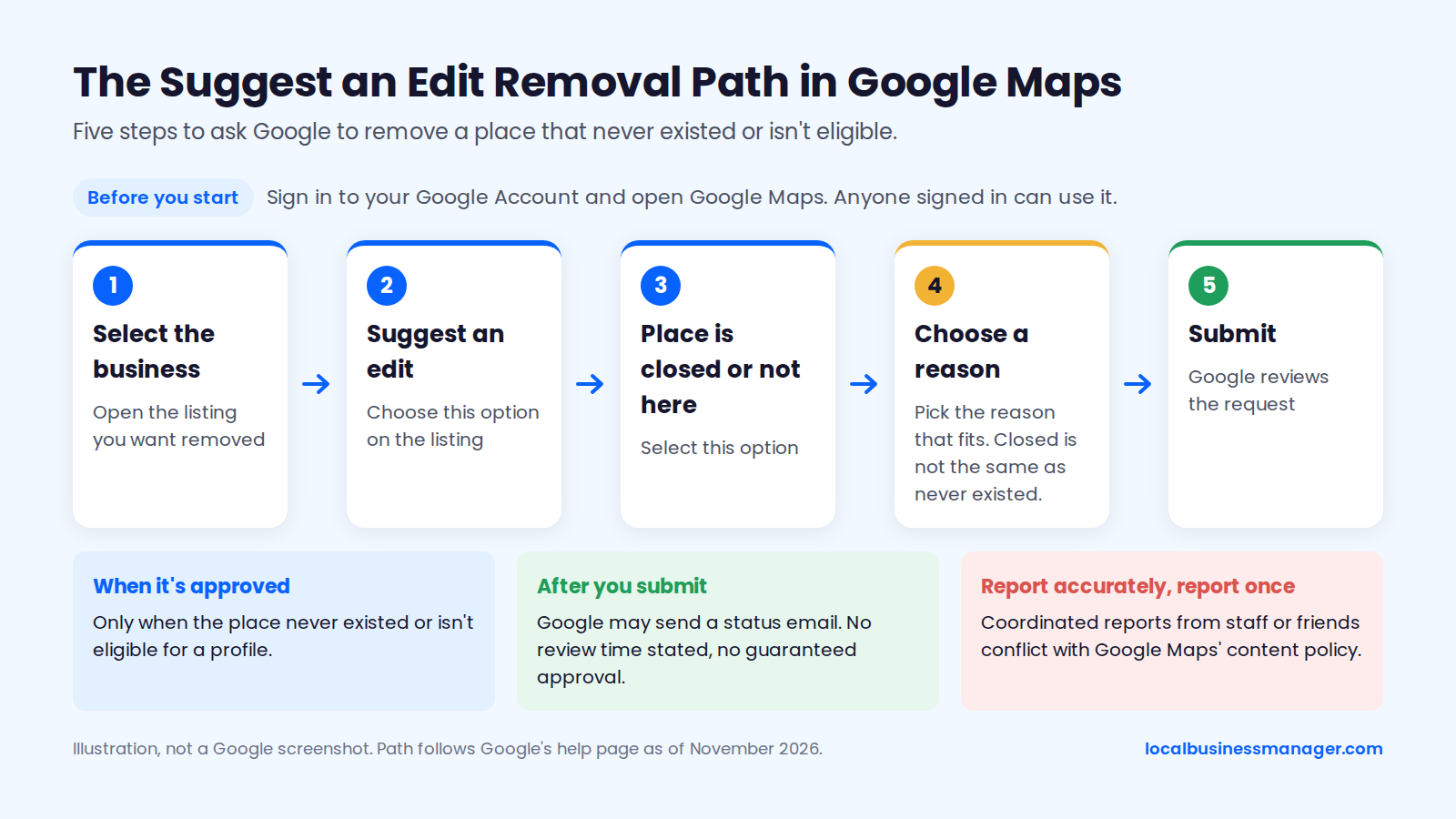
Illustration, not a Google screenshot. The path follows Google's help page as of November 2026.
Google may send a status email. It states no review time and doesn't guarantee approval.
Report accurately, and report once. A business that existed and then closed should be marked closed, not reported as a place that never existed. Some older guides recommend having staff, friends or colleagues file the same "doesn't exist" report from their own accounts. That kind of coordinated editing conflicts with Google Maps' user-contributed content policy, so don't do it for your own listing or anyone else's.
How to Remove a Fake or Impersonating Google Business Profile
Google's business redressal complaint form is the route for listings that commit fraud in a business's name, phone number or website, such as a fake listing that uses your brand. Google's April 2026 Maps safety post on its Keyword blog says it removed over 13 million fake Business Profiles and blocked 79 million inaccurate or unverified edits in 2025.
The form's own text, as quoted in October 2026 third-party guides, says Google won't review complaints outside that scope or incomplete forms, can't guarantee any action, and won't update you on the status. Gather this evidence before you file:
- The fake listing's Maps URL and a dated screenshot.
- Proof of your real business name, phone number and website, such as a registration or DBA filing.
- Screenshots showing where the fake listing uses your details.
- The specific guideline being broken, named in your explanation.
A 2023 practitioner guide notes that the form accepts an explanation and screenshots, while Suggest an edit offers only preset reasons. Sterling Sky (updated October 2026) puts turnaround at about 2 weeks, says you can refile, and advises keeping every case ID.
If Google Rejects the Request
A rejected Suggest an edit shows up as the edit not being applied. A redressal complaint returns no status at all, so silence doesn't mean rejection. Check the listing itself.
Practitioner timelines differ, and none of them are Google figures. Sterling Sky estimates about 2 weeks for the redressal form. In an October 2026 Google Business Profile Help Community thread, a Product Expert advised waiting 30 days with the case ID before escalating; in that thread, only 1 of 13 reported listings had been removed by then. If you need to push further:
- Refile the redressal form with new evidence, and keep each case ID.
- For several listings, collect them in a shared Google Sheet, as that Product Expert suggested.
- Post the case in the Google Business Profile Help Community, where Google's volunteer Product Experts answer.
- Contact Business Profile support if the listing is tied to your own account.
How to Handle a Duplicate Listing
Sterling Sky's advice is to merge a duplicate that has reviews through Business Profile support and remove one with no reviews. Google allows 1 Business Profile per business, and its help page on resolving duplicate profiles says duplicates don't show on Search or Maps. The route also depends on whether you manage the duplicate.
Duplicate You Manage
A duplicate you manage that has reviews should be merged through Business Profile support, not removed, because removing it deletes its reviews. Sterling Sky says a merge is only possible when both profiles represent the same business at the same location. A November 2026 DEV Community article, quoting Google's duplicate help page, says every merge request is reviewed and that merged profiles have their reviews combined, though owner replies may be lost.
A Google Product Expert's community guide (October 2026) sets out what the support request should contain:
- "Merge duplicate Business Profiles" as the topic.
- Both profiles' names, Maps URLs and profile IDs.
- Which profile to keep.
- An explicit request for the reviews to be combined.
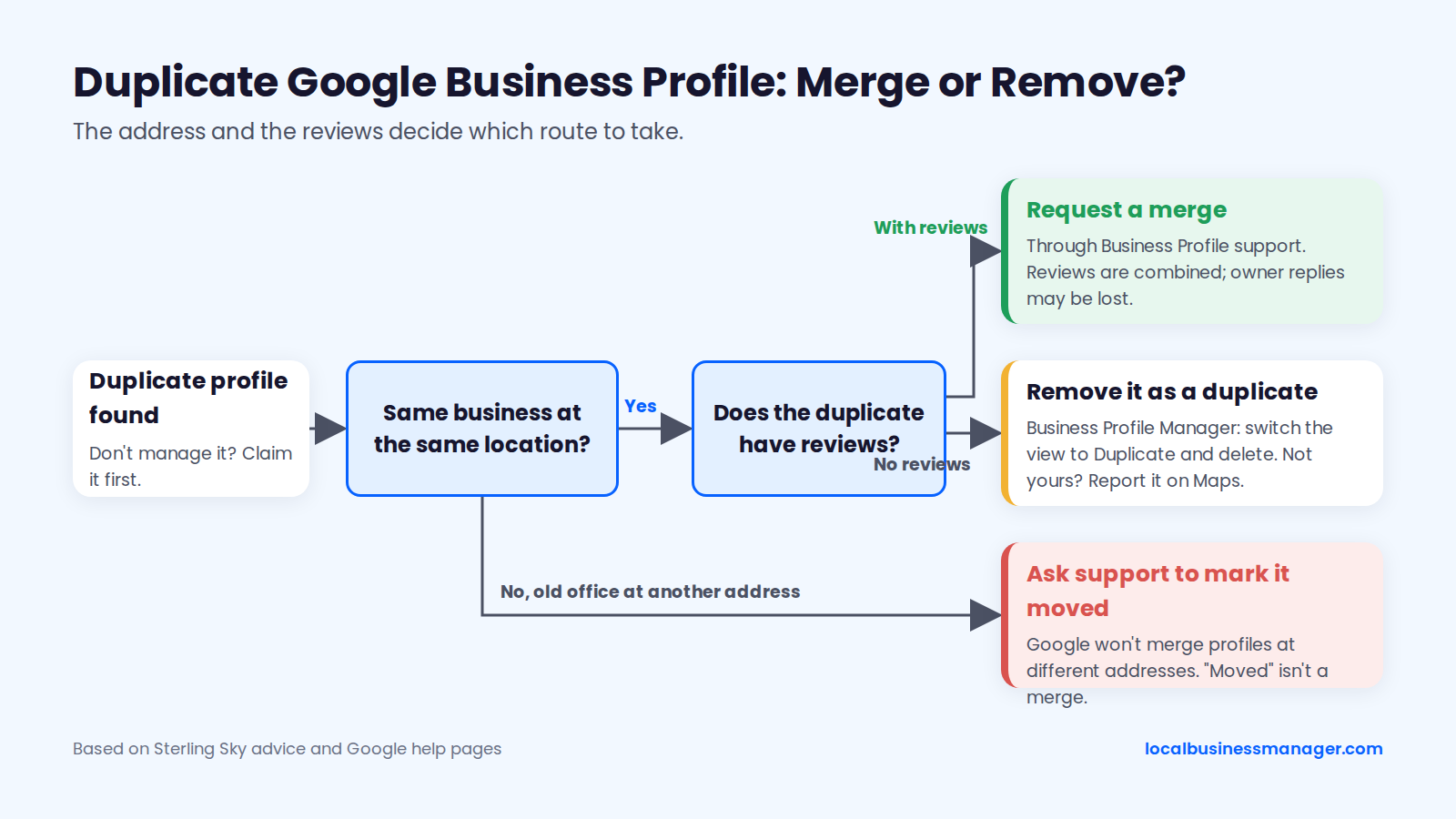
If the duplicate has no reviews, Sterling Sky's advice is to remove it rather than merge it. Google's Merchant Center help describes the route in Business Profile Manager: click Businesses, switch the view at the top right from All to Duplicate, and delete the duplicate. The view shows View original if you have access to the original profile and Request access if you don't.
In my own work, the route that has worked for duplicates is a merge request through Google support.
Duplicate You Don't Manage
You have to claim a duplicate you don't manage before you can merge it. Request ownership first (see the access section below), then file the merge. If it has no reviews worth keeping, report it on Maps while signed in: Suggest an edit > Place is closed or not here > Duplicate of another place > Submit. Some cases need a different route:
- Old office at another address: According to Sterling Sky, Google won't merge profiles at different addresses, so ask support to mark the old listing as moved to the new one. Sterling Sky notes that "moved" isn't a merge: in its 2020 case, rankings rose a few days after a merge, and a "moved" status didn't show the same positive impact.
- Attorney practitioner profiles: According to Sterling Sky, Google won't merge a practitioner profile into the firm's profile unless the firm has only 1 practitioner. Reviews on those profiles can't move to the firm.
- Two genuinely different businesses: Never request a merge, even when they share an owner or a building.
Sold the Business? Transfer It Instead of Deleting
When a business is sold, the profile should go to the buyer through a primary ownership transfer. Google's help page on transferring ownership says to do this so business info like reviews is kept. Google's reviews help adds that you shouldn't create a new profile because of an ownership change.
When a client sells, I transfer ownership; when a client moves, I edit the address. I don't close a profile and recreate it. The handover order below follows Google's help pages on owners and primary ownership and a Google Product Expert community guide (July 2026), and it works around Google's 7-day rule for new users:
- The buyer sets up a Google Account controlled by the business, not a personal login.
- The current primary owner adds that account as an owner.
- Wait at least 7 days.
- The primary owner goes to More > Business Profile settings > People and access and makes the buyer's account the primary owner.
- The buyer, now primary owner, removes the seller and any old users.
- Both sides save a dated screenshot of the profile's user list as a record of the transfer.
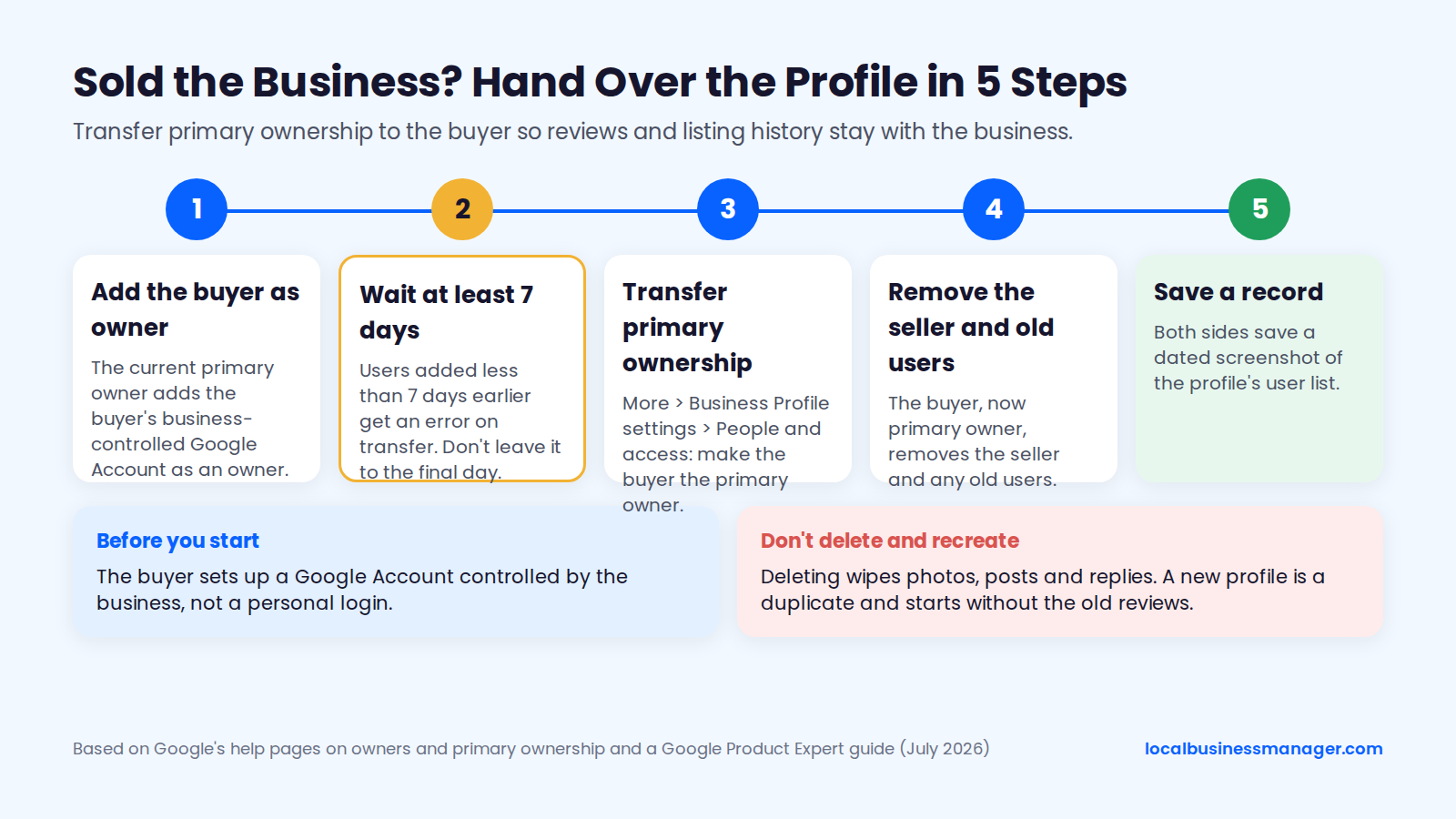
Google's 7-day rule: a user added less than 7 days earlier gets an error when trying to transfer primary ownership. The Product Expert guide adds that during their first 7 days, new users also may be unable to receive primary ownership, remove other owners or managers, or delete the profile. It warns against leaving the transfer to the final day, so add the buyer at least a week before the sale closes.
Deleting the profile instead wipes the photos, posts and replies the buyer paid for and leaves the listing unowned. If the buyer then builds a new profile, that profile is a duplicate under Google's 1-profile rule, and it starts without the old listing's reviews.
How to Remove Someone From a Google Business Profile
To remove a person rather than the profile, an owner opens the profile's user list and removes them. Only owners can remove other users, and Google emails the person who was removed. As of November 2026:
- Sign in as an owner and open the profile on Google Search or Maps.
- Select More > Business Profile settings > People and access. Older guides call this section Users.
- Select the person and remove them (check the current label).
Who can remove whom follows Google's role rules:
- Owners can remove owners and managers. A newly added owner is limited by the 7-day rule above.
- Managers can remove themselves, but they can't add or remove anyone else.
- The primary owner can't remove themselves until primary ownership has been transferred.
For an ex-employee or a former agency, remove them directly if they're a manager or a regular owner. If they hold primary ownership, ask them to transfer it to the business's own account first. If they won't, use the request-ownership route in the next section.
In my practice, the client is the primary owner. My agency is a manager and accepts invites through one agency organization account, never through personal or shared logins. The guide on how to add a manager to a Google Business Profile covers setting that up from the start.
What If You Don't Have Access to the Profile?
If a former agency, an ex-employee or a stranger controls your verified profile, use Google's request-ownership flow. Once you have access, decide whether to keep, close or remove the profile. You can't remove a profile you don't manage, so claiming always comes first.
Google's help page on requesting ownership gives this route:
- Go to business.google.com/add and find the business.
- Select Request access, fill in the form and submit it.
- Watch for Google's confirmation email, and use it to check the request's status.
- When the option appears, open View request in that email and choose Verify.
Service-area businesses without a storefront contact Google support instead and choose Transfer ownership of listing.
Product Expert guides on Google's support site describe what generally happens next, though none of these outcomes is guaranteed:
- The current owner generally has 3 days to respond.
- If they approve, you get access.
- If they deny, you can appeal and verify that you're the real owner (Sterling Sky describes the appeal).
- If they don't respond, a Claim or Verify option may appear after 3 days.
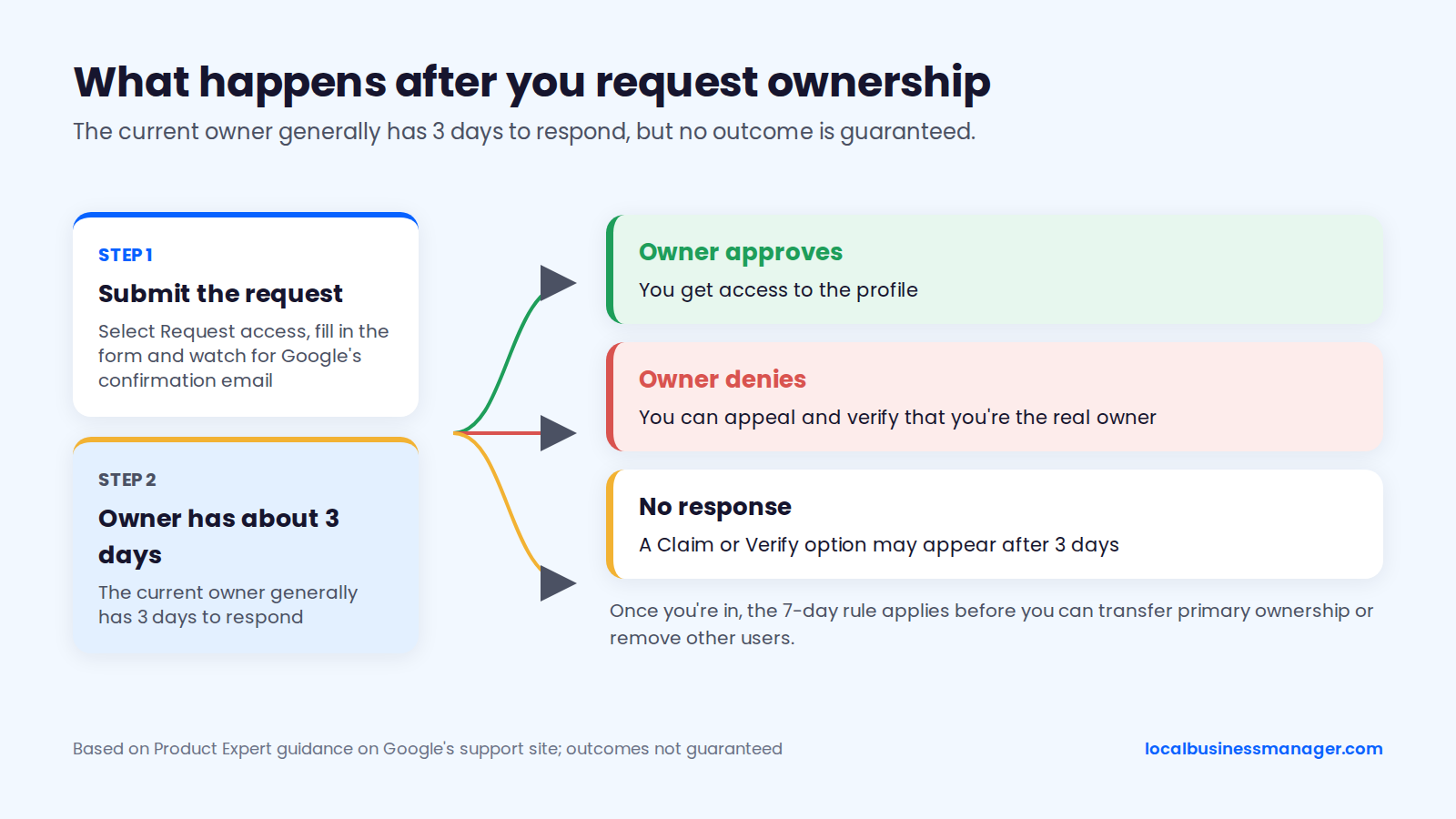
Once you're in, the 7-day rule from the sale section applies before you can transfer primary ownership or remove other users.
With former agencies and ex-employees, I ask politely for the listing back and stay persistent. Sometimes I get it back immediately, and sometimes it takes a week or two. A 2026 practitioner guide on profile ownership also recommends asking the old agency directly while filing Google's request at the same time.
Moved, Rebranded or Just Want Your Home Address Off Google?
Edit the existing profile when the business moves, rebrands or needs its home address hidden; deleting it fixes none of these. Address and name edits can trigger re-verification, so plan them rather than rushing them.
Moved: Edit the Address
A business that moves should edit the address on its existing profile. Google's reviews help says not to create a new profile because of a location change, and that relocated businesses that keep the same name have their reviews moved automatically.
A 2025 third-party guide gives the path as Edit profile > Business information > Location, then the new address and Apply; check the labels in the current interface. The same guide says that in most cases Google asks you to verify the new address, sometimes by postcard, and that service-area businesses update their service areas instead.
From my experience:
- I've seen re-verification follow an office move.
- In my experience, name and address edits cause the most suspensions. After one, I wait a day or two before any other sensitive edit to the name, address or category.
- When verification asks for a video, the client records it alone. The most common rejection I see is a video that doesn't show the signage, the street number or other proof of the location.
If a separate profile still exists at the old address, treat it as a duplicate (see above). The guide on changing a business name or address on Google covers the edit in detail.
Rebranded: Edit the Name
A rebranded business should change the profile name to the new name it actually uses on its signage, website and paperwork. Google's reviews help says reviews stay after minor name changes, though Google may remove reviews that no longer apply after significant business changes.
I recommend a keyword name only when it becomes the business's real name through a registered DBA (assumed name), and I've taken many clients through that process. The order matters:
- Register the DBA.
- Put that exact name on the signage, website, stationery, phone greeting and other listings.
- Change the Business Profile name last.
A DBA filing alone doesn't make a name compliant: Google judges the name the business really uses and can still challenge or suspend the profile. The DBA is what proves the name if Google asks. Never add keywords the business doesn't use.
The 2026 Local Search Ranking Factors survey lists keyword names among the top suspension risk factors, and also finds they correlate with higher local-pack rankings. Law firms also have to clear bar rules on trade names:
- ABA Model Rule 7.1 (Comment 5): a trade name must not be false or misleading.
- New York bans trade names (Rule 7.5(b)).
- Texas requires state-bar approval of a trade name.
- Kentucky, New Jersey and Rhode Island restrict trade names.
Check your state bar before filing.
Home Address: Hide It From Google
If you're searching for how to make your business not show up on Google because your home address is public, hide the address and set a service area instead of deleting the profile. Google's guidelines for representing your business say a service-area business that doesn't serve customers at its address should hide that address.
Hiding the address keeps you on the same profile instead of creating a new one that could count as a duplicate. The guide to service-area business SEO covers setting up and ranking a profile without a public address.
Can You Delete a Profile to Get Rid of Bad Reviews or Start Over?
No. Deleting or closing a profile doesn't remove customer reviews, and a fresh profile for the same business counts as a duplicate under Google's 1-profile rule. Both moves cost you the ability to reply while the reviews stay public. Sterling Sky (2026) adds that there's no setting that turns reviews off.
Every agency gets this request eventually. When a client asks me to delete their profile to get rid of bad reviews, I advise recovering the rating instead. A new profile also starts behind: in my experience, a new profile in a competitive city can take a month or two to show in the map pack for category searches, and it starts with zero reviews. What works instead, in order:
- Reply to every review, starting with the negative ones.
- For reviews that break Google's policies, follow Sterling Sky's 4-step removal process: flag the review, check its status, appeal (through Google's Reviews Management Tool), then escalate to the Business Profile Community.
- Ask every customer for a review the same way, with no incentives and no filtering. My target is the average review count of the top 3 map-pack results, and more if you can get it.
Treat anyone who offers to make reviews disappear by deleting or recreating a profile as a red flag. The guide on deleting Google reviews covers which reviews can actually be removed.
Recreating a profile to escape a suspension conflicts with Google's guidelines, so appeal with documents instead. I use a DBA filing, a lease agreement, photos of the office with its signage, or a video of the storefront and office. When an appeal was denied, what worked for me was a second review with new evidence. The suspension guide walks through the process.
Agency Checklist: Offboarding or Cleaning Up Client Profiles
When a client asks you to delete, close or hand back profiles, work from a written decision and a location log, and recheck every change from a signed-out session. Start at least a week before the handoff, because of Google's 7-day rule for new users.
Before You Act
Get the client's decision in writing before you change anything on any location. Then work through the prep:
- Record the action the client wants for each location: keep, transfer, close, remove or merge.
- Confirm the client's own account is an owner. Google's Product Expert guide says an agency should never be the only owner.
- If the agency holds primary ownership, add the client's account as an owner at least a week before the handoff, then transfer primary ownership.
- Don't drop access until the client confirms whether they want continued management, an ownership transfer or no further action.
- Screenshot each profile before any change.
Keep a location log with these columns:
- Location name and address
- Profile URL (Maps link)
- Place ID or profile ID
- Current primary owner
- Action taken
- Date of the action
- Before and after screenshots
- Recheck dates and results
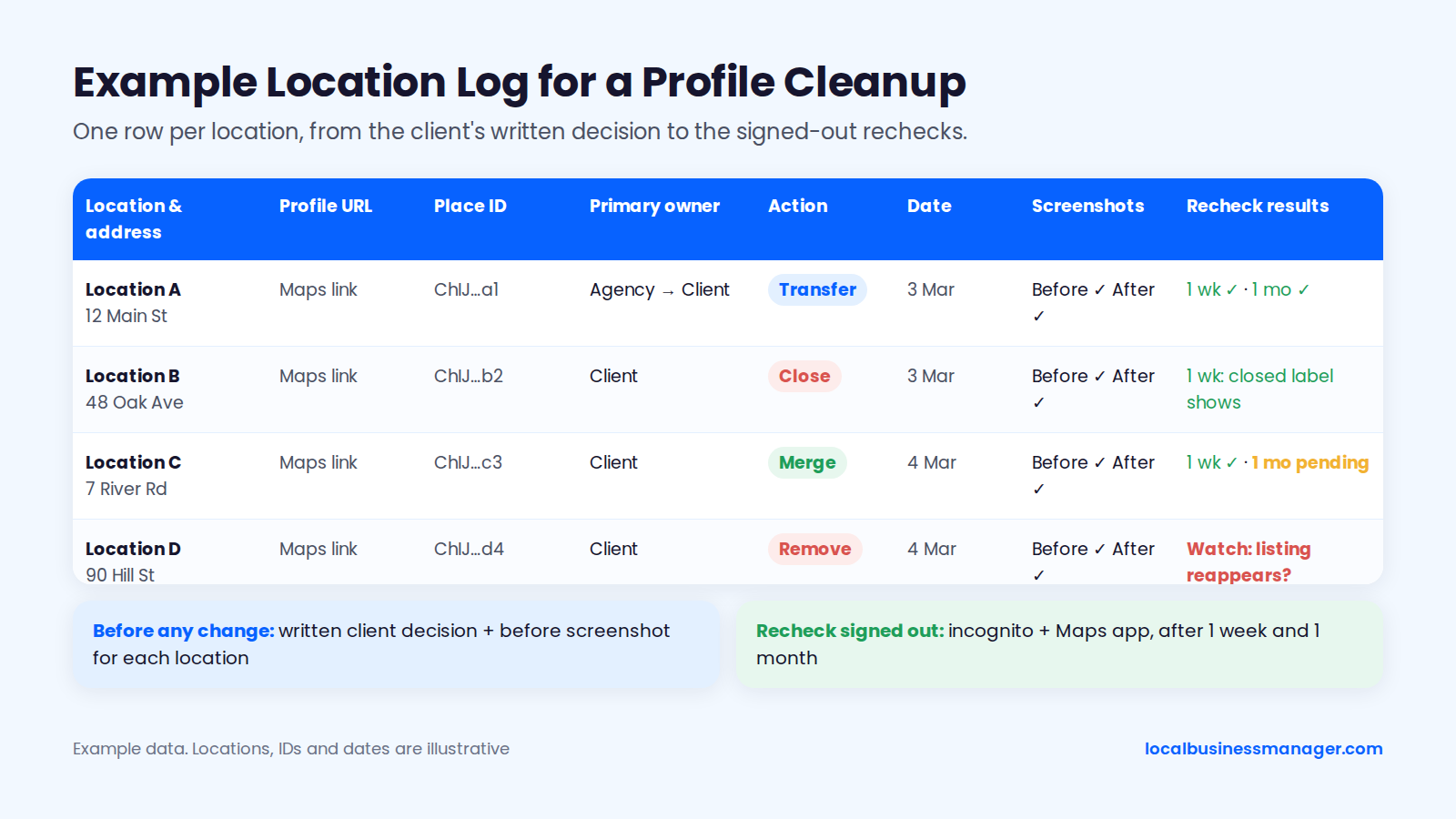
When a client leaves my agency, we remove ourselves from the profile.
Client Script
The first script is a template built from Google's documented facts about removal. The second follows my own advice when a client wants the profile gone because of bad reviews. Adjust the wording to your own voice.
For "just delete it":
- "I can remove us and our content from the profile, but Google has no delete button for the listing itself."
- "Your business could stay on Maps with its reviews, and nobody on our side would be replying to them or watching for changes other people make."
- "Tell me what you want the listing to do: show as closed, go to a new owner, move, or come down because it shouldn't exist. I'll use the option that does exactly that."
For "delete it so the bad reviews go away":
- "Deleting the profile won't remove those reviews. They stay on the listing, and we'd lose the ability to reply to them."
- "A new profile would be a duplicate of the old one, and it would start from zero reviews."
- "What I recommend instead: we reply to every review, flag the ones that break Google's policies, and ask every customer for a review the same way, so new reviews bring the rating back up."
After Removal: Check It Stuck
Check every change from a clean session, because what you see while signed in as a manager isn't what customers see:
- Search the business name in an incognito window, and again in the Maps app while signed out.
- Confirm the closed label, merge or removal shows as expected.
- Recheck after 1 week and again after 1 month, and add the results to the location log.
- Watch for the listing reappearing, or being claimed by someone else.
- Remember that Google offers no ownership lock, and verification doesn't stop other people's suggested edits.
On profiles I manage, I check weekly for edits to the name, attributes, services and other fields, whether Google or someone else made them. A listing you've handed back or left unmanaged gets no such check, so make sure the client knows that before you leave.
FAQs
These 4 questions come up after removals and handovers: deleting photos, agency access, deleted Google accounts and attorneys who leave a firm.
Can I Delete Photos From My Business Profile Without Deleting the Profile?
Yes. You can delete a photo or video you added from the Photos section of your Business Profile without removing the profile. Google's help page on managing Business Profile photos and videos gives these paths as of November 2026:
- Computer: search your business name and city on Google Search or Maps > Photos > select the photo > Delete > confirm Delete.
- Android (Google Maps app): Business > See Business Profile > Photos > select the photo > Delete (trash icon) > Delete.
- iPhone or iPad: Business > See Business Profile > Photos > select the photo > More > Delete this photo > OK.
Can My Agency Delete My Business Profile?
Only the primary owner can remove a Business Profile, so an agency added as a manager can't delete it. Google's help page on managing owners and managers says managers can't add or remove users or remove the profile, though they can remove themselves. The risk comes when an agency holds primary ownership. Google Product Expert guides and practitioner guides advise that the business keeps primary ownership and the agency is never the only owner.
Does Deleting My Google Account Delete My Business Profile?
We couldn't find Google documentation on this, so transfer primary ownership to another account before you delete yours. The public listing exists whether or not anyone manages it. Only the primary owner can transfer primary ownership, from More > Business Profile settings > People and access, and the account receiving it must have been on the profile for at least 7 days.
What Happens to the Profile of an Attorney Who Left the Firm?
If the departed attorney's practitioner profile is unverified, or the attorney gives you access, ask Business Profile support to move it to the firm; otherwise the attorney updates it to their new firm. That route comes from Joy Hawkins' advice as summarized by Mockingbird Marketing in 2020, and support channels have changed since, so treat it as practitioner guidance rather than Google policy. Sterling Sky also notes that reviews on a multi-attorney firm's practitioner profile can't be moved to the firm's profile.
Before You Click Remove
Write down what you want the listing to do before you touch any setting. Remove profile content and managers is the only option in this guide whose deletion Google says can't be recovered, and it doesn't even take the business off Maps. If you manage Business Profiles for clients, Local Business Manager is in early access for agencies: request early access.