How to Add a Manager to a Google Business Profile

If a client has ever offered to "just send over" their Google password, you know why this question matters. To add a manager to a Google Business Profile (formerly Google My Business), an owner opens the profile's More menu, goes to Business Profile settings > People and access > Add, enters the person's Google Account email, picks Manager and sends the invite. Manager is the right default for almost everyone outside the business. Below you'll find which role to give whom, fixes for a missing invite or Add button, how to transfer ownership without locking yourself out, and a client email agencies can copy.
How Do You Add a Manager to a Google Business Profile?
You add a manager, or share access with anyone else, by sending an invite from People and access, and only an owner or the primary owner can send it. Managers can't invite anyone. The same Owner-or-Manager invite works on a computer, on a phone and, for several profiles at once, through a business group in Business Profile Manager.
On a Computer (Google Search or Maps)
On a computer, adding a manager takes 8 steps:
- Sign in to the Google Account that is an owner or the primary owner of the profile.
- Search for your business name on Google, or open the business in Google Maps.
- Click the three-dot menu (More) on your profile.
- Select Business Profile settings.
- Select People and access.
- Click Add.
- Enter the person's email address and, under Access, choose Manager (or Owner).
- Click Invite.
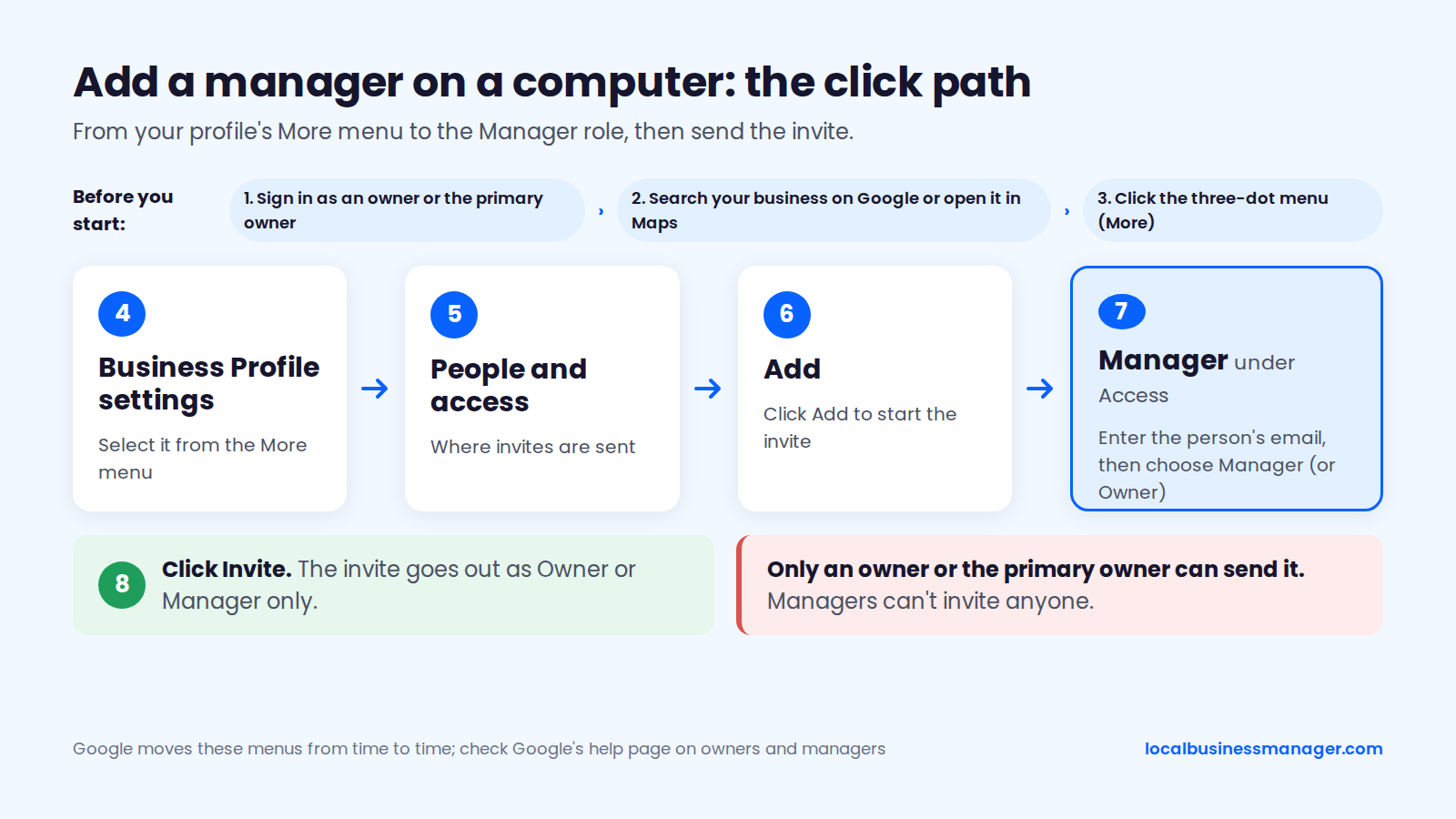
To add another owner, follow the same steps and choose Owner in step 7. An invite goes out as Owner or Manager only; primary ownership is transferred separately (see the transfer section below). Google moves these menus from time to time, so we re-check this click path every month against Google's help page on owners and managers.
On iPhone or Android (Google Maps App)
On a phone, Google's help page confirms the same menu: More > Business Profile settings > People and access > Add, then the email, the role and Invite. Google retired the standalone Google My Business app in July 2022. You now manage your profile in Google Search and the Google Maps app.
Google's help article on owners and managers also has an Android version, which describes the same owner and manager roles as the desktop version. An invite sent from a phone follows the same rules as one sent from a computer.
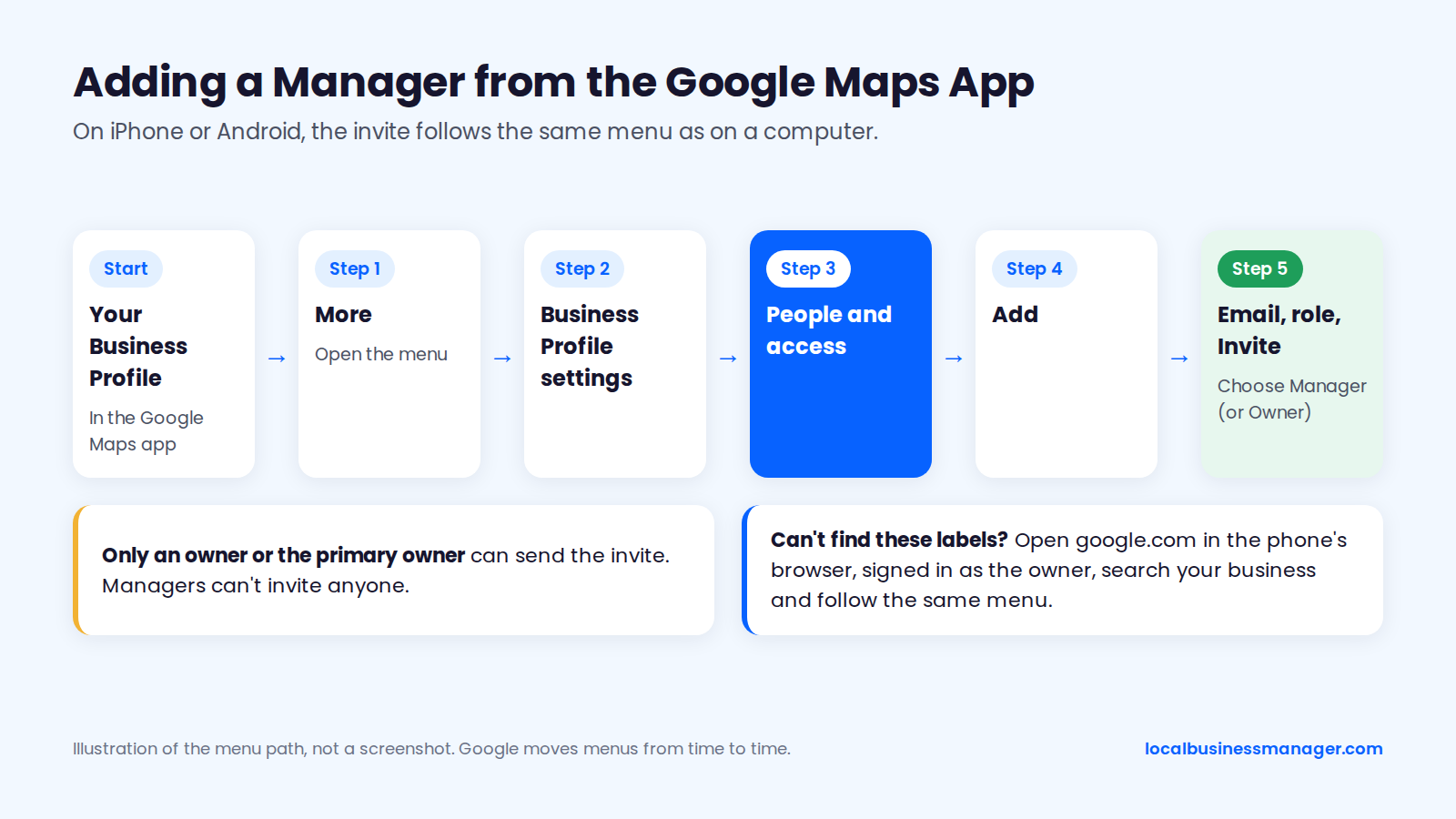
If you can't find these labels in the app, open google.com in the phone's browser while signed in to the owner's account, search your business and follow the same menu. Or switch to a computer and use the steps above.
In Business Profile Manager (Several Profiles or a Business Group)
Business Profile Manager, the dashboard at business.google.com, lets you give one person access to a whole business group at once. Google describes a business group, previously called a business account, as a shared folder of profiles. A person added to the group as owner or manager can access all current and future profiles placed in it.
- Sign in at business.google.com with an account that owns the business group.
- Open the business group, not a single profile.
- Add the person's Google Account email as a group owner or manager, and send the invite.
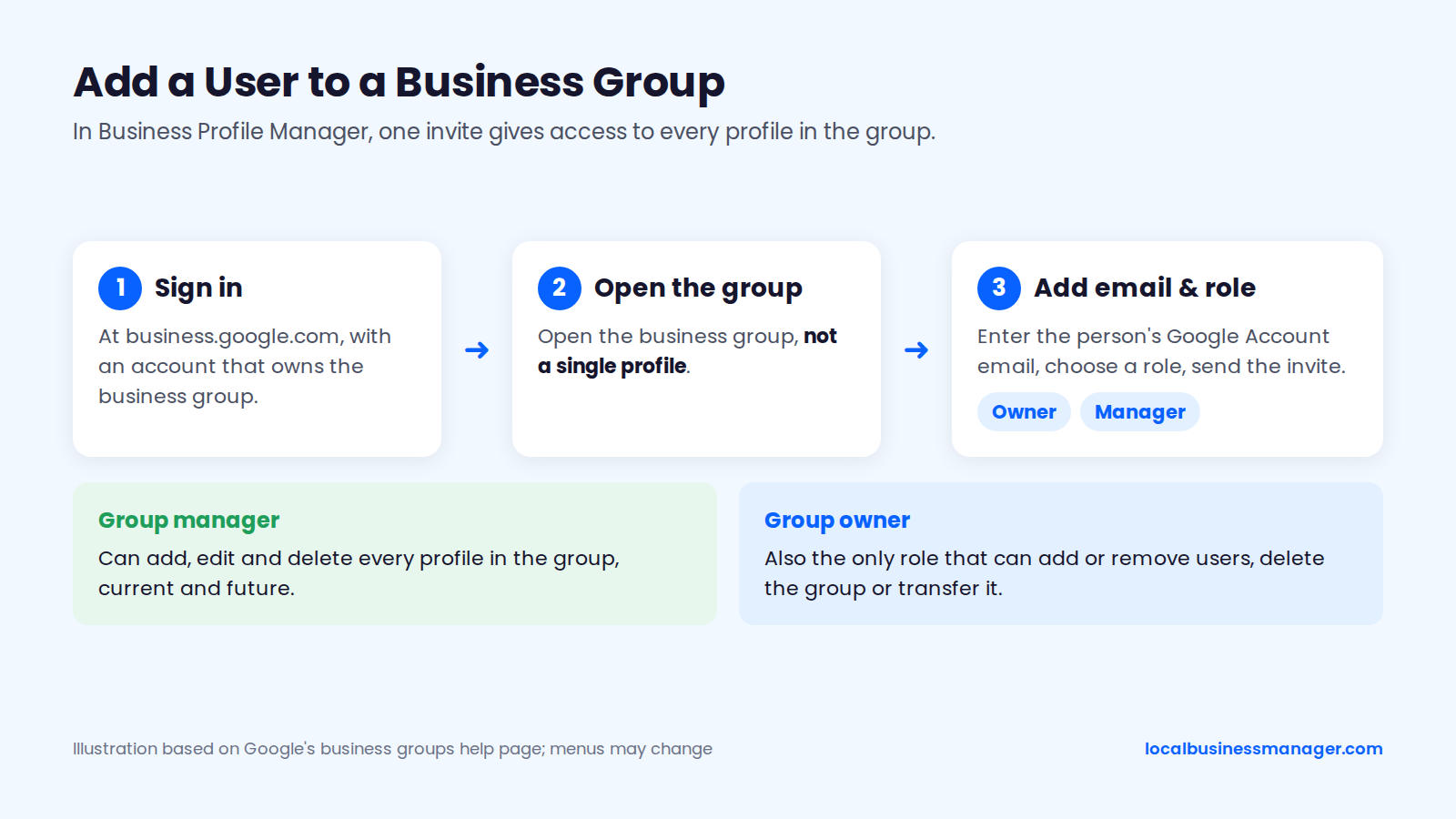
Business group roles reach further than profile roles. Google's help page on business group owners and managers says group managers can add, edit and delete every profile in the group. Only group owners can add or remove users, delete the group or transfer it, and a group's 1 primary owner must transfer that role before leaving.
Google's business groups help page sets out 2 ways to organize groups:
- One group: every profile shows in one dashboard, but users may get access to profiles they shouldn't manage.
- Several groups: access stays limited to each group, but each group needs its own spreadsheet import.
Individual profiles inside a group can still have their own owners and managers. For the wider setup, see our guide to managing Google Business Profiles for multiple locations.
Owner or Manager: Which Role Should You Give?
Give most people Manager and keep Owner inside the business. Google has 2 roles, owner and manager, and exactly 1 owner is the primary owner, the only person who can hand that role to someone else.
What a Manager Can and Can't Do
A manager can do almost everything an owner can, except add or remove users or remove the profile, according to Google's owners-and-managers help page. The same page notes that site managers are now called managers, so guides that list a separate "Site Manager" role are out of date.
Google's permissions table and help page give both owners and managers these permissions, among others:
- Edit main business info, like hours and address.
- Add cover photos, additional photos and logos.
- Add custom labels.
- Manage Google Ads account links.
- Download insights.
- Reply to reviews.
- Create and manage posts.
- Edit all URLs.
- Accept Google updates.
- Opt in or out of Bookings.
Google's help now calls the insights report Performance, but the permissions table still labels the row Download insights.
The roles differ on 5 access-control actions, based on Google's help pages for owners and managers, transferring primary ownership and removing a profile. The primary owner can do 4 of them outright and can remove themselves only after handing over primary ownership, while a manager can only remove themselves.
Action | Primary owner | Owner | Manager |
|---|---|---|---|
Transfer primary ownership | Yes | No | No |
Remove the profile | Yes | Google's pages disagree | No |
Add or remove users | Yes | Yes | No |
Change user roles | Yes | Yes | No |
Remove themselves | Only after transferring primary ownership | Yes | Yes |
On profile removal, Google's roles table says owners can remove a profile, while its removal help page says only primary owners can.
Primary Owner vs Owner
A Business Profile has exactly 1 primary owner and can have several owners, per Google's help page. The primary owner is the only person who can transfer primary ownership, and can't leave the profile without first handing that role to someone else.
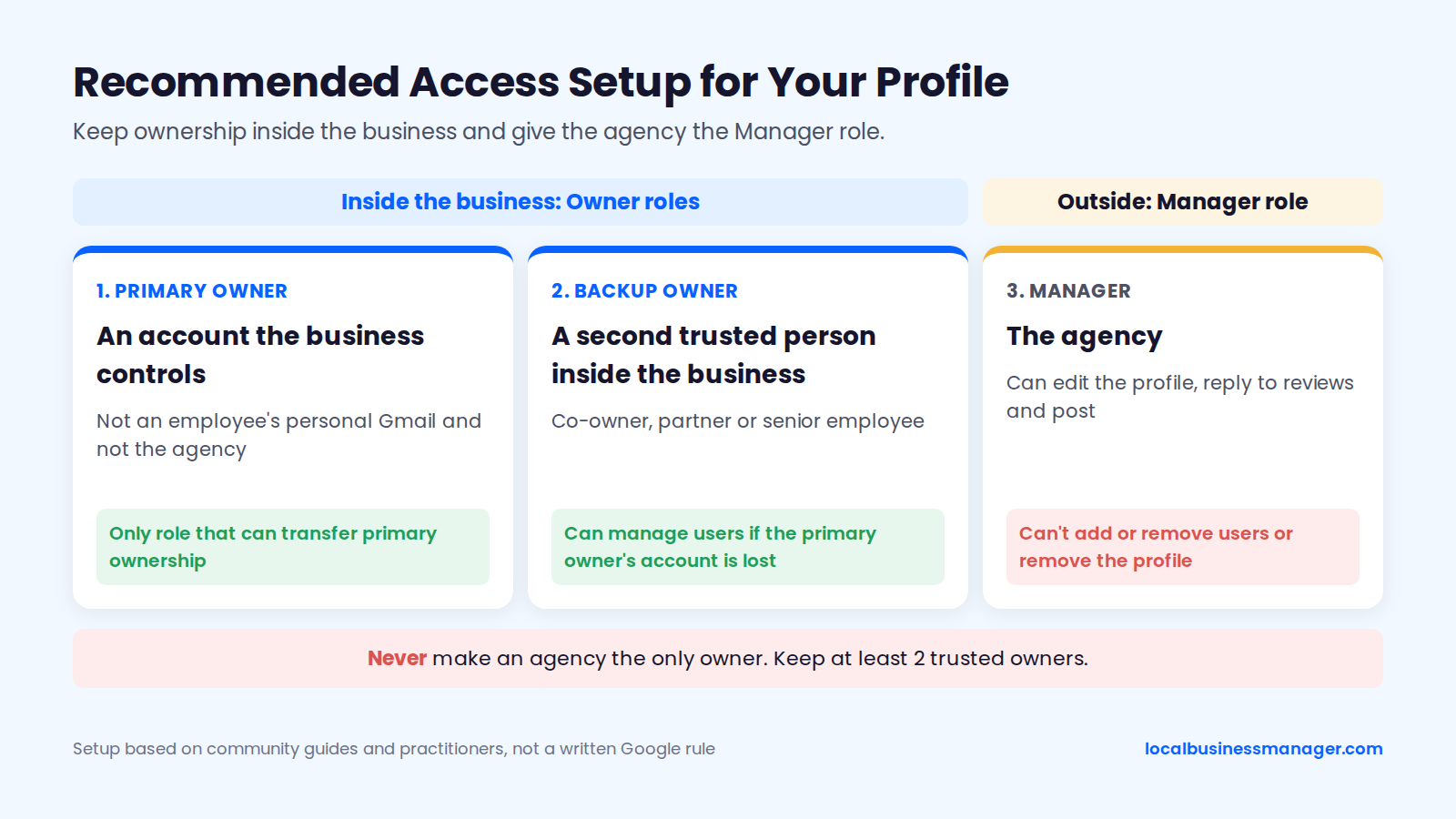
The recommended setup comes from community guides and practitioners, not a written Google rule. A volunteer-written Google Community guide on ownership security says never to make an agency the only owner and to keep at least 2 trusted owners, and Sterling Sky recommends that the business owner stay primary owner on a domain-based email, with agencies as managers. Together, that gives 3 roles to fill:
- Primary owner: an account the business controls, not an employee's personal Gmail and not the agency.
- Backup owner: a second trusted person inside the business.
- Manager: the agency.
Which Role to Give Each Person
Of 7 common people who need access, listed here from highest access to lowest, only 2 should normally hold Owner or primary owner: the business owner and a trusted second person inside the business. A buyer becomes an owner only on the way to taking over.
Person | Recommended role | Why |
|---|---|---|
Business owner or founder | Primary owner | Only the primary owner can transfer ownership, so control stays with the business |
Co-owner, partner or senior employee | Owner | A backup who can manage users if the primary owner's account is lost |
Buyer of the business | Owner, then primary owner | Needs 7 days on the profile before primary ownership can move to them |
Office or practice manager | Manager | Handles edits, posts and reviews without control over users |
Marketing agency | Manager | Google's ownership guidelines ask representatives to let the owner own the profile and add them as managers |
Freelancer or web designer | Manager | Simple to remove when the project ends |
Temporary contractor or seasonal staff | Manager | Remove on their last day |
Google's business eligibility and ownership guidelines set the rules for agencies. Authorized representatives must have the owner's express consent and must transfer ownership to the owner immediately when asked.
Where possible, Google wants representatives to have the owner own the profile and add them as managers. Breaking these rules can lead to profile or account suspension.
Practitioners add 2 points that back the Manager default:
- Sterling Sky ties suspensions to owner accounts. Sterling Sky reports that when an owner's Google Account is restricted, every profile it owns is suspended, while a suspended manager account leaves the profiles alone. That's a practitioner observation, not a Google statement, and Search Engine Journal (2024) disagrees, listing a suspended manager account as a common cause of profile suspensions.
- Owner access needs a reason. The Google Community guide on ownership security and the agency Steady Demand both say an agency needs Owner only when the engagement makes it responsible for managing users, answering ownership requests or protecting against hijacking.
In my own practice, the client is the primary owner and the agency is added as a manager. A manager can edit the profile, reply to reviews and post, which is the work you're hired to do.
What Does the Invited Person Need to Do?
The invited person accepts the invite from the email Google sends, while signed in to the exact Google Account that was invited. Google says invited users can accept and become users right away. Check these 6 points if an invite stalls:
- The owner hears back. If the invite is accepted, the owner gets an email.
- One Google Account per person. Each user needs their own Google Account, so nobody shares a password.
- Google Groups can't be added. A Google Groups address can't be made an owner or manager. Invite each person's own Google Account.
- Pending invites can be cancelled. To cancel an invite, the owner finds the user under PENDING on the People and access page and selects Cancel invitation.
- No published expiry. Google's help page doesn't give an expiry period for pending invites. If one has sat pending for days, cancel it, check the address and invite again.
- Everyone can see everyone. Users on the profile can see the names and email addresses of the owners and managers.
If the invited person accepts but can't see the profile, the first thing to check is which Google Account is signed in to that browser or app.
Why Can't I Add a Manager? Fixes for Common Problems
The 11 problems below come down to 4 things: the wrong account or role, a bad email address, Google's 7-day limit for new users, or a restricted Google Account. Start at the top of the table and work down.
Symptom | Likely cause | Fix |
|---|---|---|
No People and access menu | Signed in to the wrong Google Account, or the account has no access to the profile | Switch to the account that holds access, or ask an owner to invite you |
People and access shows, but no Add button | The account has manager access, and managers can't add users | Switch to the owner account, or ask an owner to send the invite |
Invite never arrived | Typo in the address, or the email went to spam | Check spam, then check the address under PENDING; if it's wrong, cancel the invitation and invite the correct one |
Email address rejected | It's a Google Groups address | Invite each person's own Google Account |
Invitee accepted but sees no profile | Signed in to a different Google Account | Switch to the invited account in the browser or app |
Can't remove a user | The account has manager access, or it's in its first 7 days on the profile | Use an owner account, or wait until 7 days have passed |
Can't delete the profile | You aren't the primary owner, or you're in your first 7 days on the profile | Ask the primary owner, or wait until 7 days have passed |
Can't make someone primary owner | You aren't the primary owner | Ask the primary owner to make the change |
Primary ownership transfer returns an error | The recipient is in their first 7 days | Retry once their 7 days are up |
Can't remove yourself | You're the primary owner | Transfer primary ownership first, then use Stop managing |
Access lost after a Google Account restriction | Google can restrict access when an account is disabled, suspended or deleted | Appeal the account restriction, then appeal to reinstate the profile, then try again |
The spam and typo checks are practical steps, not Google statements. The profile-deletion row follows Google's removal help page, which reserves removal for primary owners. The last row comes from Google's policy overview and its help page on fixing suspended or disabled profiles, which says to appeal an account restriction first and, once it's lifted, appeal to get the Business Profile reinstated. Our guide to a suspended Google Business Profile covers the profile side of that process.
How Do You Change a Role or Remove a Manager?
Owners change roles and remove users from the same People and access page. Managers can't change anyone's role or remove other users, but they can remove themselves with Stop managing.
Change Someone's Role
Only owners can change a user's role; managers can't change anyone's, including their own. The path is short:
- Open Business Profile settings > People and access.
- Select the user.
- Click Edit next to Access.
- Choose the new role and click Save.
Changing a role is also the cleanest fix when an agency was given Owner by mistake: move it down to Manager without removing it, so its work carries on uninterrupted. Making someone primary owner uses the same Edit screen, but it counts as a transfer, covered in the next section.
Remove a User or Yourself
Only owners can remove other owners and managers, according to Google's owners-and-managers help page. An owner opens People and access, selects the user and removes them, and Google emails the removed user.
Managers and non-primary owners can leave a profile on their own in 4 steps:
- Open Business Profile settings > People and access.
- Select your own name.
- Click Stop managing.
- Confirm.
When you leave this way, Google says your past review replies and posts stay on the profile. A primary owner can't remove themselves until they transfer primary ownership to someone else.
Remove Business Profile is a different option entirely. Google says it removes the profile's content and all of its managers, so never use it to take one person off.
How Do You Transfer Primary Ownership Without Losing Access?
You transfer primary ownership by adding the new person first, waiting 7 days after they're on the profile, then promoting them. Getting that order wrong is how owners lock themselves out, and the same wait is why a business sale needs the buyer added at least a week ahead.
Transfer Steps in Order
Primary ownership moves in 6 steps. Any owner can do step 1; only the current primary owner can do steps 4 and 5:
- An owner adds the new person as Owner or Manager.
- The new person accepts the invite from the invited Google Account.
- At least 7 days pass.
- The primary owner opens People and access, selects the new person and clicks Edit next to Access.
- The primary owner chooses Primary owner and clicks Save.
- After the transfer, the former primary owner checks People and access to confirm their new role, then decides whether to stay on as a backup or remove themselves.
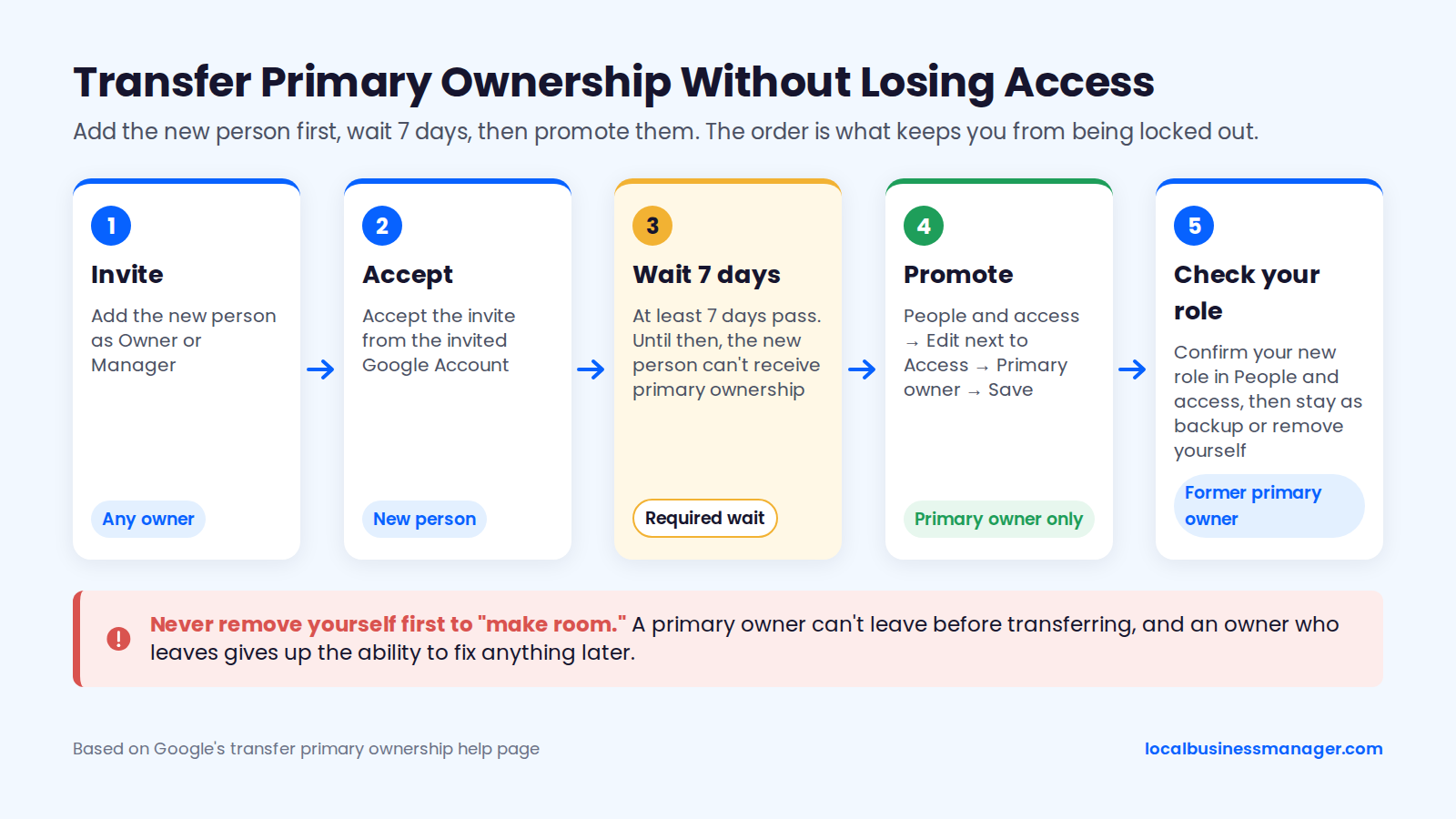
The full procedure is on Google's transfer primary ownership help page. Never remove yourself first to "make room" for the new owner. A primary owner can't leave before transferring, and an owner who leaves gives up the ability to fix anything later.
The 7-Day Rule for New Owners and Managers
New owners and managers must wait 7 days before they can use every feature, under Google's help documentation. During those 7 days they can't do 3 things:
- Delete or undelete the profile.
- Remove other users.
- Receive or transfer primary ownership.
A new user who deletes their Google Account within that window is removed from the profile. Search Engine Land reported in 2022 that Google had added the waiting period to its help documents.
The 7-day rule also works in your favor. If someone you don't recognize appears as an owner, they can't remove you or take primary ownership in their first week, which gives you time to find and remove them.
Handing Over a Profile When You Sell the Business
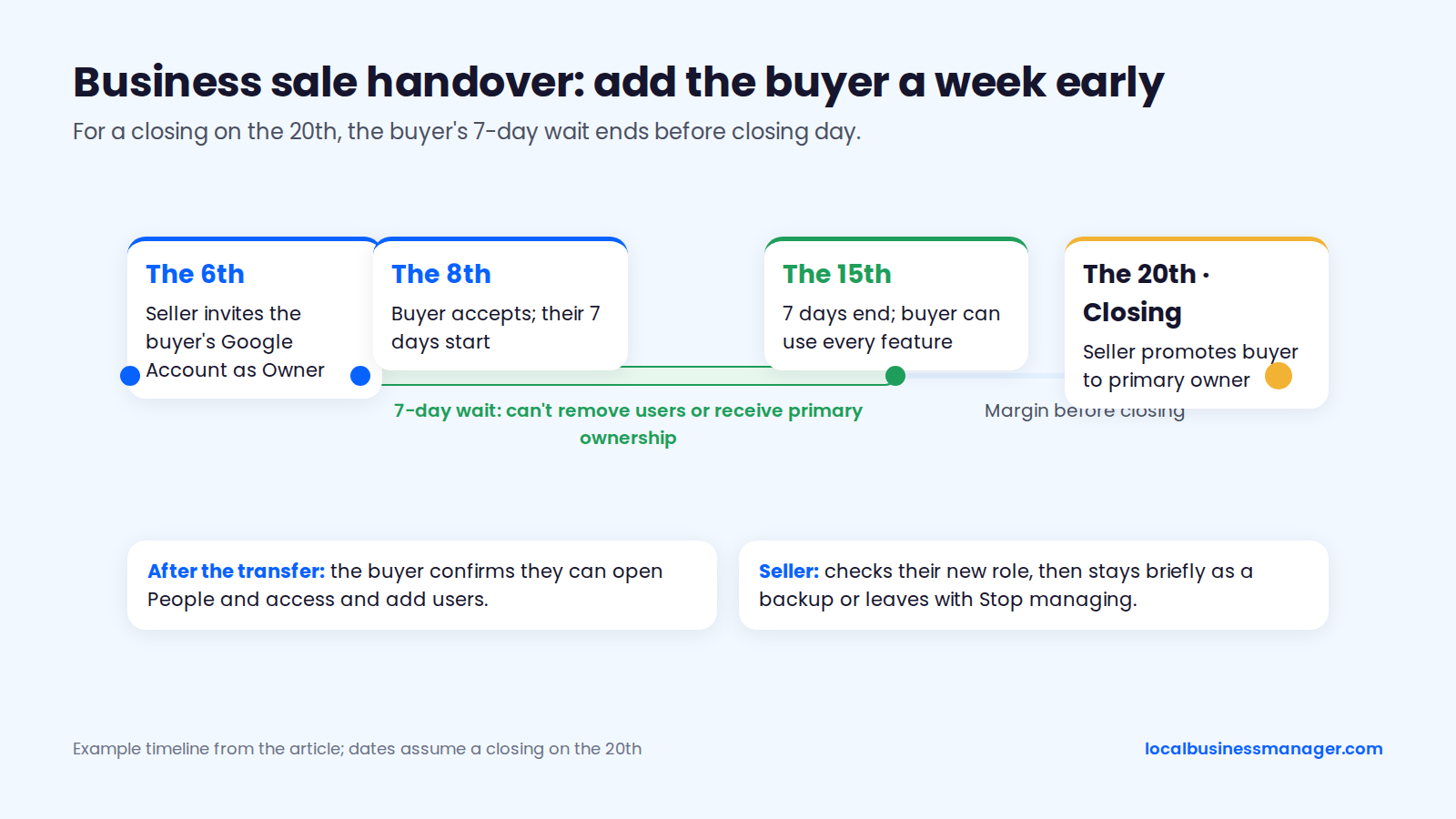
When you sell a business, add the buyer as an owner at least 7 days before closing so primary ownership can move on closing day. For a closing on the 20th of the month, the timeline runs like this:
- On the 6th, the seller invites the buyer's Google Account as Owner.
- On the 8th, the buyer accepts. Their 7 days run out on the 15th, leaving a margin before closing.
- On the 20th, the seller promotes the buyer to primary owner.
- The buyer confirms they can open People and access and add users.
- The seller checks People and access to confirm their new role, then decides whether to stay on briefly as a backup or leave with Stop managing.
If the seller's agency or a former employee holds primary ownership, sort that out first (next section), because only the current primary owner can promote the buyer.
What If You Don't Have Access to the Profile?
If you don't have access, ask the current owner to invite you, and if nobody answers, use Google's Request access form. Only do either for a business you actually represent, because Google's ownership guidelines require the owner's express consent. An ex-agency or ex-employee holding the profile calls for both routes at once.
Ask the Current Owner
Asking the current owner is the fastest route, because an invite takes effect as soon as it's accepted. Start inside the business: the owner, an office manager, whoever set up the website, or the previous agency may hold owner access.
Send them the computer steps from the top of this page, the exact email address to invite and the role you need (Manager). If they see People and access but no Add button, they have manager access only; if they don't see People and access at all, they're signed in to the wrong account. Either way, they need to find whoever holds owner access.
Use Google's Request Access Form
Google's Request access form asks the current owner to grant you access, and the owner has 3 days to respond, according to Google's help page on requesting ownership. The process has 4 steps:
- Go to business.google.com/add and find the business.
- Select Request access, then fill out and submit the form.
- Watch for the owner's response. Google emails the current owner.
- If they deny it, you get a rejection email, and you can suggest edits and try to appeal. If they don't respond, open the confirmation email, select View request, then Verify if it's offered.
Older guides give the owner 7 days; Google's current page says 3. Google also tells service-area businesses with no storefront to contact support and choose "Transfer ownership of listing".
Ownership isn't granted automatically when the owner stays silent, a Google Community guide by a Product Expert warns. Older Local Search Forum threads report cases where no Verify option appeared, often because the owner's email was dead, and the request then had to go to Google support. Google publishes no timeline for appeals or support-handled transfers.
When an Ex-Agency or Ex-Employee Holds Primary Ownership
When a former agency or employee holds primary ownership, ask them for access in writing and start Google's formal request at the same time, as the Product Expert's community guide advises. Keep the request's confirmation email, because it may become your route to verifying. In your written request, point out that Google's guidelines require representatives to transfer ownership to the business owner immediately when asked.
In my experience, how long recovery takes depends on the person holding the profile: sometimes access comes back immediately, and sometimes it takes a week or two.
How Should an Agency Set Up Client Access?
An agency should leave the client as primary owner and get itself invited as a manager. The organization account, client email, onboarding checklist and offboarding routine below all assume the client keeps ownership.
Use an Organization Account, Not Shared Logins
Google's agency documentation says third-party agencies should use a single organization account to manage all of their profile groups. Staff join the organization as owners or members with their own Google Accounts.
Those staff accounts can't already own or manage any locations directly, and an organization account can't directly own a profile. A client invites the agency's business group by its group ID, or the agency requests access through Business Profile Manager.
Sterling Sky adds 3 practical points:
- The agency dashboard needs a domain-based email, not Gmail.
- Clients see your business group's name, so name it clearly.
- Request Manager, not Owner. An Owner request in the dashboard can make the agency primary owner and move everyone else down to manager.
My practice matches this: the agency accepts client invites through one agency organization account, not through personal logins or a shared one.
The suspension risk is debated. A 2025 Local Search Forum thread reports an agency whose client profiles were all suspended days after it switched to an agency account, while Sterling Sky uses one and finds it easier to manage. No published data settles it, and the 2026 practitioner guides agree only that each person gets named access and nobody shares a password.
The Email to Send a Client Asking for Access
This template asks for Manager access, tells the client they keep ownership and gives the exact steps. Replace the bracketed parts.
Subject: Access to your Google Business Profile for [Agency name]
>
Hi [Client name],
>
To start work on your Google Business Profile, we need Manager access. You stay the owner, nobody needs to share a password, and you can remove us at any time.
>
1. Sign in to the Google Account that owns your Business Profile.
2. Search for [Business name] on Google.
3. Click the three-dot menu (More) on your profile, then Business Profile settings.
4. Click People and access, then Add.
5. Enter [agency email address].
6. Under Access, choose Manager (not Owner), then click Invite.
>
If you don't see People and access, you're probably signed in to a different Google Account. If you see it but there's no Add button, that account has manager access only. Either way, reply to this email and we'll help you find who holds ownership.
>
Thanks,
[Your name], [Agency name]
If your agency uses an organization account, replace steps 4 to 6 with your business group ID and Google's business group invite.
Onboarding Checklist
Run these 8 checks on every new client before you change anything on the profile:
- Open People and access and record every owner, manager and pending invite.
- Confirm who the primary owner is, and that it's an account the business controls (not an employee's personal Gmail, a former agency or a web designer).
- Confirm at least 1 backup owner inside the business.
- Confirm the agency was invited as Manager and accepted from the agency's own account.
- Ask the client about every user you don't recognize. The client, as owner, removes anyone who shouldn't be there, because managers can't remove users.
- If a freelancer or vendor works on the profile for you, add them to your agency's organization account with their own Google Account, so nobody shares a login and no unknown manager appears on the client's profile.
- Turn on 2-Step Verification on every account with access, as practitioner guides recommend.
- For multi-location clients, decide between one business group, several groups or per-profile invites, using Google's tradeoff above.
When the client comes from another agency, access is rarely the only cleanup. Profiles I've inherited from previous agencies have come with 4 problems worth budgeting time for once you're in:
- Duplicate listings.
- Bad naming.
- No review campaigns.
- No services or products set up on the profile.
Offboarding and Access Checks
When an agency relationship ends, the agency leaves in 3 steps:
- Confirm the client can sign in and has working owner access without you.
- If your agency holds primary ownership, transfer it to the client. Plan for about a week because of the 7-day rule.
- Remove yourself with Stop managing. Never use Remove Business Profile, which removes the profile's content and all of its managers.
Google sets no frequency for reviewing People and access. The Google Community guide on ownership security, which is volunteer-written and not official policy, says monthly. Agency and practitioner guides range from every 30 days to every 6 months, and none backs its number with data.
Pick a fixed date and keep it; monthly matches the community guide. Each access review covers 5 checks:
- Every owner is someone the business can name.
- Former employees, freelancers and agencies are removed.
- No agency is the only owner.
- The primary owner's email account is still active.
- No pending invite is sitting unaccepted.
An access review won't catch changes to the profile itself. For that, my own routine is a weekly check of each client profile for edits to the name, attributes, services and other fields.
Frequently Asked Questions
Google's help pages answer 3 common follow-ups only partly: they publish no user limit, ask only for a Google Account per person, and don't address verification status before adding users.
Can Multiple People Manage a Google Business Profile?
Yes. A profile can have several owners and managers, and Google's help page doesn't publish a maximum number of either. Guides that state "no limit" as fact don't cite a Google source for it, so treat the missing cap as just that. The limit that matters in practice is control: every owner can add or remove users, and every manager can change the hours, photos and posts. Keep the list to people the business can name.
Does the Person I Invite Need a Gmail Address?
Google doesn't ask for Gmail specifically; its help page says each user needs their own Google Account. Send the invite to the exact address the person signs in with, because it only works from that account. Agencies need to plan one step further: Sterling Sky notes that Google's agency dashboard requires a domain-based email rather than Gmail, so an agency setting up an organization account needs a Google Account on its own domain.
Can I Add a Manager if My Profile Isn't Verified?
Google's owners-and-managers help page doesn't say whether the profile must be verified before you add users. The same page says only owners can add users, and Google's policy overview says a suspended profile must be reinstated before new content is accepted. If the Add option is missing, run through the account and role checks in the troubleshooting table first, and see our guide to verifying a Google Business Profile if verification is still pending.
Check People and Access This Week
Open People and access on every profile you look after this week. Make sure the primary owner is an account the business controls, with a second owner behind it. That check decides whether a departing employee or agency is a quick role change or a Request access form with a 3-day wait. If you run an agency and want one place for local SEO work across your clients, join Local Business Manager early access.