Google Business Profile Verification: Every Method, and What to Do When It Fails

Google picks your verification method for you. The fastest way through any of them is to prepare the exact proof that method asks for before you press a single button.
This guide walks through every Google Business Profile verification method step by step (formerly Google My Business, so you may know it as GMB verification). You'll get a video shot plan for storefronts, service-area businesses and office suites, and a playbook for rejected videos, missing codes and profiles someone else controls. If you're an agency, there's a section on verifying client profiles and a message you can send the client today.
What Does Verifying a Google Business Profile Actually Do?
Verifying a Google Business Profile lets your edits to the business information go live, lets you interact with customers, and gives you control of the profile, according to Google's verification help page. Google's bulk verification help page adds that only business owners or authorized representatives may verify a business.
Google's verification help pages don't describe a public verified badge for Business Profiles. Verification status is visible to the people who manage the profile, and verification itself is free, which is worth remembering when someone calls offering to sell it to you.
How to Check Whether Your Profile Is Verified
You check verification status by signing in with the account that owns or manages the profile, because searchers see no status at all. Look for these 3 signals:
- A "Get verified" prompt: the profile isn't verified yet.
- "Get verified" coming back after you finished a method: Google's verification help says this means Google couldn't fully verify the business, and you need to verify again.
- A pending or in-progress message: your submission is waiting for review.
If the profile's management tools load with no "Get verified" prompt and no pending message, the profile has no outstanding verification step.
How Do You Find, Claim or Add Your Business on Google Maps?
To verify a business on Google Maps, you first find it, claim the existing listing or add it if it's missing, then take the verification option Google offers. Google's verification help describes the same start: sign in, search for the business name and city, and select the method offered. The steps:
- Sign in at business.google.com with the Google account that should own the profile. For a client, that's the client's own account.
- Search for the business name and city.
- Claim the existing listing if the business already shows on Google Maps, instead of creating a second one. If someone else already verified it, use Request access (covered in the ownership section below).
- Add the business if it's missing, then select the verification method Google shows you.
Problems I've inherited from previous agencies include duplicate listings, bad naming, no review campaigns and no services or products set up on the profile. Search for the business before adding it so you don't create one of those duplicates yourself.
Which Verification Method Will Google Give You?
Google decides which verification methods a profile is offered, and you can't change them. Google's verification help page says the methods are set automatically. The sections below explain why you were asked for video and compare all 7 methods.
Why Google Asked You for Video
Google asked you for video because its system assigns methods based on factors such as business type, publicly available information, region and business hours, and video is what it assigned your profile. No setting swaps video for a postcard.
In practice, that means 4 things:
- You have to use it. Sterling Sky says that if Google offers video verification, you have to use it.
- Switching to a service-area business won't remove it. Sterling Sky reports the video requirement stays after the switch.
- A postcard may not be offered at all, so ignore guides that call the postcard the "most common" method.
- Don't stage anything. Use the shot plans below, and if the business genuinely can't show what Google asks for, go to the failure section for the support route.
Every Verification Method Compared
The 7 routes Google describes split into 3 groups: 2 methods (video and live call) ask you to show the business on camera, 3 (postcard, phone or text, email) depend on a code reaching someone at the business, and 2 (instant and bulk) are eligibility-based routes you can't simply choose.
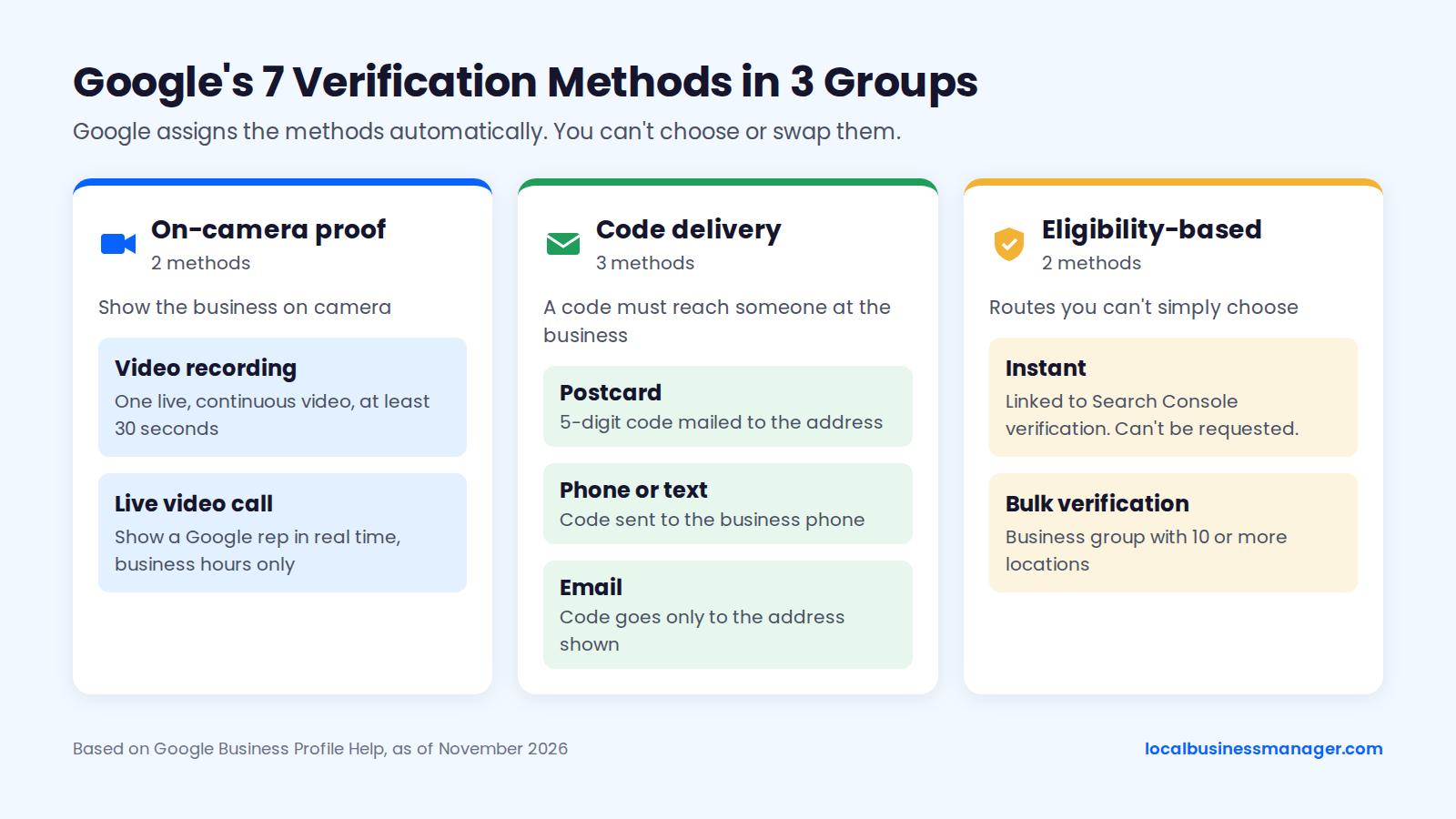
The table follows the same 3 groups, on-camera methods first. It's based on Google Business Profile Help as of November 2026; Google's verification help says reviews take up to 5 business days after you finish the steps and, on rare occasions, longer.
Method | What you do | Where it happens | Typical wait or limit | Common failure point | Source |
|---|---|---|---|---|---|
Video recording | Record one live, continuous video of location, business and management | Phone, inside the Business Profile flow | At least 30 seconds of footage | No signage, street number or proof of management on camera | Google help |
Live video call | Show a Google rep the business in real time | Text chat, then video call, at the business | Business hours only | Long queues and dropped chats | Google help; forum reports |
Postcard | Enter the 5-digit code mailed to the business address | Mail at the business address | Most arrive within 14 days; code expires after 30 days | Editing name, address or category while waiting | Google help |
Phone or text | Enter the code Google calls or texts | The business phone | Repeat requests can use up the method | Phone menus (IVR), voicemail, or texts sent to a landline | Google help; practitioner guide |
Enter the code Google emails | The address shown on the verification screen | Code goes only to the address shown | Nobody at the business can open that inbox | Google help; practitioner guide | |
Instant | Nothing; Google verifies if eligible | Linked to Search Console website verification | Can't be requested | Business isn't eligible | Google help |
Bulk verification | Upload locations by spreadsheet, then request verification | A business group in Business Profile | 10 or more locations required | Email without the business's own domain (extra steps, longer wait) | Google help |
How to Verify With a Video Recording
Video recording verification asks for one live, continuous phone video that proves where the business is, that it exists and that you manage it. The sections below cover Google's requirements, what the video has to prove, a shot plan for each business type, and the recording steps in order.
Google's Video Verification Requirements
Google's video verification help page sets 5 requirements for the recording:
- One continuous, unedited recording, with no cuts or pauses.
- Recorded live inside the Business Profile flow. You can't upload a video you made earlier and edited.
- At least 30 seconds long. Google gives no maximum, so the 2-minute cap repeated in many guides isn't on Google's page. A Google Business Profile Community guide by Product Experts suggests staying under 5 minutes.
- Recorded and uploaded from a mobile device, not a desktop.
- No sensitive information, such as bank, tax or ID numbers.
The signage in the video must match the name on the profile. Search Engine Journal reported in 2024 that a Google employee reviews each verification video by hand, so film for a stranger who has never seen the business.
Two practitioner tips sit outside Google's rules. Odd Dog, a local SEO agency, suggests setting the phone camera to 720p HD at 30fps to keep the file small, though dropping much lower risks signs and street numbers the reviewer can't read. A Local Search Forum moderator advises keeping faces out of frame after a business failed twice.
What Your Video Has to Prove: Location, Existence, Management
Every verification video has to prove 3 things: where the business is, that it exists, and that you manage it. The evidence changes by business type.
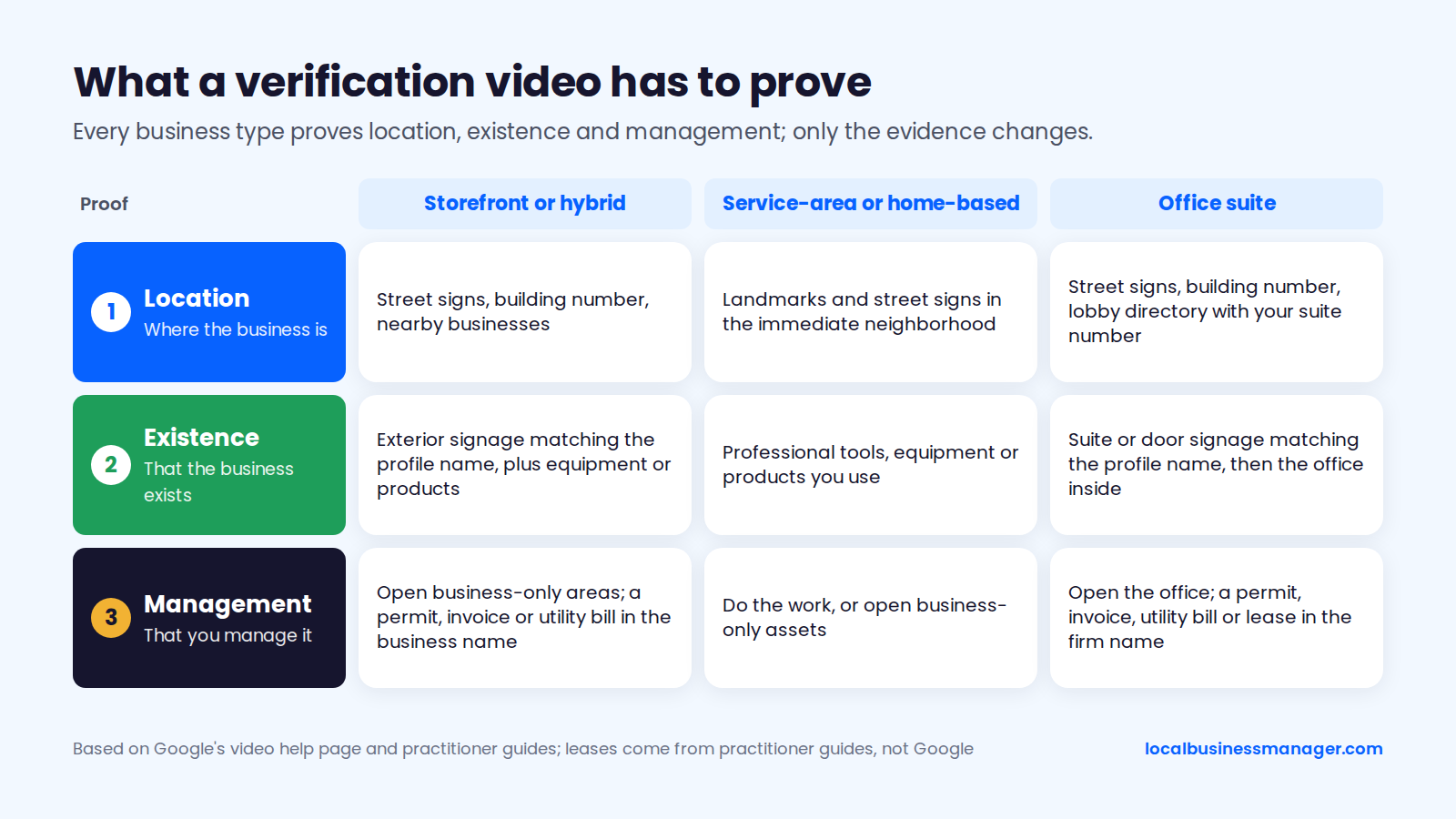
All 3 business types prove the same 3 things; only the evidence changes, and office suites rely on the lobby directory and suite signage. The table follows the order of Google's video help page. Directory listings and leases come from practitioner guides (Search Engine Journal, Sterling Sky and a law-firm marketing guide), not from Google.
Proof | Storefront or hybrid | Service-area or home-based | Office suite |
|---|---|---|---|
Location | Street signs, building number, nearby businesses | Landmarks and street signs in the immediate neighborhood | Street signs, building number, lobby directory with your suite number |
Existence | Exterior signage matching the profile name, plus equipment or products | Professional tools, equipment or products you use | Suite or door signage matching the profile name, then the office inside |
Management | Opening business-only areas; a permit, invoice or utility bill in the business name | Doing the work, or opening business-only assets | Opening the office; a permit, invoice, utility bill or lease in the firm name |
In my experience, the most common rejection is a video that doesn't show signage, the street number or other proof of where the business is.
What to Film at a Storefront or Hybrid Business
A storefront video should walk from the street to the inside of the business in one take. Film in this order:
- Street: a street sign and the building number.
- Neighbors: pan across nearby businesses so the reviewer can place you on the block.
- Signage: hold on the exterior sign. The name must match the profile name.
- Access: open the door, a back room or another business-only area.
- Inside: show equipment, products or the work area.
- Paperwork: show a business permit, invoice or utility bill in the business name, with account numbers and tax IDs kept out of frame.
A hybrid business serves customers at its address and also travels to them. It films the same plan, then adds the tools it takes on jobs. If it has a branded work vehicle, it opens that on camera too.
What to Film as a Service-Area or Home-Based Business
Google's video help page has separate rules for service-area businesses. A business run from home can verify its address by filming landmarks and signs in its immediate neighborhood. The full route looks like this:
- Neighborhood: street signs and landmarks near your base.
- Tools: the professional tools, equipment or products you use.
- Management: do part of the work with those tools, or open a business-only asset. Google's own example is unlocking a van with the business's branding; a branded vehicle is one example of proof, and Google doesn't require one.
- Documents: invoices, a business registration or utility bills that match the profile name (Google Business Profile Community guide). A Local Search Forum responder also suggests licenses and certifications.
- One take: record the whole route in one continuous video.
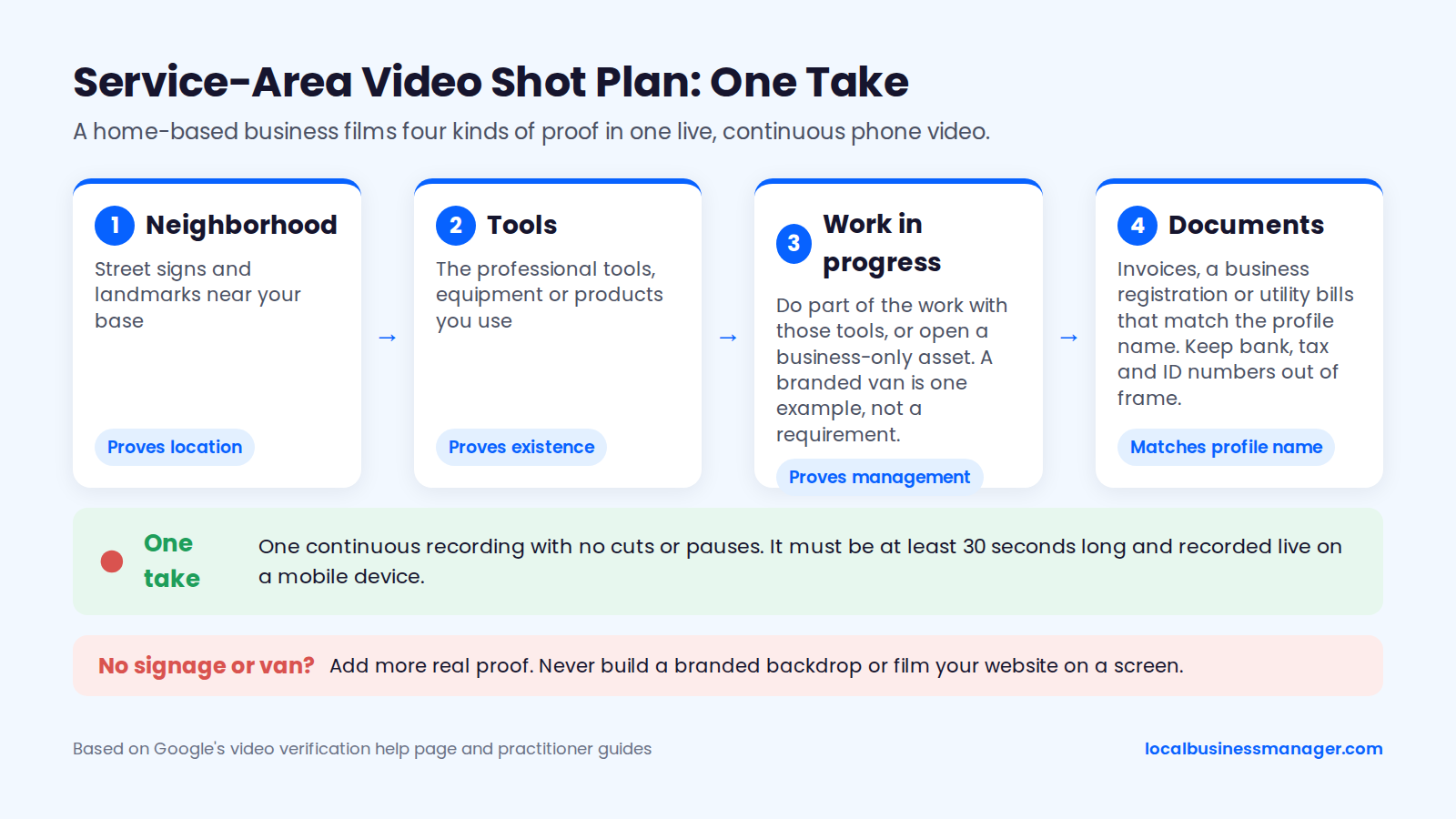
When a business has no signage and no branded van, Google doesn't say what passes, and no published test compares passing and failing videos. Fill the gap with more real proof: the neighborhood, the tools, the work itself and documents in the business name.
Never build a branded backdrop or film your website on a screen. Google's examples (tools, the work itself, documents) are evidence of a working business, and a staged scene risks misrepresenting it. Hiding the address and setting service areas is covered in our service-area business guide.
What to Film in an Office Suite or Shared Building
A suite video has to connect the street, the building directory and the office door in one continuous walk. Walk it in this order:
- Street: street signs and the building number.
- Directory: walk into the lobby and point at the firm's listing and suite number, as Search Engine Journal advises.
- Suite: film the suite number plate and the firm's door signage.
- Office: open the door and show the staffed workspace.
- Paperwork: Google's examples are a business permit, invoice or utility bill in the business name. A 2026 law-firm marketing guide also suggests a state-bar certificate or the lease.
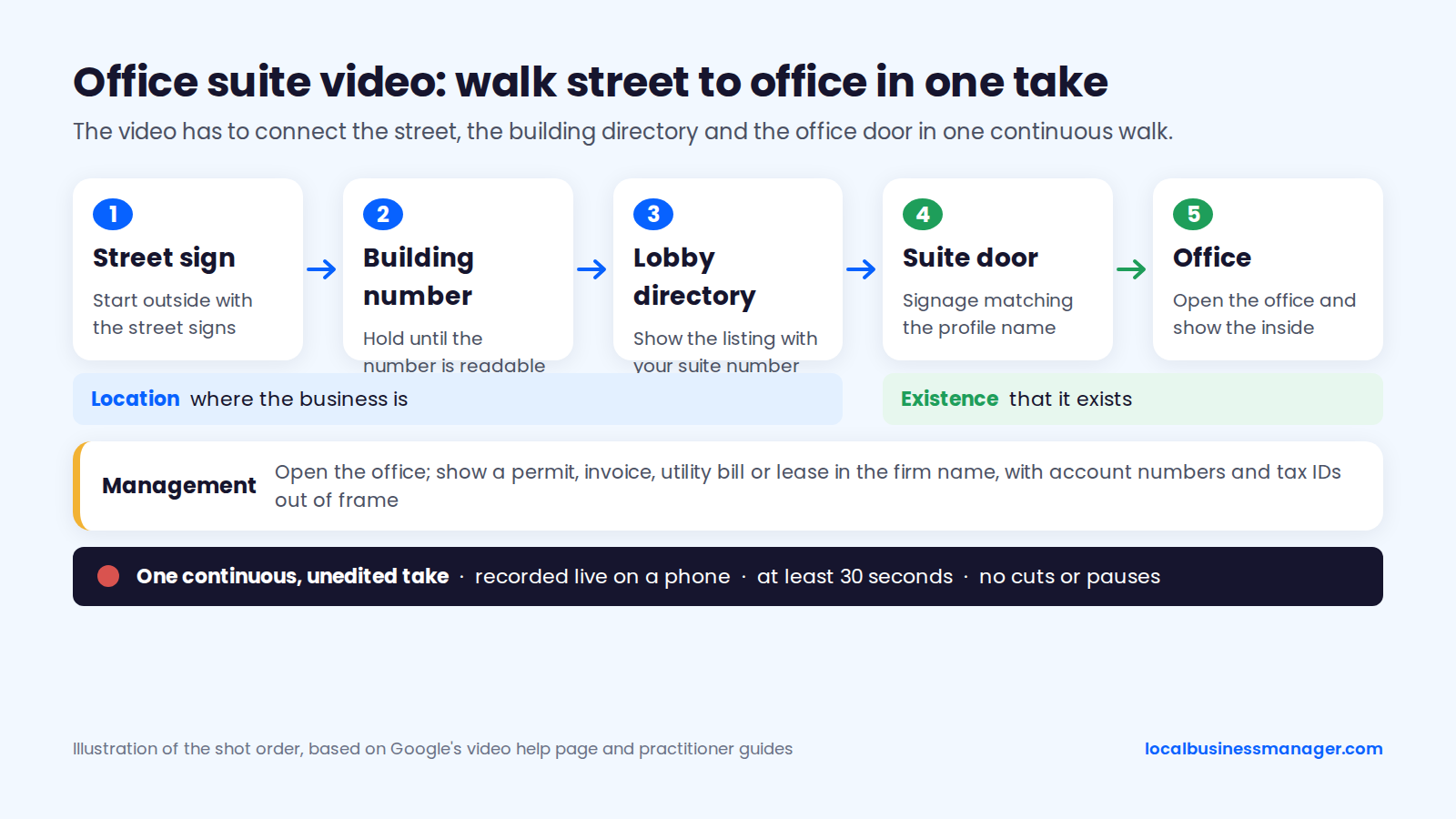
Sterling Sky treats a permanent directory listing that shows your suite number as acceptable signage. No Google page says a lobby listing alone is enough, so if the firm's name is also on the suite door, film both.
Google's guidelines for representing your business put suite numbers in Address Line 2. Sterling Sky warns that made-up or extended suites ("Suite 123-155", "PMB") look like mailbox stores.
Recording and Uploading, Step by Step
The recording happens inside Google's verification flow, and Google's button labels change from time to time, so follow the wording on your screen. The flow runs in 7 steps:
- Walk the route first without recording, and put the documents where you'll pass them.
- On a phone, sign in with the Google account that owns or manages the profile.
- Open the profile, select Get verified, and choose video recording if it's offered.
- Allow camera, microphone and location access when the app asks.
- Record in one take, at least 30 seconds, following your shot plan.
- Upload on a strong connection.
- Wait for Google's review. If a "Review issues" notice appears, go to the failure section below.
How Does Live Video Call Verification Work?
Live video call verification is a real-time walkthrough with a Google support rep, and Google's verification help says it may not be available to every business. Calls run only during the location's business hours. You must be at the business and able to show the location and that you manage it.
The call starts from the profile: Get verified > Live video call > Next, choose a language, then Start call. That opens a text chat with a support rep, who then moves you onto the video call. Digital Shift Media's guide adds that the call runs on Google Meet and that Google aims to confirm within 5 business days, though it often takes longer.
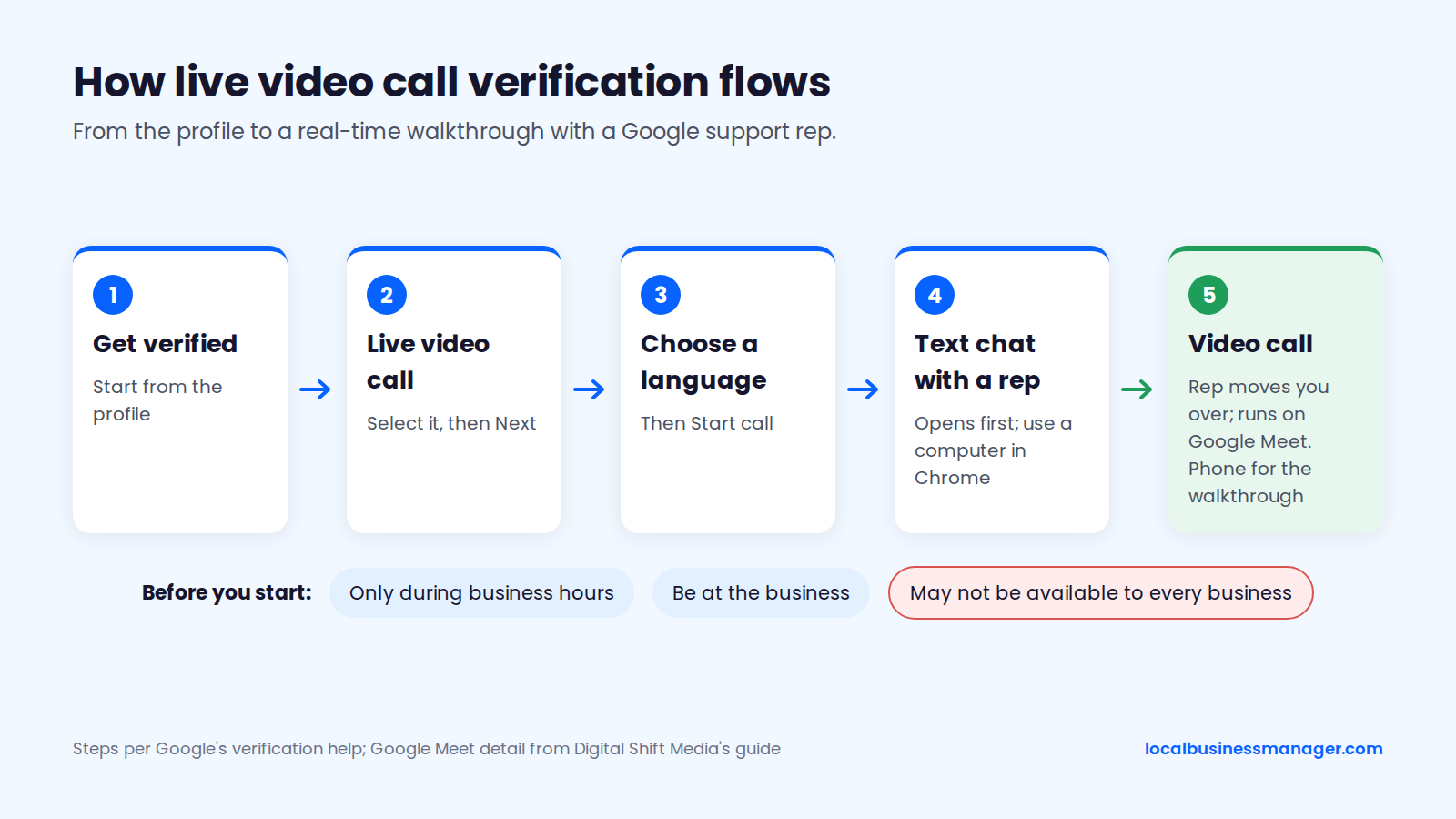
Google doesn't publish what the rep asks to see. Third-party guides (Gatilab's, for one) say the call checks the same 3 things as a recorded video. Have these 6 ready before you start:
- Outside proof: street signs, the building number and nearby businesses.
- Signage: exterior or suite signs that match the profile name.
- Access: keys or codes to open the premises and business-only areas.
- Tools: equipment and, for service-area businesses, the work vehicle, which Intellar says reps may ask to see.
- Documents: a business license or other paper with the business name and address.
- Devices: a computer for the opening chat in Chrome and a phone for the walkthrough, a split forum members recommend.
Local Search Forum threads from 2022 to 2025 report long queues (one user waited 1.5 hours), dropped chats and reps who never joined. Agencies in the same threads still find live calls easier than recordings, and more than one person can join, so an agency can sit in.
Phone, Text, Email and Postcard Codes: How They Work and What Breaks Them
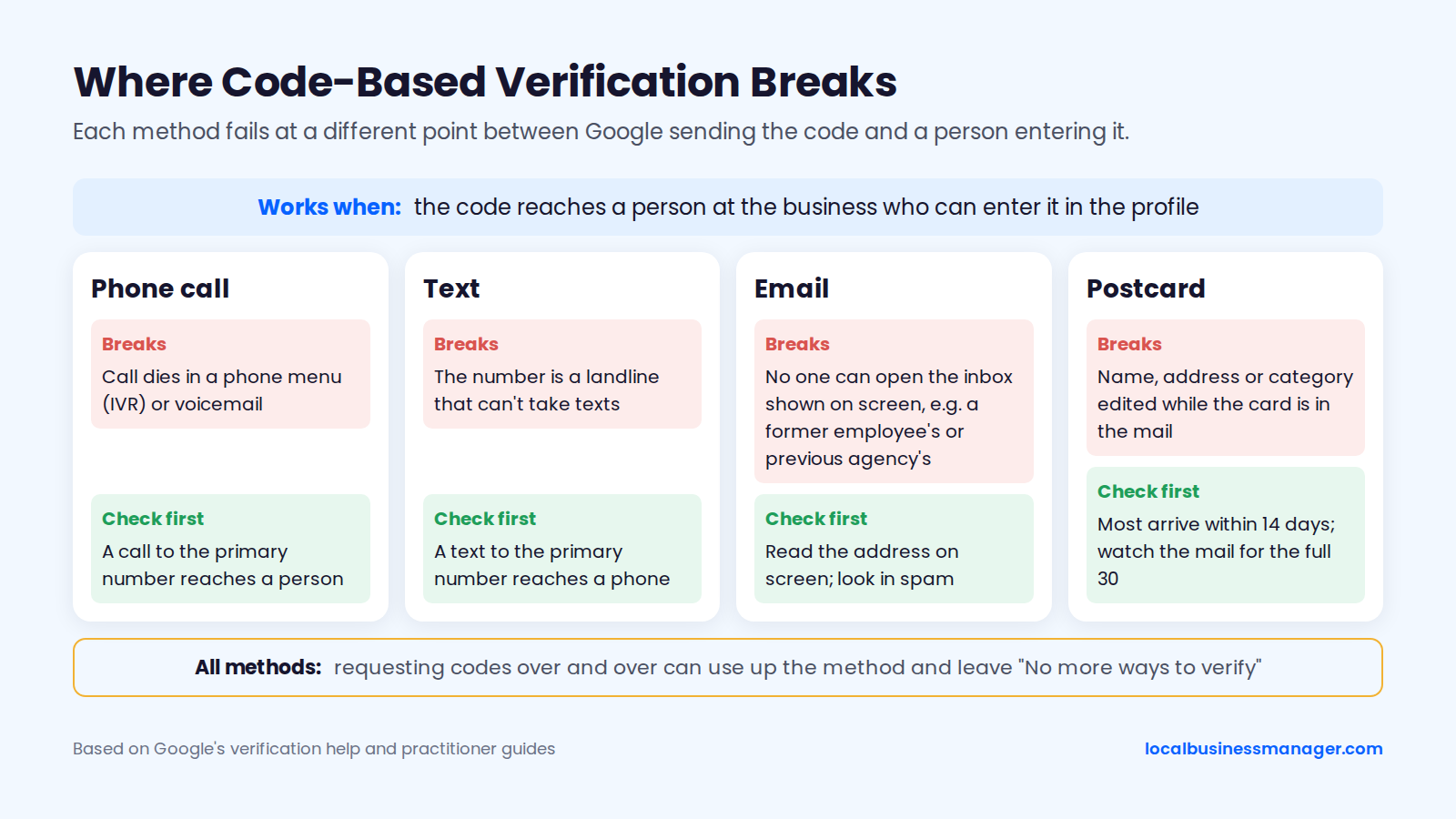
Code-based verification works when the code reaches a person at the business who can enter it in the profile. Each of the 3 methods breaks in its own way: phone systems, inbox access, or edits made while a postcard is in the mail.
Phone or Text
Phone and text verification requires someone to answer the business phone or receive texts. Google's verification help states that Interactive Voice Response (IVR) systems won't get the code.
A 2026 practitioner guide to verification adds 3 failure points:
- A text can't reach a landline.
- An automated call dies in a phone menu or voicemail.
- Requesting codes over and over can use up the method and leave "No more ways to verify".
On Local Search Forum in 2024, an agency managing about 1,500 automotive profiles said phone-only verification came up about 8 times in 10 when claiming existing listings, and dealership phone trees made it nearly impossible. Some forum members report that the number Google calls is sometimes not the one shown on the profile; other forum members dispute it, so treat it as anecdotal.
If phone is the only option and the number can't take calls or texts, a Google Business Profile Community guide says to ask a Product Expert in the GBP Community to escalate.
On client profiles, I put the call-tracking number in the primary phone field and don't add a second number. Call-tracking setup guides commonly do it differently, keeping the business's main line in the Additional phone field. Either way, check before requesting a code that a call to the primary number reaches a person and a text reaches a phone.
Email verification sends a code to an inbox, and someone enters it in the profile. A practitioner guide from October 2026 notes that email verification only works with the email address shown on the verification screen, so read that address before you select email.
Most email failures come down to who can open the inbox. Settle these 3 points first:
- Access today: confirm someone at the business can open the address shown on screen right now.
- Old accounts: if the inbox belongs to a former employee or a previous agency, pick another method if Google offers one, or get the account back first.
- Spam folder: look there before requesting another code.
Postcard
Postcard verification mails a 5-digit code to the business address. Google's verification help says most codes arrive within 14 days and codes expire after 30 days, and that editing the business name, address or category while you wait stops the code from working. Google also says postcard verification isn't available for all businesses.
When the card arrives, go to your Business Profile, type the 5-digit code in the "Code" field and select Submit. While it's in the mail, follow 3 more rules:
- Don't request another code while the card is in the mail. Repeated code requests can use up the method, as noted under Phone or Text.
- Don't add text such as "Attn: Google Verification" to the address field. Google's guidelines say not to include information in address lines that doesn't relate to the business's physical location.
- Watch the mail for the full 30 days, and tell whoever sorts it what the card looks like.
Can You Get Instant Verification?
Instant verification happens only when Google decides a profile qualifies, and you can't request it. Google's verification help says that if you verify your website in Google Search Console, your profile might get instant verification, and that in some cases Google verifies a profile instantly.
Advice that a same-domain email address or consistent directory listings will qualify a profile doesn't match Google's description. If instant verification doesn't appear, use whatever method Google offers.
How Bulk Verification Works for 10 or More Locations
Bulk verification is Google's route for a business with 10 or more locations. Google's bulk location management overview says a business with 10 or more locations can add, verify and manage them in bulk.
The process runs in 3 steps:
- Create a business group. Google says this was previously called a business account; the API docs also call it a location group.
- Add all your locations in a spreadsheet and upload it.
- Request verification for the uploaded locations, following the steps Google shows for the group.
Not every account qualifies. An October 2026 third-party summary of Google's bulk verification help says service-area businesses aren't eligible, and that an agency holding more than one business in one account can't bulk verify.
Google's help page on bulk verification delays says email addresses without the business's official domain need extra verification steps and may take longer, so submit from an address at the business's own domain. Bulk timelines that circulate without a source aren't reliable; use only what Google's bulk pages state. For running the locations once they're verified, see our guide to local SEO for multiple locations.
How Agencies Verify a Client's Profile
Agencies verify client profiles by keeping the client as primary owner and the agency as manager, then letting the person who runs the business produce the proof. Google's help pages cover the roles; the workflow below covers who does what.
Who Should Own the Profile?
The client should be the primary owner and the agency a manager. Google's help page on owners and managers says a profile can have several owners but only 1 primary owner. Managers can do almost everything an owner can, except add or remove users or remove the profile.
Primary ownership can only move to an existing owner or manager, and a Google Business Profile Community guide adds that new users must wait 7 days before receiving it. Sterling Sky gives agencies 2 rules:
- Request manager access, not owner access. Requesting owner access makes you primary owner and demotes everyone else.
- Keep the client as primary owner on an email at its own domain, not Gmail. An agency's account suspension can affect the profiles where the agency is an owner.
A separate Community guide written by a Product Expert adds that an agency should never be a profile's only owner.
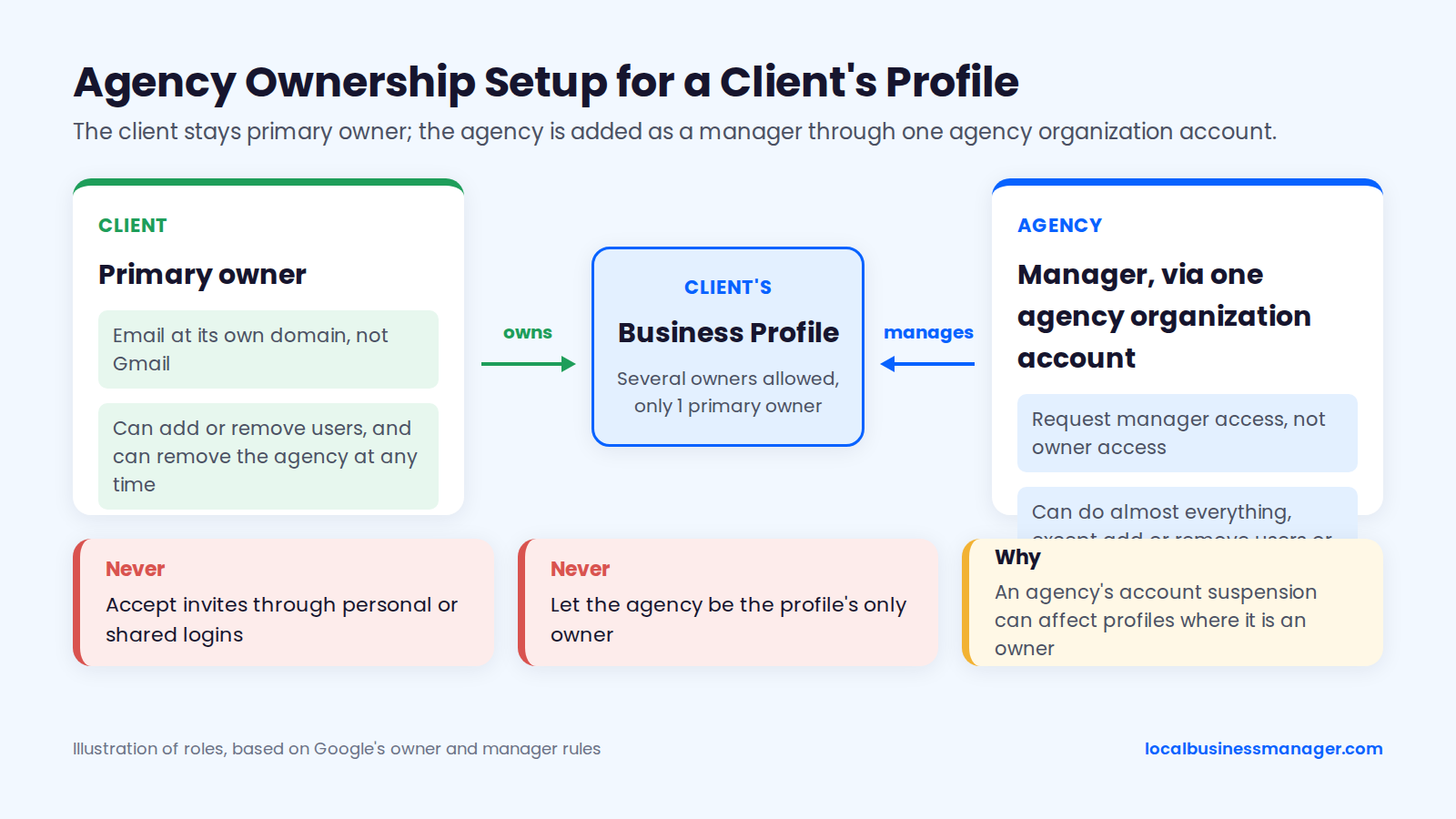
My setup: the client is primary owner, and the agency is added as a manager. We accept every invite through one agency organization account, never through personal or shared logins. The full process is in our guide to adding a manager to a Google Business Profile.
Who Records the Video or Receives the Code?
Google requires the video to be captured live on a phone and uploaded through the Business Profile, and only owners or authorized representatives may verify. Nothing in those rules stops a manager-level agency user from recording on site.
In my practice, the client records the video alone. Before the client records, the agency can prepare 3 things:
- Shot plan: what to film and in what order, written for that business type.
- Documents: which permit, invoice or bill to show, with account numbers covered.
- Code instructions: Google says it will never ask for your verification code and that you shouldn't share it with anyone, even people who manage your profile. If Google offers a phone, text, email or postcard code, the client enters it in their own login.
A Message to Send Your Client Before Verification
This template gets a client ready for video verification in one message. Edit the bracketed parts and drop the shot list that doesn't fit their business type.
Hi [Name], Google needs to verify your Business Profile, and this step has to be done by you, at the business, on your phone. Here's what to do:
>
- Sign in to Google on your phone with [owner email], open your Business Profile and tap Get verified.
- If it offers a video recording, record one continuous video of at least 30 seconds. No editing, no pausing.
- Start outside: the street sign, your building number and the businesses next door.
- Show your sign. It must match "[profile name]".
- Open your door or [van / office / storage] on camera, then show your [tools / equipment / workspace].
- Show one document in the business name, such as a permit, invoice or utility bill, with account numbers covered.
- Keep customers' and staff members' faces out of the shot.
- If it asks for a phone, text, email or postcard code instead, enter the code yourself in the profile. Don't forward it, and tell me once it's done.
>
You stay the owner of the profile. We're added as a manager so we can do the work, and you can remove us at any time.
Why Won't Google Verify Your Business?
Google won't verify a business when the proof doesn't show what Google needs, or the setup isn't eligible. Rejection notices name the missing proof. Eligibility problems come from the address type, the kind of business, or a mismatch between the profile and the real business.
Google's Rejection Reasons and the Fix
Each rejection reason on Google's video help page names one missing proof, so the fix is to reshoot with that proof added to everything you showed before. Google presents these as examples, not a complete list. The table keeps Google's order.
Rejection reason (Google's wording) | What Google needed | Fix on the next video |
|---|---|---|
Business name not visible on storefront | Signage matching the profile name | Hold on the exterior, suite or directory sign, and check it matches the profile name |
No nearby area shown | Proof of location | Open outside with street signs, the building number and neighboring businesses |
Missing proof of authorization to operate the business | Proof of management | Open a business-only space or asset, and show a permit, invoice or utility bill in the business name |
Addresses and Setups Google Won't Verify
Most failures trace back to how the business is set up. These 9 causes come up repeatedly:
- Virtual offices: Google's guidelines make them ineligible.
- PO boxes: Google says PO boxes and mailboxes at remote locations aren't acceptable, and profiles that use a PO box address will be suspended.
- Co-working spaces without the conditions: a co-working office qualifies only with clear signage, customers received during opening hours, and staff from the business itself.
- Online-only businesses: Google's eligibility guidelines say brands, organizations, artists and other online-only businesses aren't eligible for a Business Profile.
- Service-area address shown: a service-area business that doesn't serve customers at its address should hide that address, per Google's guidelines for representing your business.
- Mailbox-style addresses: extended suites or "PMB" addresses, which Sterling Sky warns look like mailbox stores.
- Name mismatch: a profile name that doesn't match the signage or the name the business really uses.
- Overlapping service areas: Sterling Sky says this is the top reason a second service-area location fails video verification.
- Video basics: a recording that isn't one continuous take, which Google's video rules exclude. Practitioners on Local Search Forum also list visible faces among the reasons videos fail.
What to Do When Verification Fails or Gets Stuck
When verification fails, match the symptom first, then use the fix for that symptom. Google's own playbook is short: review the issues, try the methods available, then contact support. The sections below fill in the steps between.
Quick Diagnosis: Match the Symptom
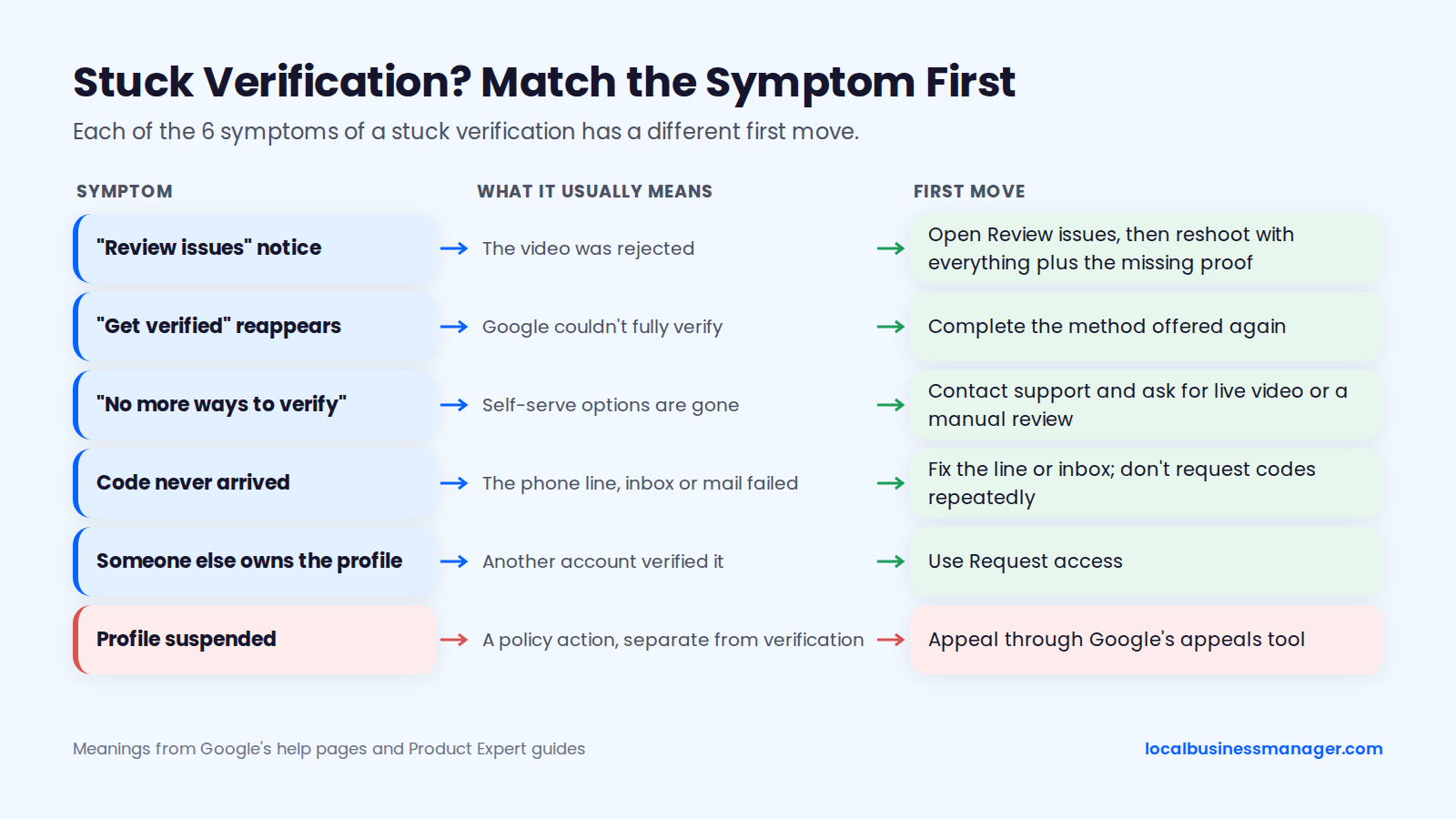
Stuck verifications show up as 6 symptoms, and each has a different first move. The table follows the order of the sections below, ending with the ownership and suspension cases, and the meanings come from Google's help pages and Product Expert guides.
Symptom | What it usually means | First move |
|---|---|---|
"Review issues" notice | The video was rejected | Open Review issues, then reshoot with everything plus the missing proof |
"Get verified" reappears | Google couldn't fully verify | Complete the method offered again |
"No more ways to verify" | Self-serve options are gone | Contact support and ask for live video or a manual review |
Code never arrived | The phone line, inbox or mail failed | Fix the line or inbox; don't request codes repeatedly |
Someone else owns the profile | Another account verified it | Use Request access |
Profile suspended | A policy action, separate from verification | Appeal through Google's appeals tool |
Your Video Was Rejected
A rejected video shows a "Review issues" notice. Google's verification help says to open it, follow the on-screen steps and record again. A Google Business Profile Community guide adds that the new video must include everything from the first one plus whatever was missing.
Treat the second video as if it were the last. Google doesn't publish how many failures trigger "No more ways to verify", and a 2026 Local Search Forum thread reports it appearing after a single failed video. No source has tested how long to wait between attempts, so rewrite the shot plan around the rejection reason before you record again.
No Verification Options Appear
"No more ways to verify" means the self-serve methods are gone and support is the only route. A 2023 Community guide by a Diamond Product Expert says the message means Google doesn't trust the link between you and the business, or that the business exists.
The same guide says support reviews usually take about a week. After review, support may turn on video, offer live video with an agent, or verify the profile internally. A Sterling Sky commenter reported that support asked for a lot of business information, so have the license, registration, lease and utility bills ready before you open the case.
The Code Never Arrived
When a code doesn't arrive, check how it was supposed to reach you before asking for another one, because repeat requests can use up the method. Work through these 3 delivery problems first:
- Phone menus: an IVR or voicemail answered the call.
- Landlines: a text went to a number that can't receive texts.
- Mail: the postcard is still inside its 30-day window, and nobody edited the name, address or category since requesting it.
If phone is the only option and the number can't take the call or text, use the Community escalation route described under Phone or Text.
When to Contact Google Support
Contact Google support after you've tried the verification methods available to you, which is the order Google's verification help gives. The main route is the contact form in Google Business Profile Help. Since 2024, forum members say, that form sends verification problems to the verification status tool, whose "Contact us" link is how you reach a person.
The escalation route practitioners describe runs like this:
- Open the Business Profile Help contact form and choose Business Profile > Verification.
- Follow the "Contact us" link in the verification status tool if the form routes you there.
- Ask for live video verification or a manual review, and attach or offer business documents.
- Post in the GBP Community forum if the form goes nowhere. Product Experts there can escalate cases.
Put the facts support needs in one message. Adapt this:
Profile: [business name], [full address]. Methods tried: [video recording on (date), rejected with "No nearby area shown"; second video on (date), now "No more ways to verify"]. Documents available: [business license, lease, utility bill in the business name]. Request: please review the profile manually or enable live video verification.
Expect a wait: one 2026 forum case sat "In Progress" for about 3 days.
Unverified, Pending or Suspended?
An unverified profile hasn't passed a method yet, a pending profile is waiting on Google's review, and a suspended or restricted profile has a policy action against it, which you appeal through Google's appeals tool. Google's appeals help says appeal reviews can take up to 5 business days.
In my experience, name edits and address edits cause the most suspensions. Reinstatement usually needs documents (a DBA filing, a lease, photos of the office with its signage) or a video of the storefront and office. When an appeal was denied, what worked for me was a second review with new evidence. Our suspension and reinstatement guide covers the appeal.
Someone Else Already Verified Your Business. Now What?
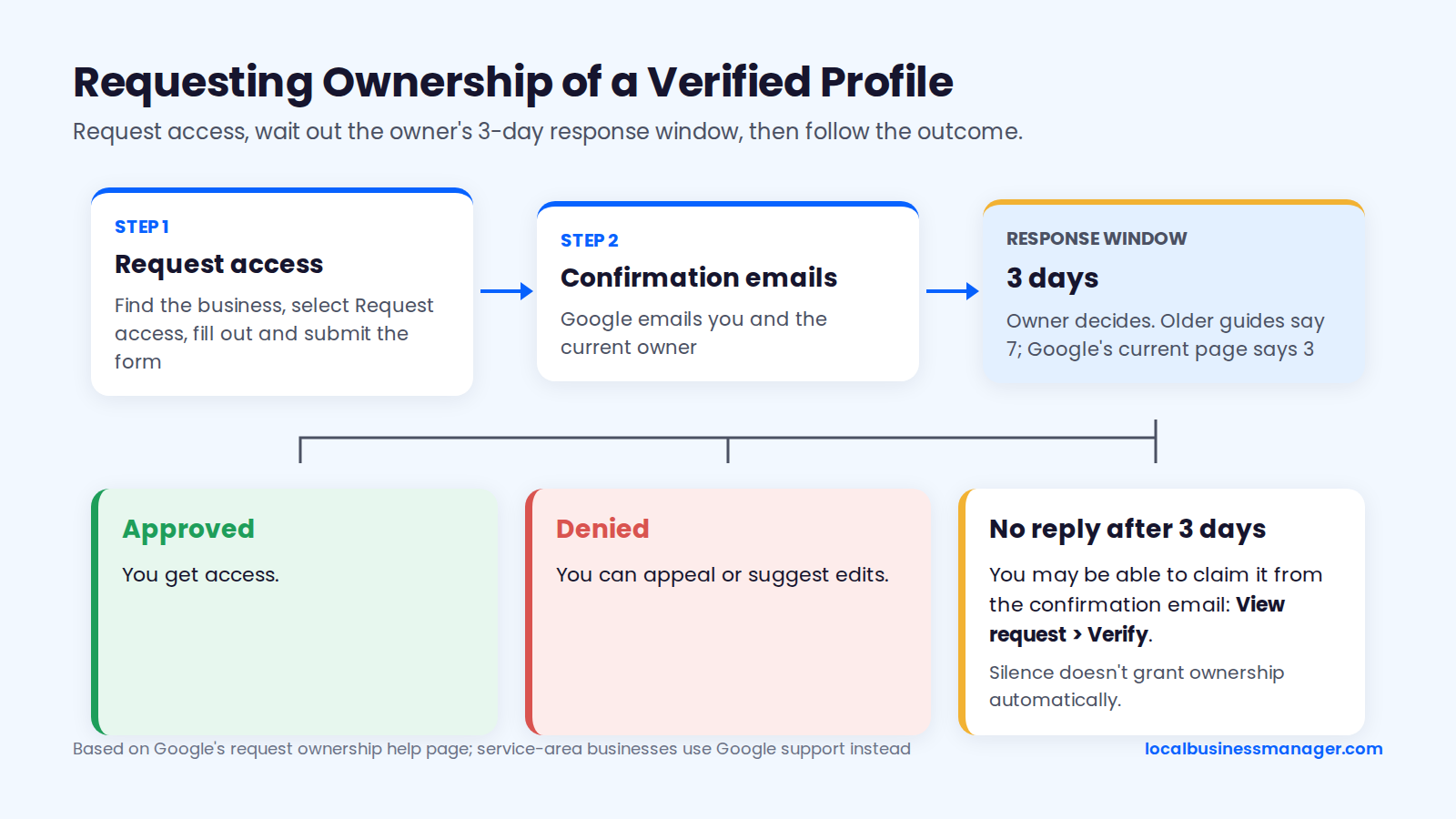
When another account already verified your business, request access through Google's ownership flow, and the current owner gets 3 days to respond. If you've ever taken over a client whose last agency or ex-employee still holds the profile, this is the route. Google's request ownership help page lays out the steps:
- Go to business.google.com/add and enter the business name and address.
- Pick the business. You'll see that someone else may manage this Business Profile.
- Select Request access, fill out the form and submit it.
- Watch for Google's confirmation email. Google also emails the current owner. Older guides say the owner has 7 days; Google's current page says 3.
What happens next depends on the owner's response:
- Approved: you get access.
- Denied: you can appeal or suggest edits, according to a Google Business Profile Community guide.
- No reply after 3 days: you may be able to claim the profile from the confirmation email (View request > Verify). Ownership isn't granted automatically just because the owner stayed silent.
Service-area businesses without a storefront follow a different route. They contact Google support and choose "Transfer ownership of listing".
A Community guide on ownership notes that Google's policies require authorized representatives, such as agencies, to hand ownership to the business owner when asked.
In my experience, getting a profile back from a former agency or ex-employee depends on the person. Sometimes it's immediate, and sometimes it takes a week or two.
Which Edits Make Google Ask You to Verify Again?
Google confirms that an address move requires verifying again and a name change might. Other edits are practitioner territory. Google's verification help says a request for more information to re-verify likely follows recently updated business details.
The table is sorted by how clearly Google confirms each trigger, using Google's "Edit your Business Profile" and verification help pages as of November 2026.
Edit | What Google says | What practitioners report |
|---|---|---|
Address move | You must verify again | Same |
Business name change | You might need to verify again | No guarantee a DBA rename avoids it (Local Search Forum) |
Category change | Not named as a trigger | Search Engine Land says name or category edits could trigger re-verification (practitioner claim, not confirmed by Google) |
Inactivity | No current help page confirms it | Traced to an old Google forum statement reported second-hand |
Practitioners advise spacing edits out. My rule is to wait a day or two after a name, address or category edit before the next sensitive edit.
During an October 2022 bug where edits triggered suspensions, Joy Hawkins of Sterling Sky advised industries such as personal-injury law to make 1 or 2 edits at a time. Sterling Sky still lists too many edits to important fields as a suspension trigger. Our guide to changing a business name or address on Google covers the sequence.
Changing to a Keyword DBA Name
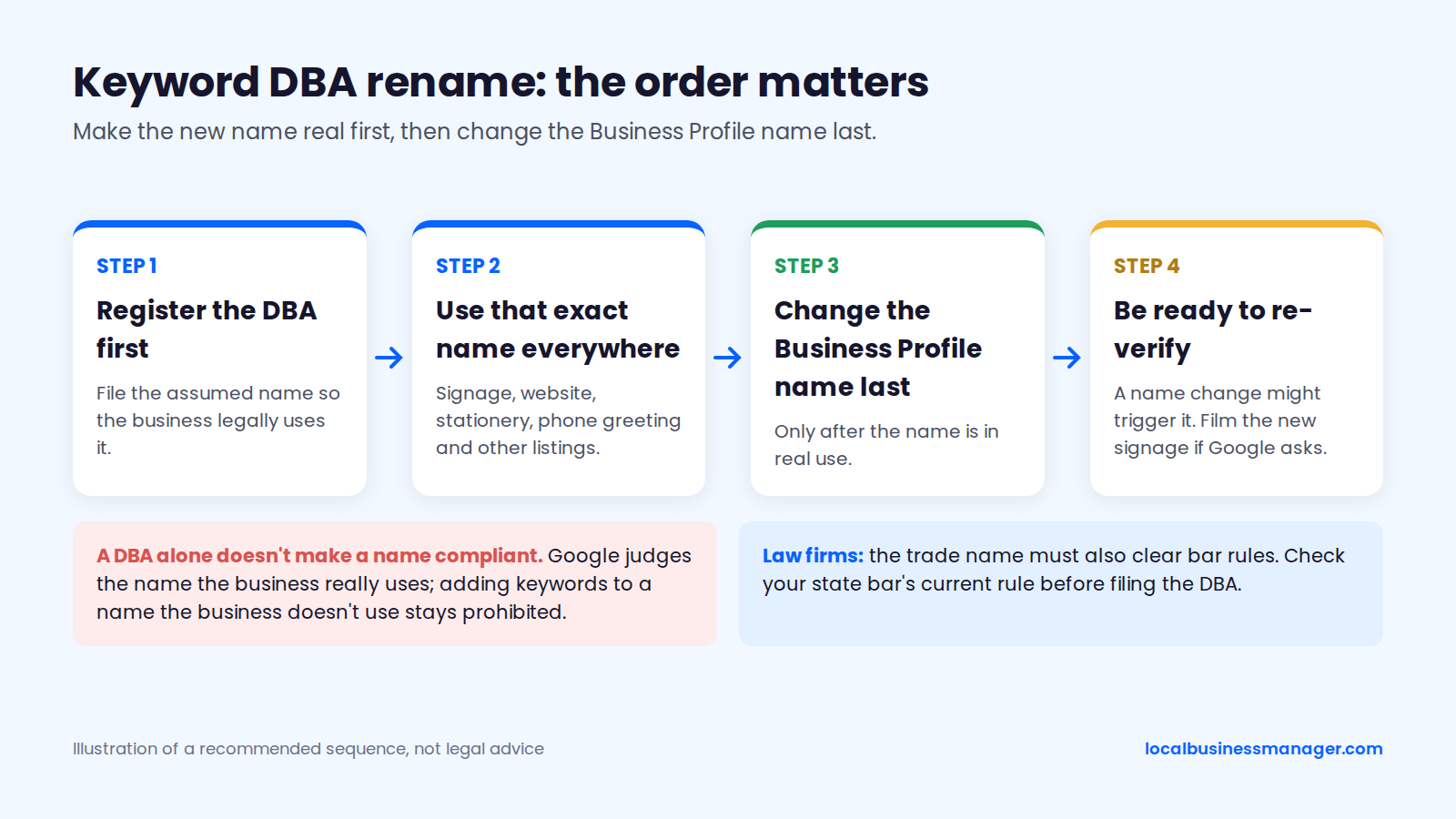
I recommend a keyword business name when it becomes the business's actual name through a registered DBA (assumed name). I've taken many clients through this process, and the order matters:
- Register the DBA first.
- Use that exact name everywhere: signage, website, stationery, phone greeting and other listings.
- Change the Business Profile name last.
- Expect possible re-verification, and film the new signage if Google asks.
A DBA filing alone doesn't make a name compliant. Google judges the name the business really uses and can still challenge or suspend it; the DBA is what proves the name if Google asks. Adding keywords to a name the business doesn't use stays prohibited.
Keyword names carry a real suspension risk alongside their ranking upside. The 2026 Local Search Ranking Factors survey, run by a local SEO software company, lists keyword names among the top suspension risk factors and also finds keyword names correlate with higher local-pack rank.
Law firms have one more step, because the trade name must also clear bar rules:
- ABA Model Rule 7.1, Comment [5]: covers firm names, letterhead and professional designations. The ABA's August 2018 amendments deleted Model Rule 7.5 and moved its firm-name limits into this comment.
- New York: Rule 7.5(b) bans trade names.
- Texas, Kentucky, New Jersey and Rhode Island: restrict trade names, and Texas requires state-bar approval of one.
Check your state bar's current rule before filing the DBA. This is marketing guidance, not legal advice.
Is Google Verification Free? How to Spot Verification Scams
Google business verification is free. None of the methods on Google's verification help page (phone or text, email, video recording, live video call, postcard, Search Console instant verification) involves a payment, and no one can sell you verification or guarantee Google's decision.
Sterling Sky says Google doesn't make unsolicited automated sales calls and doesn't charge to verify a Business Profile, so anyone calling to sell you verification isn't Google, whatever department they claim to be from. When someone calls offering to verify your profile:
- Never read a verification code to a caller. As covered in the agency section, Google says it will never ask for your code.
- Never give owner access to someone you don't know.
- If you want help, add a known agency as a manager and keep primary ownership yourself.
According to the FTC's press release, in August 2020 the FTC mailed refunds totalling more than $700,000 to 4,467 small business owners (an average of $158.32), after robocallers claiming to act for Google charged $300 to $700 to "claim and verify" their Google listings.
Pre-Verification Checklist
Run this checklist before you press Get verified. Each item matches a common failure point covered above.
- The profile name matches the signage and the name the business uses everywhere.
- The address is a real, staffed location, not a virtual office, PO box or mailbox. Service-area businesses hide the address.
- Suite numbers sit in Address Line 2, with no made-up or extended suites.
- The business phone reaches a person, with no phone menu or voicemail, and can receive texts if text is offered.
- Someone at the business can open any inbox that might receive a code.
- No name, address or category edit is pending or recently made.
- Street signs, the building number and nearby businesses are reachable on foot from the door.
- Keys are ready for the door, office, storage or vehicle.
- Tools, equipment or products are where you can film them.
- A permit, invoice, utility bill or registration in the business name is ready, with account numbers covered.
- No customers, staff or family will be in frame.
- The phone is charged, signed into the right Google account, and has camera, microphone and location access enabled.
FAQs
Can I call Google to verify my business?
No. Google Business Profile no longer has a dedicated support phone number, according to Sterling Sky. Use the contact form in Google Business Profile Help or the GBP Community forum; Sterling Sky notes the form sometimes offers a call. A caller who says they're Google and offers to verify your profile for a fee isn't Google.
Can I verify my business on a computer?
Not with a video recording, which Google requires you to record and upload from a mobile device. For live video calls, Local Search Forum members suggest starting the support chat in Chrome on a computer, then switching to a phone for the walkthrough. Plan to have a phone at the business either way, since both video methods need you on site.
Do I need a website to verify?
No, but a verified website can help: Google says verifying your site in Google Search Console might get your profile verified instantly. Google decides eligibility, so you can't request instant verification. The proof Google lists for video verification (street signs, signage matching the profile name, tools and documents in the business name) doesn't include a website.
The One Thing to Do First
Write the shot plan before anyone opens the app. Every proof Google asks for, from the street sign to a utility bill in the business name, has to land in one continuous take, and that's far easier to get right on paper than on the sidewalk.
If you manage verification and profiles across many clients, Local Business Manager is building tools for agencies like yours, and you can join early access.