How to Set Up and Claim a Google Business Profile

To set up a Google Business Profile (formerly Google My Business), search Google and Maps for the business first. Then create a new profile at business.google.com/create or claim the existing listing, and pass verification. Google's help page on adding or claiming a Business Profile says you can do it "at no charge," and there's no paid version. Most agencies have inherited a profile sitting on a former employee's personal Gmail, or a duplicate made because nobody searched first.
You'll get the exact steps for both paths, a create-claim-or-request decision table, a video verification shot list, and an ownership setup that keeps agency clients from getting locked out.
What Do You Need Before You Set Up a Google Business Profile?
You need 3 things before you start: an eligible business, a Google account the business controls, and the proof Google will ask for at verification. Check eligibility first, because it decides whether a profile is allowed at all. Then gather everything on the pre-setup list.
Is Your Business Eligible?
A business is eligible for a Google Business Profile if it makes in-person contact with customers during its stated hours, either at a staffed location or by traveling to them, under Google's business eligibility and ownership guidelines. Google supports 3 setups:
- Storefront businesses that customers visit.
- Service-area businesses (SABs) that go to customers.
- Hybrids that do both.
Online-only businesses aren't eligible. That covers brands, organizations and artists with no in-person contact. The same eligibility guidelines also exclude rental or for-sale properties, such as vacation homes, model homes and vacant apartments. A sales or leasing office is eligible.
Google's guidelines for representing your business set 2 address rules for a new profile:
- A business that shows its address needs permanent signage at that address.
- Virtual offices and remote P.O. boxes aren't eligible addresses.
The same guidelines give a service-area business one profile with its address hidden. That's the compliant route for a home-based business that visits customers.
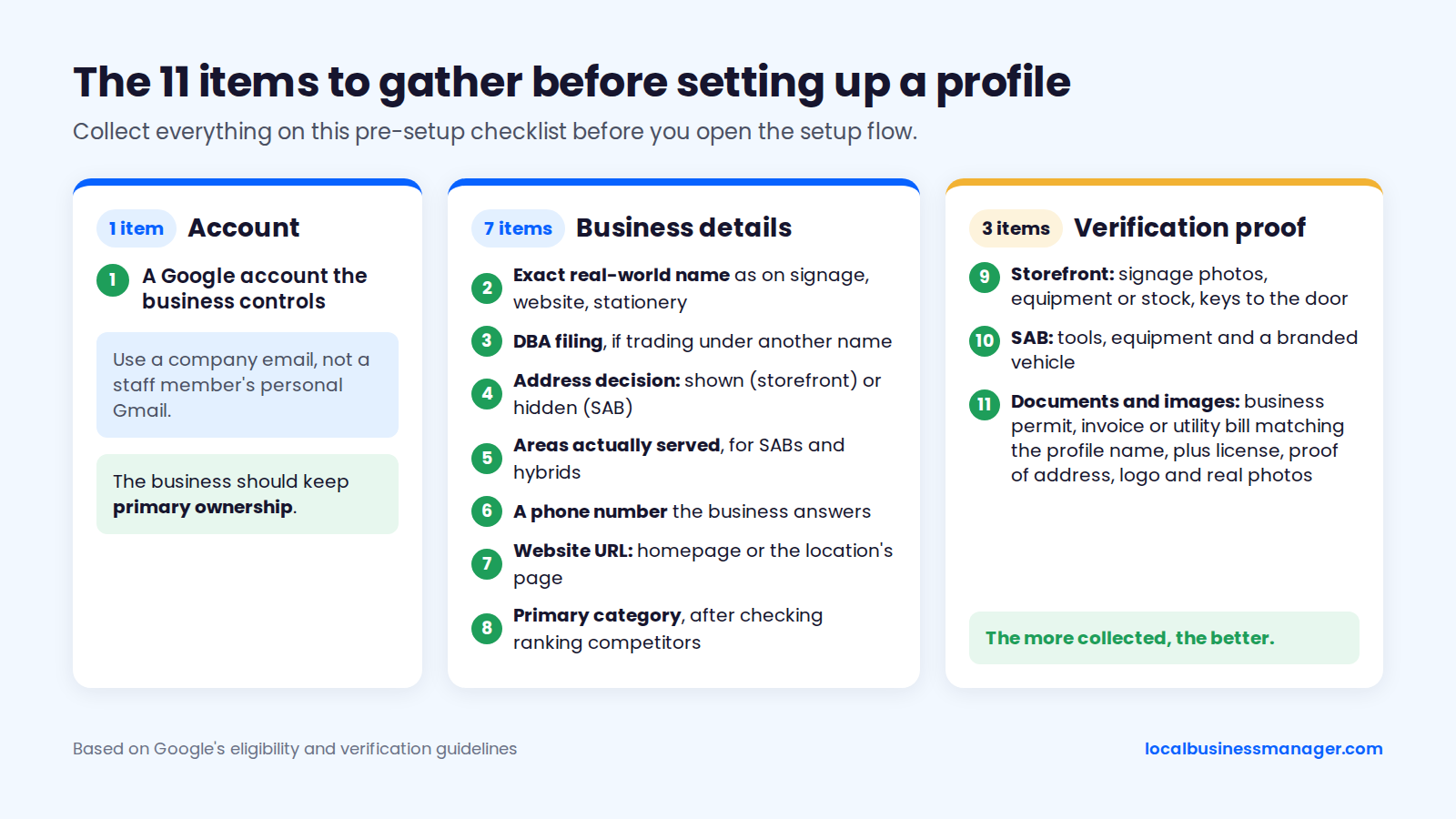
Pre-Setup Checklist
Have all 11 of these ready before you open the setup flow:
- A Google account the business controls. Use a company email, not a staff member's personal Gmail. Practitioner guides from GBP Reinstatement and Office Consumer both say the business should keep primary ownership.
- The exact real-world name as it appears on the signage, website and stationery.
- The DBA filing, if the business trades under a name other than its legal name.
- The address decision: shown (a storefront with permanent signage) or hidden (an SAB).
- The list of areas the business actually serves, for SABs and hybrids.
- A phone number the business answers.
- A website URL: the homepage or the location's own page.
- Your primary category choice, made after checking what ranking competitors use (see Step 3).
- Verification proof for a storefront: signage photos, equipment or stock, and the keys to the door.
- Verification proof for an SAB: tools, equipment and a branded vehicle.
- Business documents and images. Google's video verification page lists a business permit, invoice or utility bill that matches the profile name. Add the license, proof of address, logo and real photos.
My rule with new clients is to collect as much as I can before touching the profile: the DBA filing, the license, proof of address and photos of the signage. The more collected, the better.
Should You Create a New Profile, Claim One, or Request Access?
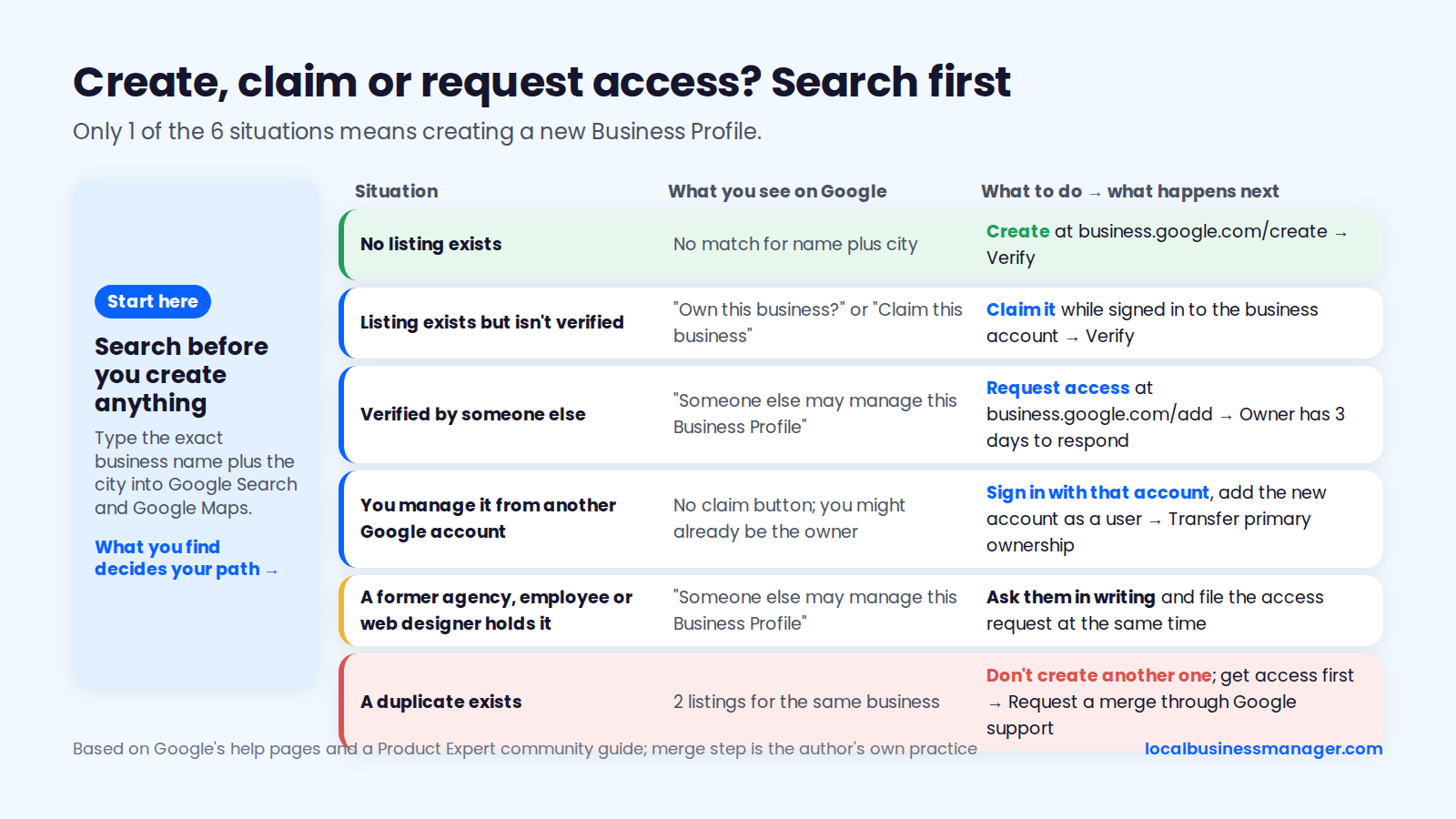
Search before you create anything: type the exact business name plus the city into Google Search and Google Maps. What you find decides your path. Only 1 of the 6 situations below means creating a new profile.
The button labels, the 3-day response window and the "you might already be the owner" note come from Google's help pages on adding, claiming and requesting ownership. The former-agency row follows a Google Business Profile Community guide written by a Product Expert; community guides are written by volunteers, not Google staff, and aren't Google policy. The merge-request step is my own practice.
Situation | What you see on Google | What to do | What happens next |
|---|---|---|---|
No listing exists | No match for name plus city in Search, Maps or the setup flow | Create at business.google.com/create | Verify (see the verification section) |
Listing exists but isn't verified | "Own this business?" (Search) or "Claim this business" (Maps), then "Manage now" | Claim it while signed in to the business account | Verify (see the verification section) |
Listing is verified by someone else | "Someone else may manage this Business Profile" | Request access at business.google.com/add | The current owner has 3 days to respond |
You manage it from another Google account | No claim button appears; Google says you might already be the owner | Sign in with that account and add the new account as a user | Transfer primary ownership (see the transfer section) |
A former agency, employee or web designer holds it | "Someone else may manage this Business Profile" | Ask them in writing and file the access request at the same time | See the recovery steps below |
A duplicate exists | 2 listings for the same business | Don't create another one; get access to the existing profile first | Request a merge through Google support |
Duplicate profiles break Google's guidelines and put the business at risk of suspension. Google doesn't say a duplicate is suspended immediately, but the guideline breach alone is reason enough never to create one. For duplicates, the route that has worked for me is a merge request through Google support. Our guide to deleting or merging a duplicate Google Business Profile covers that cleanup.
How to Set Up a New Google Business Profile, Step by Step
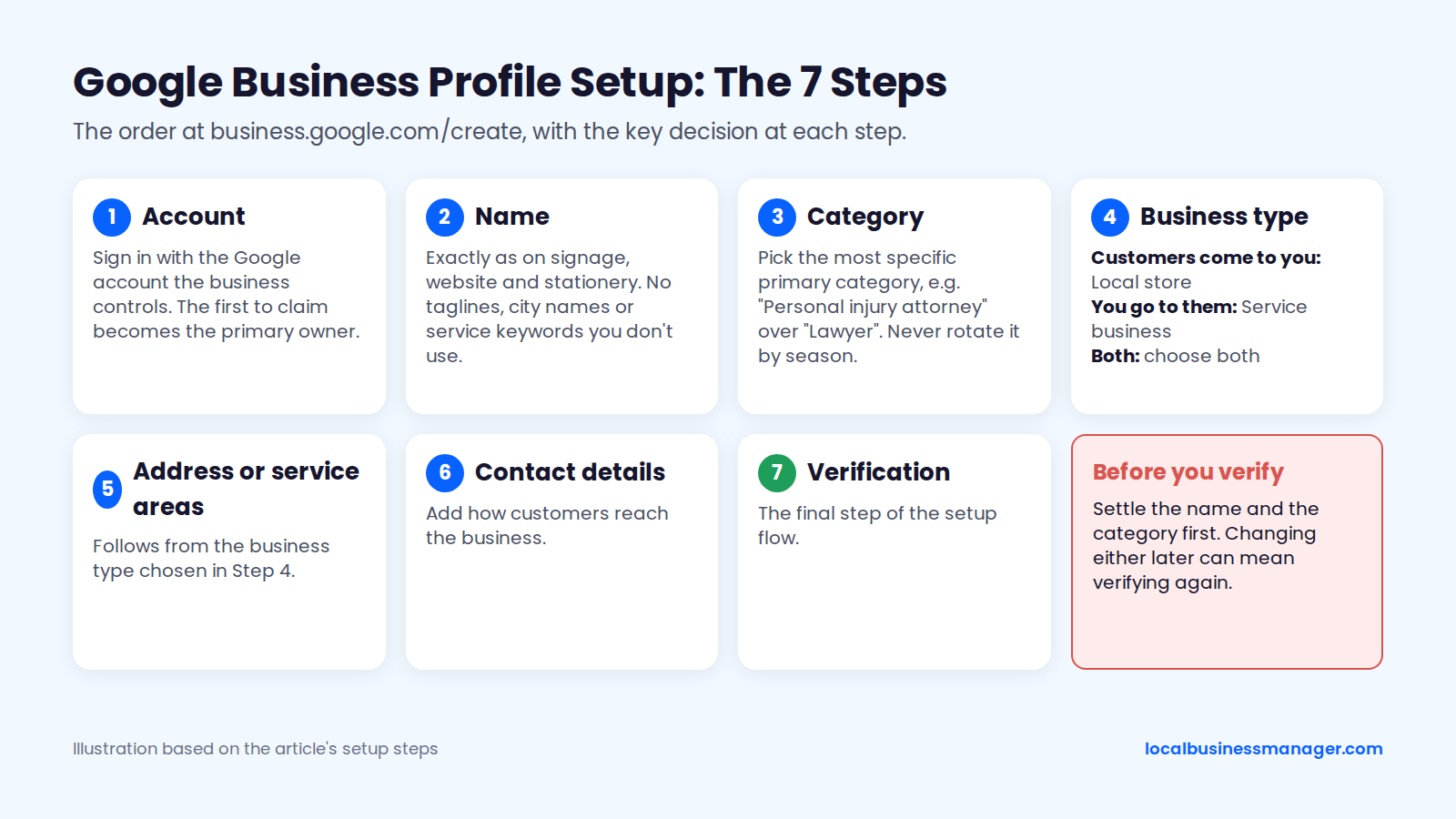
The flow at business.google.com/create runs in 7 steps: the account, name, category, business type, address or service areas, contact details and verification. Name and category each get a closer look, and a worked example for a home-based plumber follows Step 7.
Step 1: Sign In With the Right Google Account
Sign in at business.google.com/create with the Google account the business controls. Sterling Sky notes that the primary owner is the first person to claim the profile, so the account you sign in with now decides who controls the profile later.
Agencies shouldn't create a client's profile on the agency's own login. Google's agency documentation says an organization account can't directly own an individual profile. It can manage a location only after that location grants it permission. That's how I set it up with clients:
- The client is the primary owner.
- My agency is added as a manager.
- We accept the invite through one agency organization account, never personal or shared logins.
Step 2: Enter Your Business Name
Enter the business name exactly as it appears in the real world: on the signage, website and stationery customers already see, per Google's guidelines. Leave out taglines, city names and service keywords the business doesn't use.
Settle the name before you verify. Google's help page on editing a profile warns that changing the name after verification might mean verifying again, so a name you plan to change later is better changed first.
Can You Put a Keyword in Your Business Name?
A keyword name is compliant only when it's the name the business really uses. I recommend a keyword name when the business makes it its real name, in this order:
- Register the DBA.
- Put that exact name on the signage, website, stationery, phone greeting and other listings.
- Only then use it on the profile.
For a new profile, once the DBA is registered, I set it up with the DBA name from day one. I've taken many clients through this process.
A DBA document alone doesn't make a name compliant. Google judges the name the business really uses. The DBA is what proves the name if Google asks during re-verification or reinstatement.
What Are the Risks of a Keyword Business Name?
A keyword name can help rankings and raise suspension risk at the same time. The 2026 Local Search Ranking Factors survey, published in 2025 by a local SEO software company, is an expert-opinion ranking: it scores the views of a panel of local SEO practitioners, not measured rankings. Weigh these 4 points before you file anything:
- Ranking factor: that survey ranks keywords in the profile name as the #3 local pack factor.
- Suspension risk: the same survey lists keyword names among the top suspension risk factors.
- Measured lift: the same company's 2026 correlation study calls the ranking lift from a keyword in the name modest, and found no correlation in real estate.
- Compliance: Sterling Sky (2026) describes a filed DBA as the only guideline-compliant way to get a keyword into the name, and notes that Google checks the profile name against the website and signage.
What Must Law Firms Check Before Using a Trade Name?
Law firms must clear bar rules before filing a trade name. The rules to check include:
- ABA Model Rule 7.1, Comment 5: a trade name must not be false or misleading.
- New York bans trade names under Rule 7.5(b).
- Texas requires state-bar approval of a trade name.
- Kentucky, New Jersey and Rhode Island restrict trade names.
Check your own state bar before filing. This is marketing guidance, not legal advice.
Step 3: Choose Your Primary Category
Choose the most specific category that describes the main business. Google's guidelines say to use as few categories as possible, to pick specific ones and not to use categories just as keywords; a specific category implicitly includes the broader ones above it. For a firm that mainly handles personal-injury cases, that makes "Personal injury attorney" a better primary category than "Lawyer", and several legal-marketing guides recommend the same choice.
I pick the category by checking what most ranking competitors use. If Google is rewarding a different category than the "logical" one, I use the one Google rewards. The category and the name are the 2 profile decisions I never outsource.
Should You Ever Change the Primary Category?
Avoid frequent primary category changes once it's set, and never rotate the category by season. Google's Business Profile Community guide on suspensions, written by volunteer experts, lists category changes made too quickly as a suspension trigger. DAC Group reported in 2025 that primary category changes often led to re-verification.
The primary category appears to carry a lot of weight, though that evidence comes from expert opinion and practitioner testing, not a Google statement:
- The 2026 Local Search Ranking Factors survey (the expert-opinion ranking described above) puts it as the #1 local pack factor, with a score of 227, just ahead of proximity at 225.
- Sterling Sky has reported tests in which changing the primary category had a major impact on rankings, while adding or removing relevant additional categories didn't hurt.
Our guide to Google Business Profile categories goes deeper on additional categories.
Step 4: Choose Your Business Type
Pick Local store if customers come to you, Service business if you go to them, and both if you do both. Oklahoma State University Extension's January 2026 setup guide lists the 3 types Google's setup flow offers: Online retail, Local store and Service business.
- Local store: customers come to a staffed location with permanent signage.
- Service business: the business travels to customers.
- Both: you can select every type that applies (per White Peak Digital's setup guide), so a hybrid picks both.
A business that only sells online still isn't eligible for a Maps listing, whatever the flow offers. A home-based business that visits customers picks Service business and keeps its address hidden.
Step 5: Add Your Address or Service Areas
Storefronts and hybrids enter the street address where customers are served, and that address needs permanent signage.
Service-area businesses keep the address hidden and add only the areas they really work in. Google's help page on managing service areas sets 2 limits, and a third rule matters if there's more than one location:
- Up to 20 service areas (cities, postal codes or other areas).
- An overall area no more than about 2 hours of driving time from where the business is based.
- No overlap with another location's service area (the multiple-locations section explains why).
Our guide to service-area business setup covers SABs in more detail.
Step 6: Add Your Phone Number and Website
Use a phone number the business answers and the website page that matches the profile. Google's documentation doesn't list either field as a condition of verification, but both shape what customers can do from the profile:
- Phone: for call tracking, my practice is to put the tracking number in the primary phone field rather than adding it as a secondary number.
- Website: I link a single-location profile to the homepage; with several profiles, each links to its own city page (see the multiple-locations section).
- Tracking: adding UTM parameters to the website link is optional; it lets analytics separate profile clicks from other traffic.
Step 7: Verify Now or Later
At the end of setup, Google asks you to verify. If you're not ready, you can choose Verify later (sometimes under More options), and unverified profiles have limited visibility and editing, according to Gatilab's October 2026 verification guide; no Google page confirms this. Verify as soon as your proof is ready. No Google source says that filling in more of the profile before verifying improves your odds.
Ready means 3 things:
- The signage or branded vehicle is in place.
- The documents from the pre-setup checklist are at hand.
- The phone you'll film on is signed in to Google Maps with the account that manages the profile.
Sterling Sky notes that a verification video has to be recorded on location, in real time, from that account. Leave the name alone while verification is pending; the do-not-touch list in the verification section explains why.
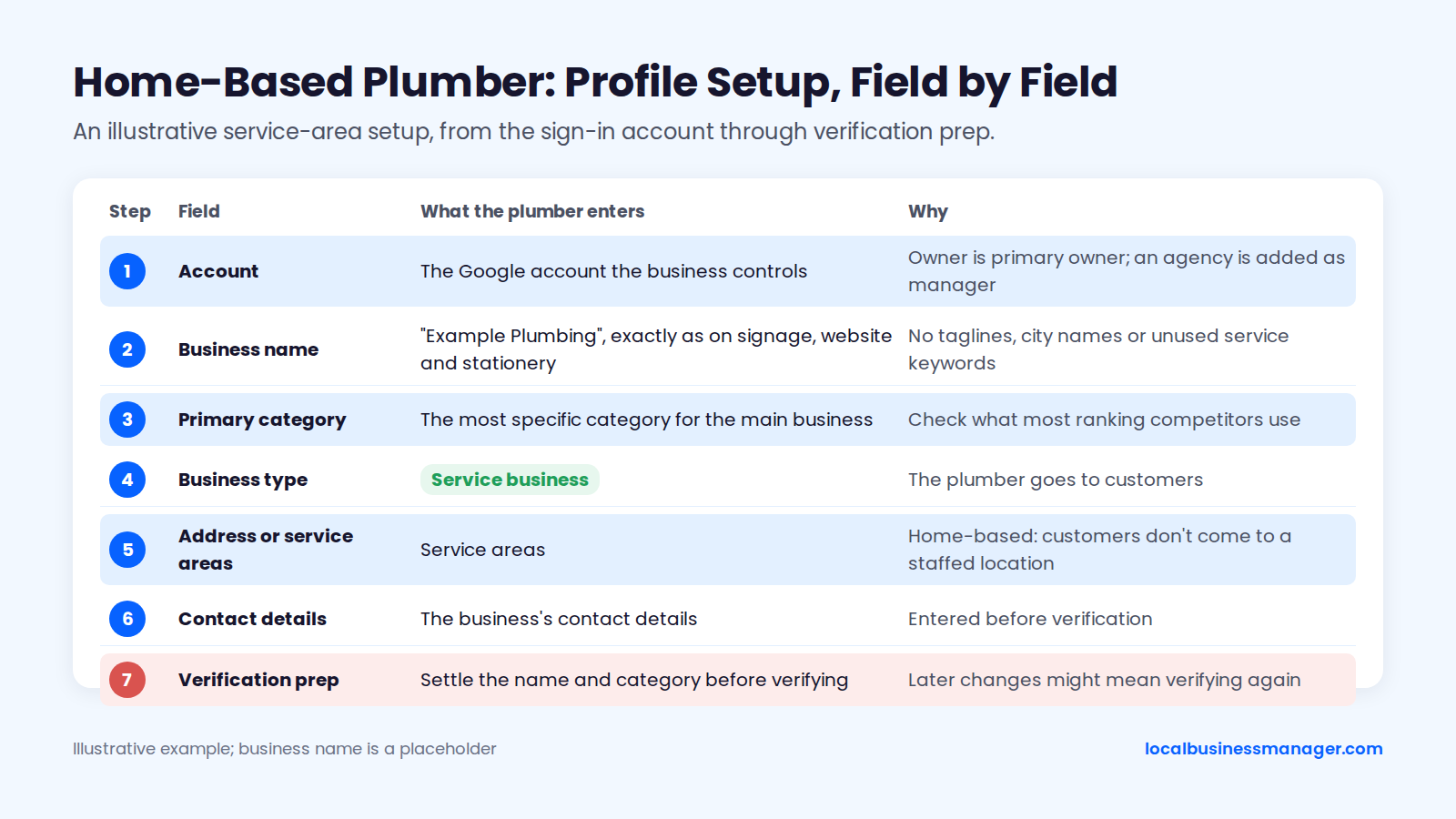
Worked Example: A Home-Based Plumber Set Up as a Service-Area Business
Here is how the 7 steps play out for an illustrative business, not a client. "Ridgeline Plumbing" is a plumber who works from home with 2 branded vans and serves 6 nearby towns.
- Account: sign in with the company's own Google account, not the owner's personal Gmail.
- Name: "Ridgeline Plumbing", exactly as it appears on the vans, invoices and website.
- Primary category: "Plumber", after confirming that's what the ranking competitors use.
- Business type: Service business only. Nobody comes to the house for service.
- Address and areas: enter the home address, keep it hidden, and add only the 6 towns the vans actually go to. That's well inside Google's 20-area limit and the 2-hour driving guide.
- Phone and website: the business line the plumber answers, and the homepage.
- Verification prep: a van showing the name and the license plate, the owner opening and starting it, the tools in the back, and an invoice that matches the profile name.
How Do You Claim an Existing Google Business Profile?
You claim an existing profile from the listing itself if it's unverified, or by requesting access if someone else has already verified it. When the holder is a former agency or employee, add a written request alongside Google's process.
Claim an Unverified Listing on Google Search or Maps
Google's help page on adding or claiming a Business Profile gives the claim buttons: "Own this business?" then "Manage now" on Google Search, and "Claim this business" then "Manage now" on Google Maps. In practice, the claim runs like this:
- Sign in with the Google account the business controls.
- Search the exact business name plus the city.
- On Google Search, click "Own this business?" and then "Manage now". On Google Maps, select "Claim this business" and then "Manage now".
- Follow the prompts and complete verification.
You can also start at business.google.com/add and search for the name and address there. If the business is already listed, select it. If it isn't, Google offers to add it.
Request Access When Someone Else Already Verified It
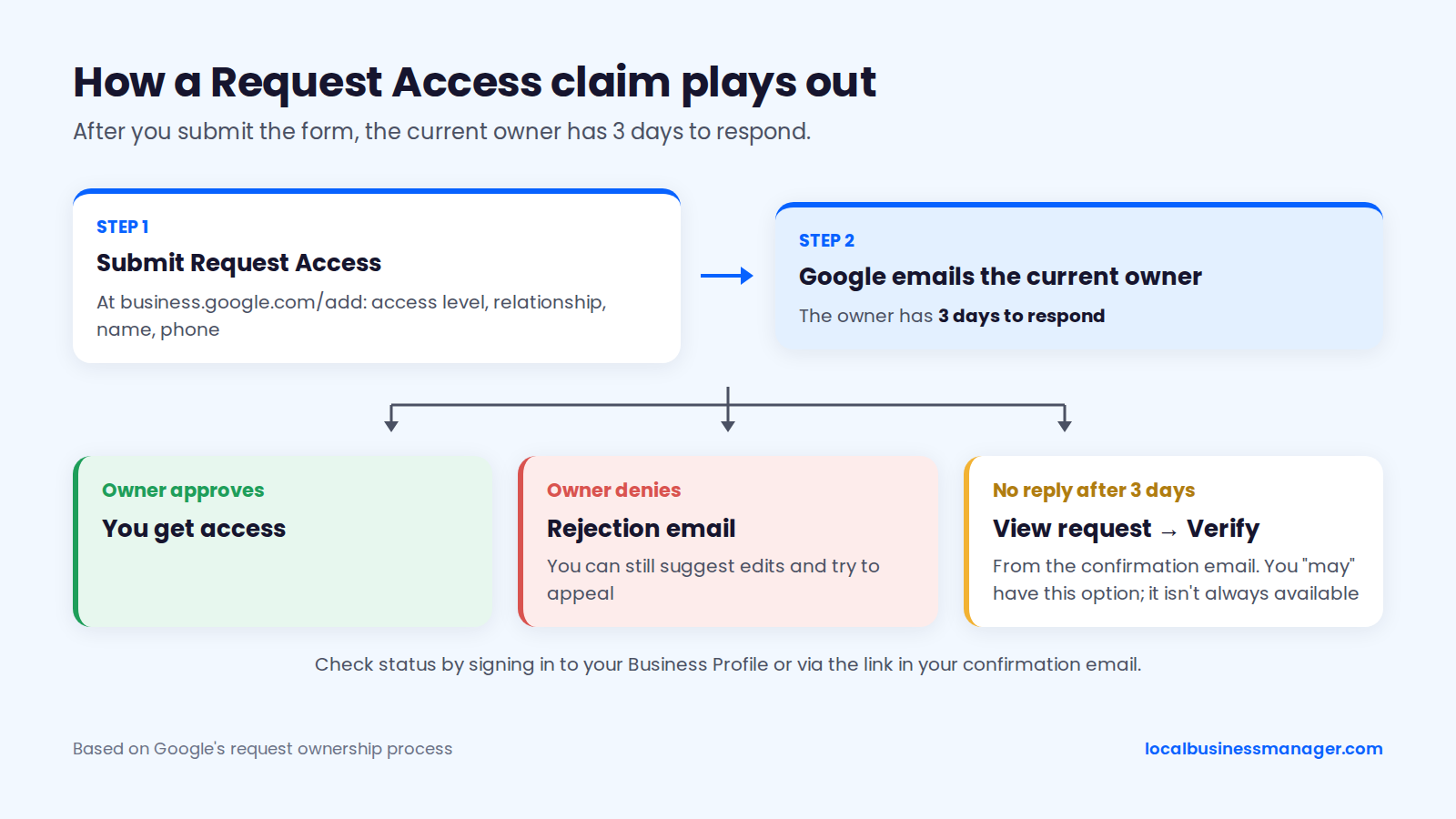
When the listing says "Someone else may manage this Business Profile", follow Google's request ownership process:
- Go to business.google.com/add and select the business.
- Select Request Access and submit the form. Cursive Media's September 2026 guide lists its fields: the access level you want, your relationship to the business, your name and your phone number.
- Google emails the current owner, who has 3 days to respond.
- If they approve, you get access.
- If they deny the request, you get a rejection email. You can still suggest edits and try to appeal.
- If there's no reply after 3 days, open the confirmation email and select View request, then Verify. Google says you "may" have this option to claim the profile, and it isn't always available.
You can check the status of the request by signing in to your Business Profile or by using the link in your confirmation email.
Google's page notes that SABs without a storefront need to contact support to transfer ownership. A Google Product Expert advises the same route when Request Access won't submit or no Claim or Verify option appears: contact Business Profile support, choose the transfer-ownership option and provide proof that you're authorized.
Get a Profile Back From a Former Agency, Employee or Web Designer
Ask the person who holds the profile for it in writing, and file Google's access request at the same time. The community guide on ownership recommends running both in parallel. It also says Google's policies require authorized representatives to hand ownership to the business owner when asked.
I ask politely for the listing back and stay persistent. Depending on the person, the profile has come back sometimes immediately, sometimes after a week or two. Here's a message to adapt (the date reflects the new-user wait in the transfer section):
- Subject: Transfer of [Business Name]'s Google Business Profile
- Body: Hi [Name], [Business Name] is taking direct ownership of its Google Business Profile. Please add [business email] as an owner on the profile today, then make that account the primary owner on [date 7 days later], the earliest Google allows. Once that's done, you're welcome to remove yourself. Thanks for your help with the handover. [Your name, role, phone]
How Does Google Business Profile Verification Work?
Verification is how Google confirms that the business exists at the details you entered and that you manage it. What you prepare depends on the method Google offers, so start with the method, then the video requirements and shot lists, the waiting times and what to do if it fails.
Which Verification Method Will You Get?
Google picks the verification methods your business can use, and you can't change them. Google's help page on verifying your business lists these options, depending on the business:
- Phone or text.
- Email.
- A recorded video.
- A live video call.
- A postcard with a code.
You can verify without a postcard whenever Google offers one of the other methods; if the postcard is the only option, that's the route. The same Google page says your profile might get instant verification if you verify your matching website in Google Search Console. Digital Shift Media reported in June 2026 that practitioners now see video verification as the most common method.
In a 2025 Search Engine Land guide, a Google Platinum Product Expert described a newer flow. Google first asks for photos of signage and documents. If that doesn't work, a live video call becomes the only way to verify. Sterling Sky says that if Google offers video verification, you have to use it.
What Does Google Require in a Verification Video?
Google's video verification requirements are strict on 4 points:
- The video is one complete recording, with no breaks or edits.
- It's unique and at least 30 seconds long.
- It's recorded and uploaded from a mobile device, inside the Business Profile flow.
- The business name shown in the video matches the profile name.
The community guide on verification adds 3 points. Pre-recorded videos can't be uploaded, talking is optional, and documents aren't required but can support ownership.
In my practice, the client records the video alone. The rejection I see most often is a video that doesn't show the signage, the street number or other proof of the location.
Storefront Video Shot List
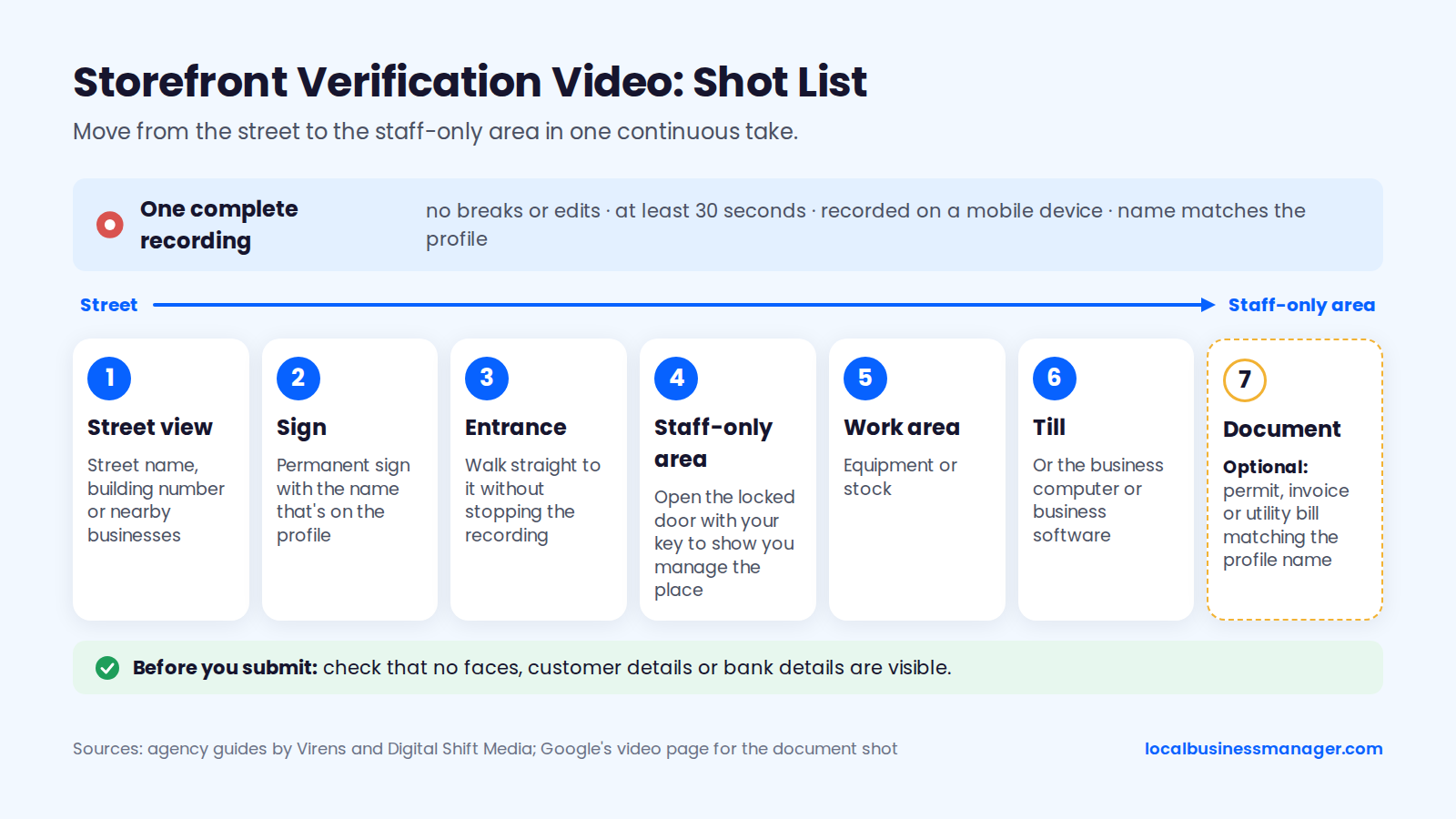
A storefront video should move from the street to the staff-only area in one continuous take. These shots come from agency guides by Virens and Digital Shift Media, plus Google's video page for the document shot:
- Start outside, showing the street name, the building number or nearby businesses.
- Show the permanent sign with the name that's on the profile.
- Walk straight to the entrance without stopping the recording.
- Open the locked door with your key, or enter a staff-only area, to show you manage the place.
- Show the work area, equipment or stock.
- Show the till, the business computer or the business software.
- Optionally, show a business permit, invoice or utility bill that matches the profile name.
Service-Area Business Video Shot List
A service-area business doesn't need a temporary storefront, according to the community guide on video verification for SABs. Google asks SABs to show the tools, equipment or products they use. The vehicle shots below come from the Platinum Product Expert's Search Engine Land guide:
- Show the branded vehicle with the business name visible.
- Show the license plate.
- Open and start the vehicle to prove you control it.
- Show the tools, equipment or products the business uses.
- Show a business document that matches the profile name.
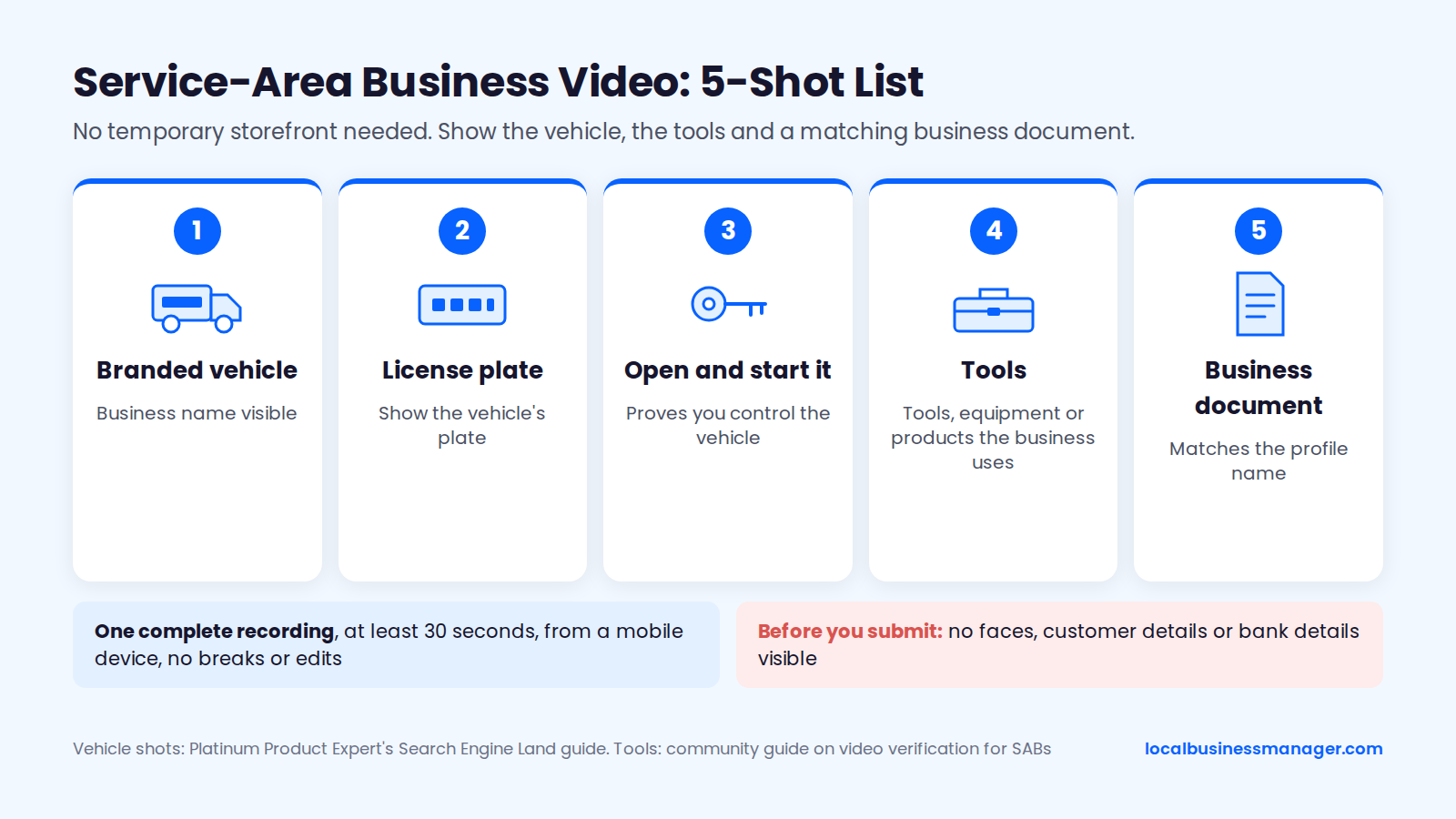
For either version, check before you submit that no faces, customer details or bank details are visible.
Google sets a 30-second minimum and no maximum. Practitioner suggestions range from 30 seconds to 5 minutes; one practitioner who verified 25 profiles in 3 days recommends 1 to 3 minutes. Local Search Forum posters fixed failed uploads by retrying at the lowest resolution and keeping the clip under 90 seconds.
Timelines and What Not to Touch While You Wait
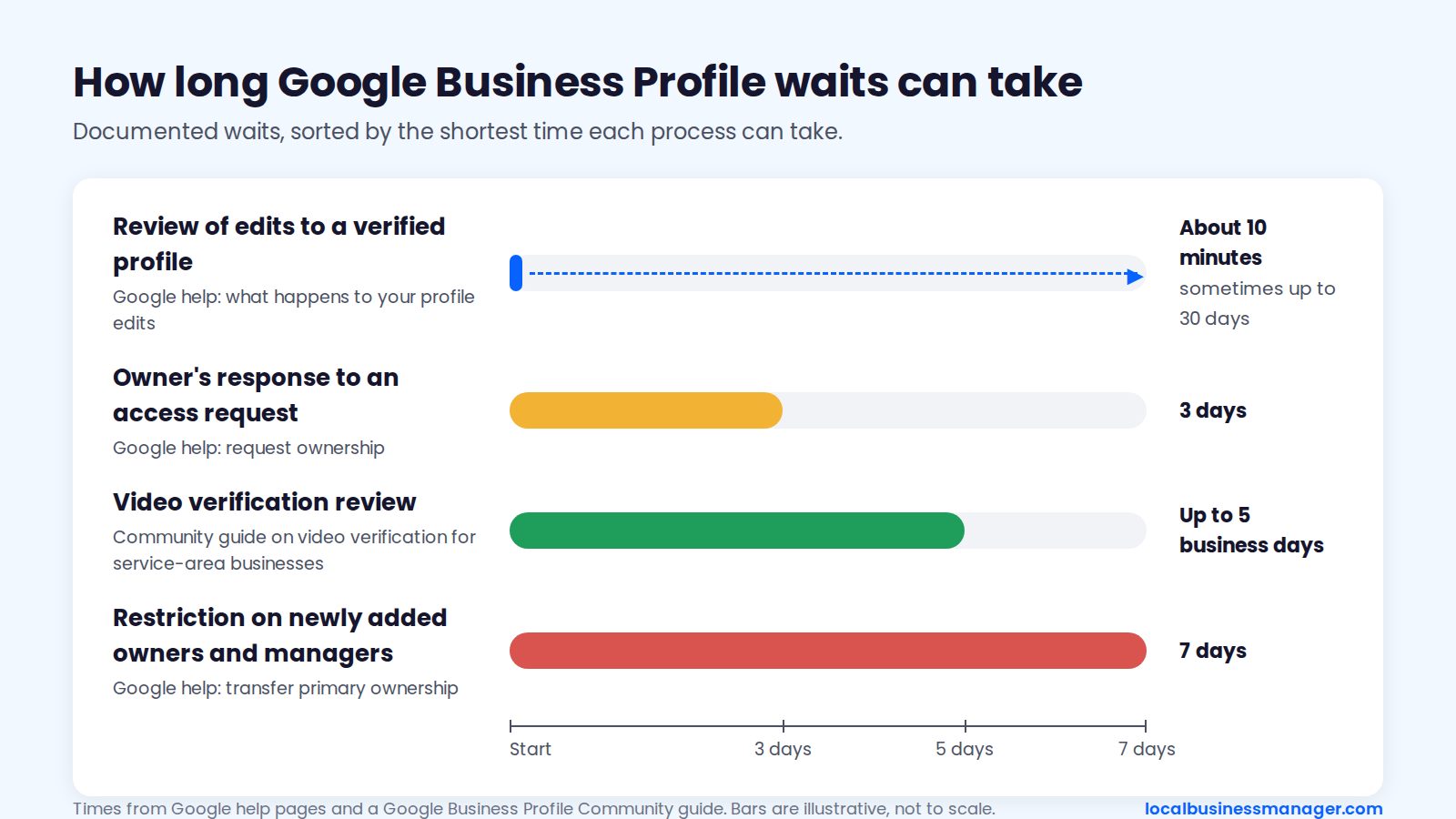
Documented waits run from about 10 minutes for a routine edit to 7 days for a newly added user's restrictions, though an edit stuck in review can take up to 30 days. The table is sorted by the shortest time each process can take, and draws on Google's help pages and a Google Business Profile Community guide.
Process | Time stated | Where it's documented |
|---|---|---|
Review of edits to a verified profile | About 10 minutes, sometimes up to 30 days | Google help: what happens to your profile edits |
Owner's response to an access request | 3 days | Google help: request ownership |
Video verification review | Up to 5 business days | Community guide on video verification for service-area businesses |
Restriction on newly added owners and managers | 7 days | Google help: transfer primary ownership |
While verification is pending, keep 2 rules:
- Don't edit the name. A Local Search Forum reply notes that a name edit while a postcard is pending makes the code invalid and can look spammy.
- Don't create a second profile to "speed things up".
Once the profile is verified, 2 more cautions apply:
- Leave the core details alone for a while. That's practitioner caution, not a Google rule: ALM Corp (2026) advises not changing the primary category, name, address, phone or URL for the first 2 weeks after verification.
- Space out sensitive edits. I wait a day or two between a name, address or category edit and the next sensitive edit.
What to Do If Verification Fails
If verification fails, add the proof that was missing and try again, then escalate to support if it keeps failing. Sterling Sky ties failed videos to proof that wasn't clearly shown: the location, signage, operations or management. For a second location, check the service-area overlap rule in the multiple-locations section. The SAB community guide notes that a rejected video doesn't mean the business is ineligible.
Work through these steps in order:
- If Google asks you to upload again, the video wasn't accepted. Add more proof of location, signage and management, and keep faces out of the frame (advice from Local Search Forum).
- If the upload itself fails, retry at a lower resolution with a shorter clip.
- If uploads keep failing, contact support and ask for manual verification, as Sterling Sky suggests.
- If the profile is suspended instead, gather documents before you appeal. In my experience, reinstatement usually needs proof such as the DBA filing, a lease agreement and photos of the office with signage, or a video of the storefront and office. Our suspension and reinstatement guide covers the appeal.
- If an appeal is denied, what has worked for me is a second review with new evidence.
What Should You Set Up in the First Week After Verification?
In the first week after verification, complete the profile with accurate details and start asking every customer for a review. These 10 items cover it:
- Hours and holiday hours, matching the website.
- An opening date, if the business hasn't opened yet. Google's help page on editing a profile allows a month and year up to 1 year ahead, and shows it from 90 days before that date.
- Additional categories. Dalton Luka's category guide puts the cap at 9 beyond the primary category. On the profiles I manage, a typical one ends up with 3 to 5.
- Services and products. A profile with none set up is one of the problems I inherit from previous agencies, along with duplicate listings and bad naming.
- A plain description of what the business does and where. A local SEO software company's guide puts the limit at 750 characters.
- Attributes that are true, and only those.
- Logo, cover photo and real photos of the work, the team and the location.
- A first post, then a regular schedule. I post 3 times a week to keep the profile active in Google's eyes. In my view, posting itself has very little influence on rankings.
- The review link, sent to every customer the same way. Texts and emails go only to customers who agreed to receive them. Don't offer incentives, and don't gate (asking only happy customers), which breaks Google's review policy. My target is to match the average review count of the top 3 map-pack results, then keep going. Our guide to getting more Google reviews has a compliant request process.
- A weekly edit check. I check every week for changes to the name, attributes, services and other fields, whether made by Google or by someone else.
How Should Agencies Set Up Ownership and Access for Client Profiles?
The client should hold primary ownership on a business-controlled Google account, and the agency should work as a manager. That way the profile stays with the business if the agency relationship ends. Getting there takes the right roles, a short access request to the client, the checks I run once I have it, and the transfer steps for when ownership moves.
Owner vs Manager: Who Should Hold Which Role
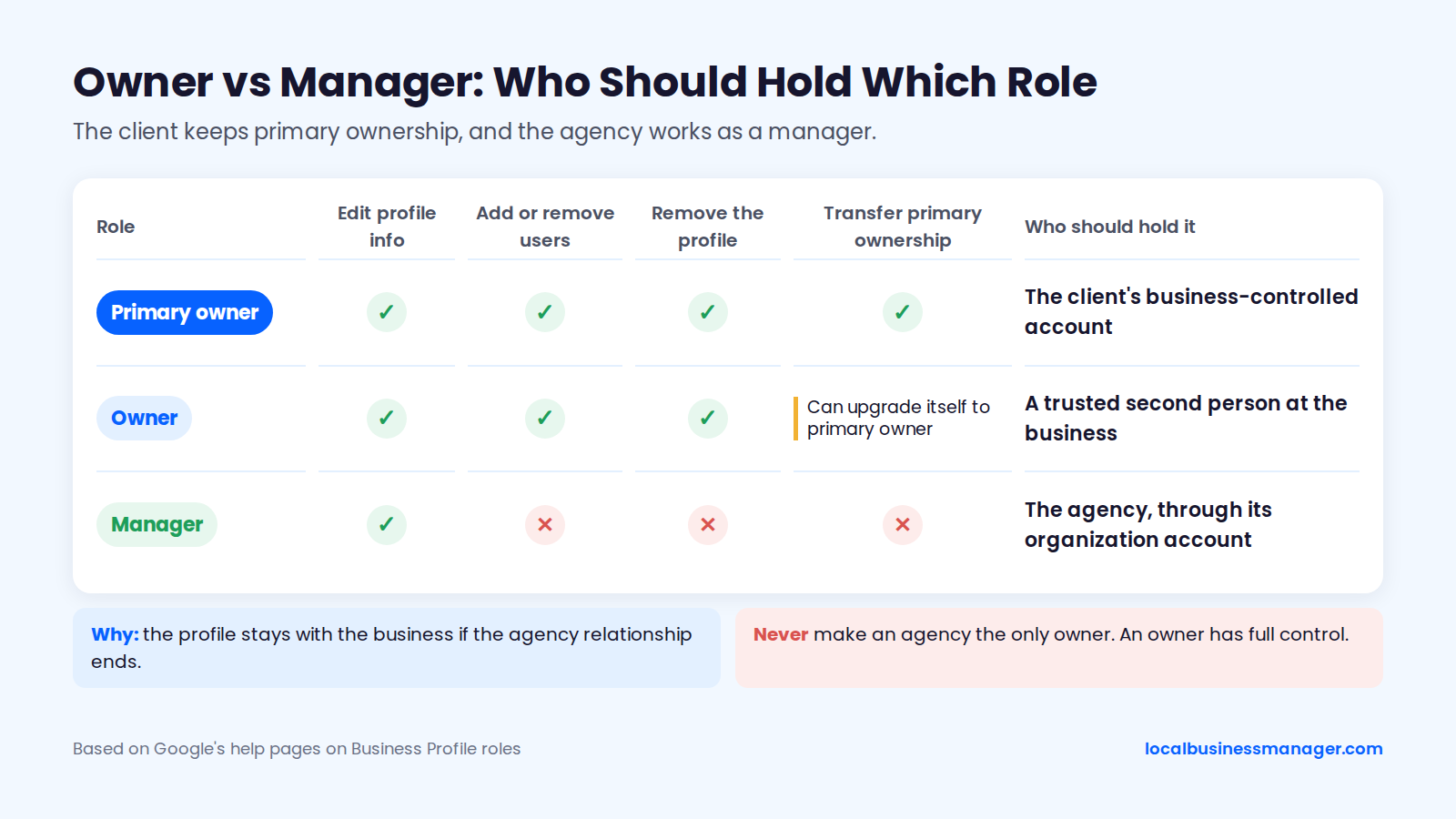
Google's help pages give a profile exactly 1 primary owner, several owners and a set of managers. Owners have full control, including adding and removing users. Managers can edit the profile and reply to reviews, but they can't manage users or remove the profile. That's why an agency should be added as a manager while the business keeps primary ownership.
Role | Edit profile info | Add or remove users | Remove the profile | Transfer primary ownership | Who should hold it |
|---|---|---|---|---|---|
Primary owner | Yes | Yes | Yes | Yes | The client's business-controlled account |
Owner | Yes | Yes | Yes | Can upgrade itself to primary owner | A trusted second person at the business |
Manager | Yes | No | No | No | The agency, through its organization account |
Managers were formerly called "site managers". The primary owner can't leave the profile without transferring that role first.
Practitioners recommend a second owner at the business, to protect against lockouts if the primary owner leaves or loses access. Google doesn't require one. The community guide on ownership also advises never making an agency the only owner. Choose that second owner carefully, because an owner has full control.
Email Script: Asking a Client to Add Your Agency as Manager
Send the client a short request that keeps them as primary owner and adds the agency as manager. Copy and adapt this script:
- Subject: Adding [Agency] to your Google Business Profile
- Body: Hi [Name], to start work on your Google Business Profile, we need manager access. You stay the primary owner, so the profile always belongs to [Business Name]. In your profile, open Business Profile settings, then People and access, add [agency email] and choose Manager. We'll accept the invite from our agency account. Managers can't remove you or delete the profile. If anyone else at the business should be a second owner, add them too, so you're never locked out. Thanks, [Your name]
What Should You Check First on a New Client Profile?
Once access is in place, I check 4 things on every new client profile, in this order: local rankings across the whole area with a geo-grid scan of many points, the business name against the ranking competitors' names, the primary category, and the website. Steps 2, 3 and 6 above cover the name, category and website decisions those checks look at.
Single-point rank checks aren't part of my process. In my view, a single location says little about how a business ranks across its area.
Can You Transfer Ownership of a Google Business Profile?
Yes: the primary owner can transfer primary ownership to another user on the profile, and Google's transfer page notes that co-owners can also upgrade themselves to primary owner. The new primary owner has to be on the profile as a user first. Follow Google's transfer steps:
- Open the Business Profile.
- Select More, then Business Profile settings, then People and access.
- Select the user.
- Select Edit next to Access.
- Choose Primary owner and save.
New owners and managers must wait 7 days before they can become primary owner, remove other users, delete the profile or make someone else primary owner. Trying it earlier returns an error. The profile also needs at least one other owner or manager before primary ownership can move.
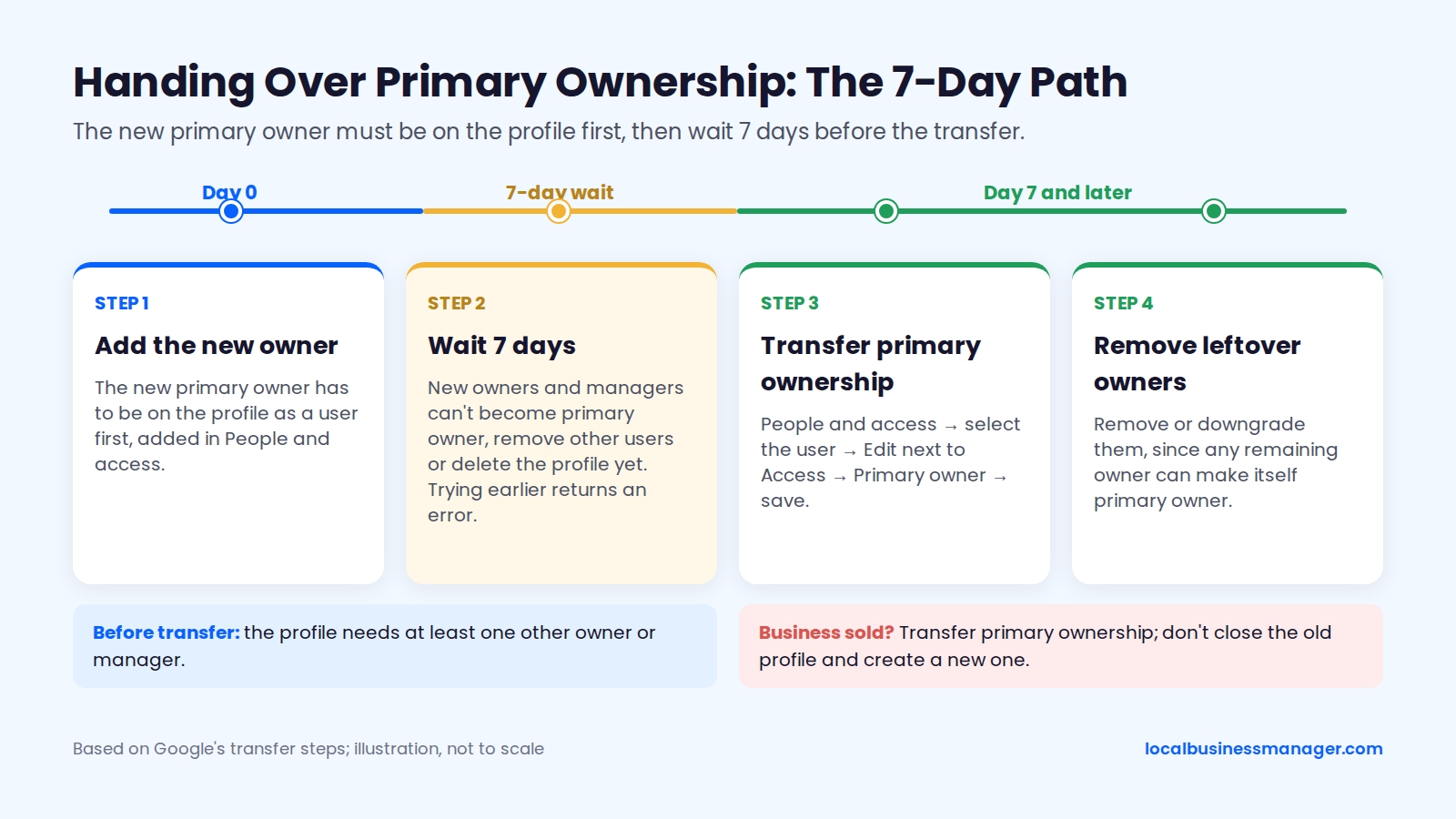
When a business is sold, Google says to transfer primary ownership so business info such as reviews stays with the profile. My advice is not to close the old profile and create a new one. I've also seen Google ask for re-verification after an office move.
When a client leaves, my agency removes itself from the profile. Remove or downgrade any other leftover owners at the same time, since any remaining owner can make itself primary owner.
How Do You Set Up Multiple Locations?
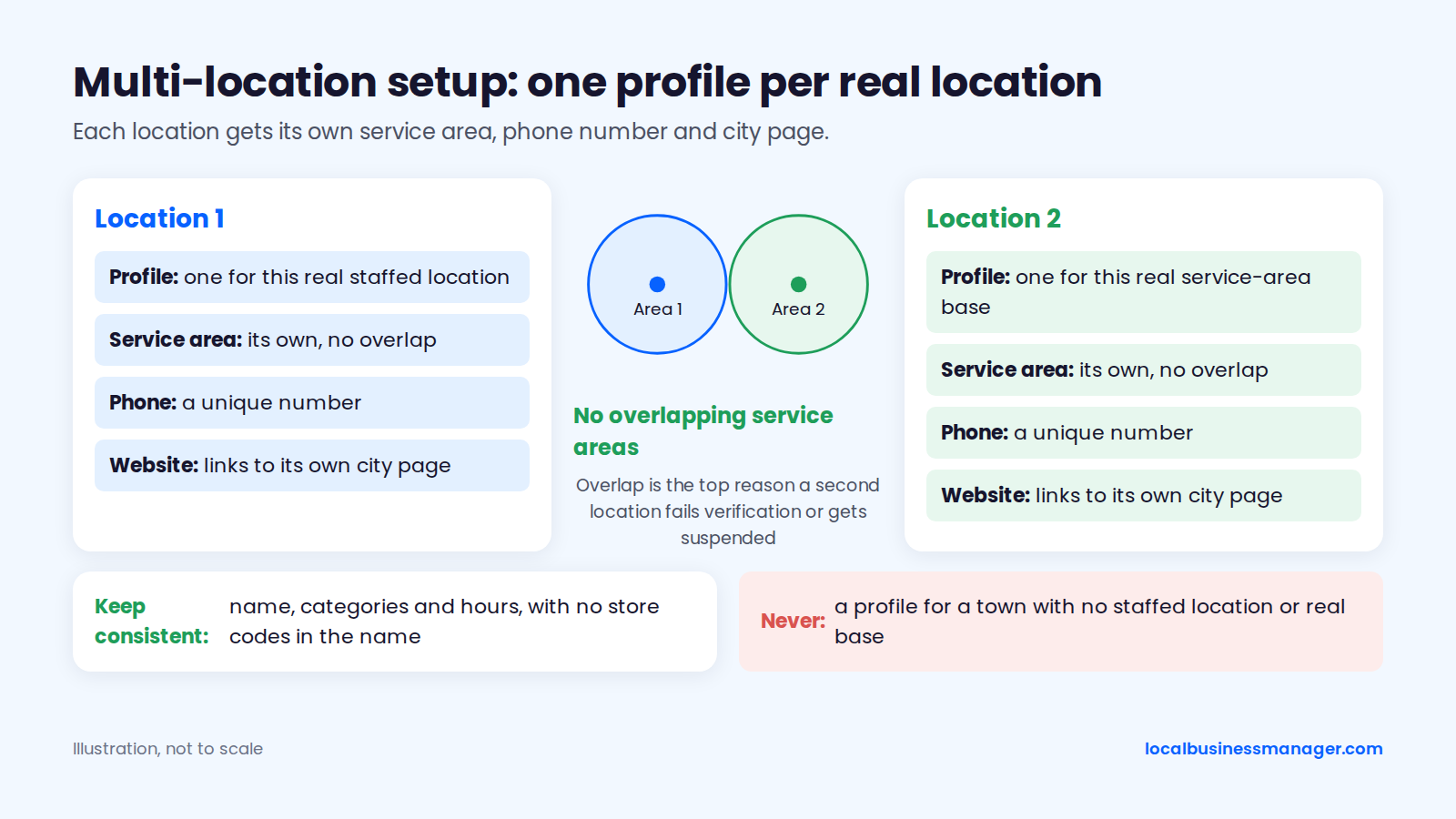
Set up one profile per real staffed location or real service-area base, never one per city the business wants to rank in. Keep the name, categories and hours consistent across locations, and follow these 6 rules:
- One profile per real location. A profile for a town with no staffed location or real base breaks Google's guidelines.
- No overlapping service areas. Sterling Sky found in December 2025 that overlapping service areas are the top reason a second SAB location fails video verification or gets suspended. The overlap matters more than the distance between the 2 locations.
- A unique phone number for each location, as Sterling Sky recommends.
- A dedicated page for each location. In my setups, each office's profile links to its own city page, which carries the local details for that office.
- City pages only for towns the business actually serves. In my view, case studies, job photos and reviews from customers in that town make the page stronger.
- Store codes out of the business name. A store code is an internal identifier; the name field stays the real-world name at every location.
Multi-location businesses can add locations in bulk by uploading a spreadsheet in Business Profile Manager instead of creating each profile by hand. Businesses with 10 or more locations can request bulk verification, according to a 2025 guide from a local SEO software company that cites Google's guidelines. Below 10, each location is claimed and verified on its own.
Which Setup Mistakes Get a New Profile Suspended?
Six setup choices put a new profile at risk, and each has a compliant alternative. The table follows the order they come up, from the first search to the first review request. Sources: Google's guidelines for representing your business, Google's review policy, a Local Search Forum reply on name edits during verification, and the 2026 Local Search Ranking Factors survey.
Mistake | Why it's risky | Compliant alternative |
|---|---|---|
A duplicate profile | Breaks Google's guidelines and risks suspension | Get access to the existing profile and request a merge through support |
Keywords in a name the business doesn't use | Breaks Google's real-world-name rule; a top suspension risk in the 2026 Local Search Ranking Factors survey | Register a DBA, use it everywhere, then use it on the profile |
A virtual office or remote P.O. box address | Not eligible under Google's guidelines | Use a real staffed location, or set up as an SAB with the address hidden |
One profile per city | Breaks Google's guidelines when there's no real location there | One profile per real location, plus city pages for towns actually served |
Editing the name while a postcard code is pending | A practitioner on Local Search Forum reports it invalidates the code and can look spammy | Wait until verified, then space sensitive edits a day or two apart |
Review incentives or gating | Prohibited by Google's review policy | Ask every customer the same way, with no reward |
Once a profile is live, name and address edits are what cause the most suspensions in my experience.
If a client already has keywords in a name the business doesn't use, that name breaks Google's guidelines today. It risks a suspension or a forced edit until a real DBA exists. My practice is to keep the current name only while the DBA is being filed, then switch to the registered name. Never add keywords that aren't part of the legal or DBA name.
How Long Does It Take for a New Profile to Show Up on Google?
Google publishes no timeline for a newly verified profile to start showing for its brand name or for category searches. The windows Google does document, listed in the timelines table above, cover processing only. The visibility estimates below come from practitioners.
Showing for the Business Name
One practitioner guide puts brand-name visibility at 1 to 14 days after verification; another says up to a week. Google's help pages give no figure. In 2019, a Google Product Expert said in the official community forum, "It can take up to two weeks."
If a business is still not showing up on Google for an exact name-plus-city search 2 weeks after verification, the 1-to-14-day guide points to a technical cause rather than timing, such as filtering or a failed verification.
Showing for Category Searches
No reliable published test gives a timeline for category searches such as "plumber near me". Search Engine Journal reported in August 2023 that Google's Business Profile Help Center names relevance, distance and prominence as the main factors in local results. Distance depends on where each searcher is, so no single timeline fits every search.
In my experience, a new profile in a competitive city can take a month or two to show in the map pack for category searches, with no guarantee for any one business. On an existing profile, one high-impact fix, such as getting the name right through a DBA, can show ranking gains within about a month; further gains come more gradually.
Google Business Profile Setup FAQs
A verified profile shows no claim button, one account can manage several separate businesses, a home-based business can hide its address, and Google My Business is simply the old name for Google Business Profile.
How Do You Know If Your Google Business Profile Is Verified?
Search the exact business name plus city: a "Claim this business" or "Own this business?" button means nobody has verified it. If the listing says "Someone else may manage this Business Profile", another account has. Google's request-ownership help page adds that if you find your profile but see no claim button, you might already be the owner. Sign in with each Google account the business has used until you find the one that manages it, then add the company account as a user.
Can You Manage Multiple Businesses Under One Google Account?
Yes, with conditions: one Google account can manage several profiles, and genuinely separate businesses can each have their own profile, even at the same address. Sterling Sky's September 2026 article on 2 profiles at one address notes that the same business can't have 2 profiles. Ownership still sits with each business, so an agency managing many profiles holds manager access on each one.
Can You Use Your Home Address for a Google Business Profile?
Yes, if the business serves customers at their locations: set it up as a service-area business and keep the home address hidden. Google's guidelines give a service-area business one profile with its address hidden. Showing a home address only works if customers really come there during business hours and the address carries permanent signage, which the guidelines require of any business that shows its address.
Is Google My Business the Same as Google Business Profile?
Yes: Google Business Profile is the current name of the product formerly called Google My Business. Searches and guides that say "GMB" mean the same profile. Older guides may point to a Google My Business dashboard or app; today you create a profile at business.google.com/create or claim it from the listing on Google Search or Maps.
Where Should You Start?
Search before you create, and put the business's own account in the primary owner seat on day one. Get those 2 right first, then work through verification with the shot list in hand. If you set up and manage profiles for clients, Local Business Manager is in early access for agencies and multi-location businesses.