How to Add Google Reviews to Your Website

Google has no official widget to embed reviews on your website. You add them in one of 6 ways: a review link, a Google Maps embed, quoted reviews, a third-party widget, a WordPress plugin or custom Places API code. Your site builder usually narrows the choice quickly.
Most agencies have had the client email asking why the new widget shows only a handful of reviews. The answer is the data source, which this guide explains. It also includes a method chooser, paste steps for the main site builders and the display rules that keep a client clear of trouble with Google and the FTC.
Can You Embed Google Reviews Directly From Google?
No, Google doesn't give you embed code for reviews. Google Business Profile (formerly Google My Business) stores the reviews, but the profile has no widget or snippet to paste into a website. A Google Business Profile Community product expert confirmed this in the forum thread that still ranks for this search.
We found no Google help article that states this outright. Google does offer 4 related tools:
- A review link and QR code from the profile's "Get more reviews" option, which open the review form.
- A Google Maps embed of the business location, made from the Share menu in Google Maps.
- The Places API, a developer API that returns up to 5 of a place's reviews to anyone with an API key and a billing account.
- The Business Profile APIs, which return every review. They work only for profiles you own or manage, and only after Google approves your project.
Every third-party widget and plugin runs on one of those APIs or collects reviews another way.
Which Method Should You Use?
Your choice comes down to 3 factors: whether you need a live feed or a few strong quotes, whether the review text has to sit in the page's HTML, and who has access to the client's profile. The 2 tables below compare all 6 methods, and the decision rule after them turns the comparison into a pick.
What Each Method Shows
Manual quotes are the surest free way to put review text in the page's HTML. Among Google's official routes, only the Business Profile APIs return a full, self-updating review list. Routes built on the Places API are capped, as Method 4 explains.
As of November 2026, the table draws on Google's Places API documentation and policies and on widget vendors' published plans, sorted from free to paid. We haven't tested what a full Google Maps place embed shows, so that row says "Not tested."
Method | Cost | Reviews shown | Updates automatically | Review text in page HTML | Compliance watch-out |
|---|---|---|---|---|---|
Review link | Free | None on the page; links to the profile | Not applicable | No | Send it to every customer the same way |
Google Maps embed | Free | Not tested | Not tested | No | None found |
Single-review embed (Google Maps) | Free | 1 | No | No | None found |
Manual quotes | Free | As many as you copy | No | Yes | Unedited, attributed and labelled |
Third-party widget | Free plan with limits, or subscription | Up to 5 (Places API) or all (Business Profile APIs) | Yes, on the vendor's sync schedule | Usually no | Author names shown; star filters labelled |
WordPress plugin | Free or paid | Up to 5 or all, by data source | Yes | Depends on the plugin | Same as a widget, plus no local storage of Places reviews |
Places API code | Billing account required; see Google's pricing | Up to 5 | Yes | Depends on the build | Author attribution; no caching |
What Each Method Takes to Set Up
A review link takes the least setup, and custom Places API code takes the most. The setup ratings are our judgment as of November 2026. The table is sorted from least to most setup work.
Method | Setup effort | Access needed | Best for |
|---|---|---|---|
Review link | Low | Owner or manager for the review form; none for a Maps listing link | Every site, paired with another method |
Google Maps embed (map or single review) | Low | None | Contact and location pages |
Manual quotes | Low, plus quarterly refreshes | None | Free sites that want review text in the HTML |
Third-party widget | Low to medium | None, or owner/manager sign-in | A live feed on a hosted site builder |
WordPress plugin | Medium | WordPress admin, plus owner/manager sign-in for full lists | WordPress sites |
Places API code | High; needs a developer | Google Cloud project, API key and billing account | Developer-built sites that need a custom design |
A Quick Decision Rule
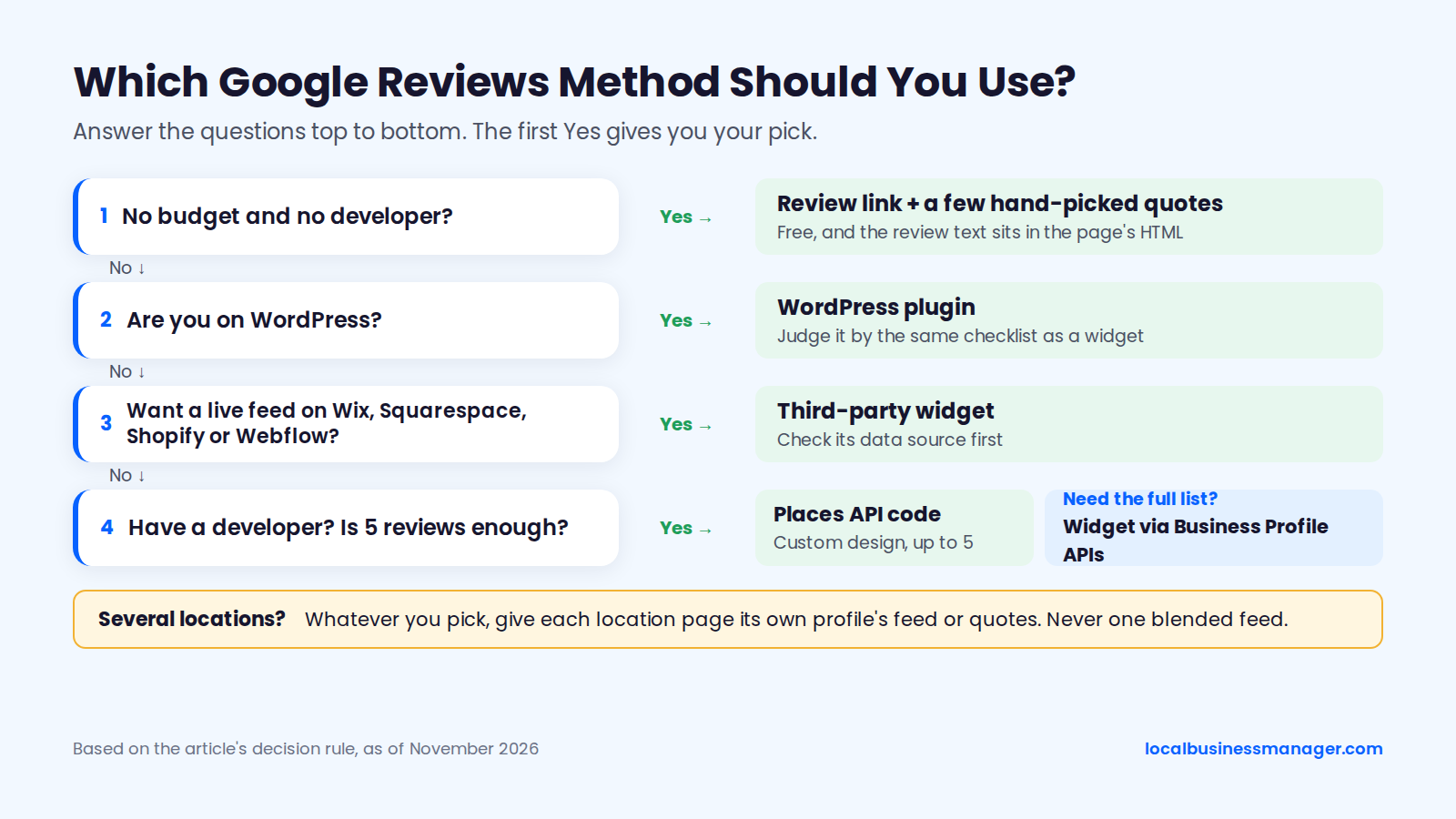
These 5 rules cover most sites:
- No budget and no developer: add a review link plus a few hand-picked quotes.
- You want a live feed on a hosted builder such as Wix, Squarespace, Shopify or Webflow: use a third-party widget, after checking its data source.
- You're on WordPress: use a plugin, and judge it by the same checklist as a widget.
- You have a developer and 5 reviews is enough: write custom Places API code. If you need the full list, use a widget connected through the Business Profile APIs.
- The business has several locations: give each location page its own profile's feed or quotes, never one blended feed.
On client sites I've used 3 of these: a widget tool, hand-picked quotes and a review link. I don't have one default. The site builder usually makes the decision for me, so I start there.
Method 1: Add a "Leave a Review" or "See Our Reviews" Link
Yes, you can link to your Google reviews. A review link is the free, policy-safe baseline: a button that sends visitors to the profile's review form or to its full review list. It shows no review text on the page, so most sites pair it with another method.
How to Get Your Google Review Link and QR Code
You get the review link and the QR code for Google reviews from inside the Business Profile, signed in as an owner or manager. Google's Business Profile Help page on creating a review link or QR code gives this path:
- Sign in to the Google account that owns or manages the profile.
- Open the Business Profile.
- Select Read Reviews, then Get more reviews.
- Copy the link, or get the QR code. Google says review QR codes can currently be generated only in a computer browser, not on mobile.
- Paste the link as the URL of a button on the site.
A 2024 Google Business Profile Community answer says the option has also appeared in Google Search as "Ask for reviews." Google changes these labels, so follow its help page if yours are different. The diagram below shows that Google Search version of the flow.
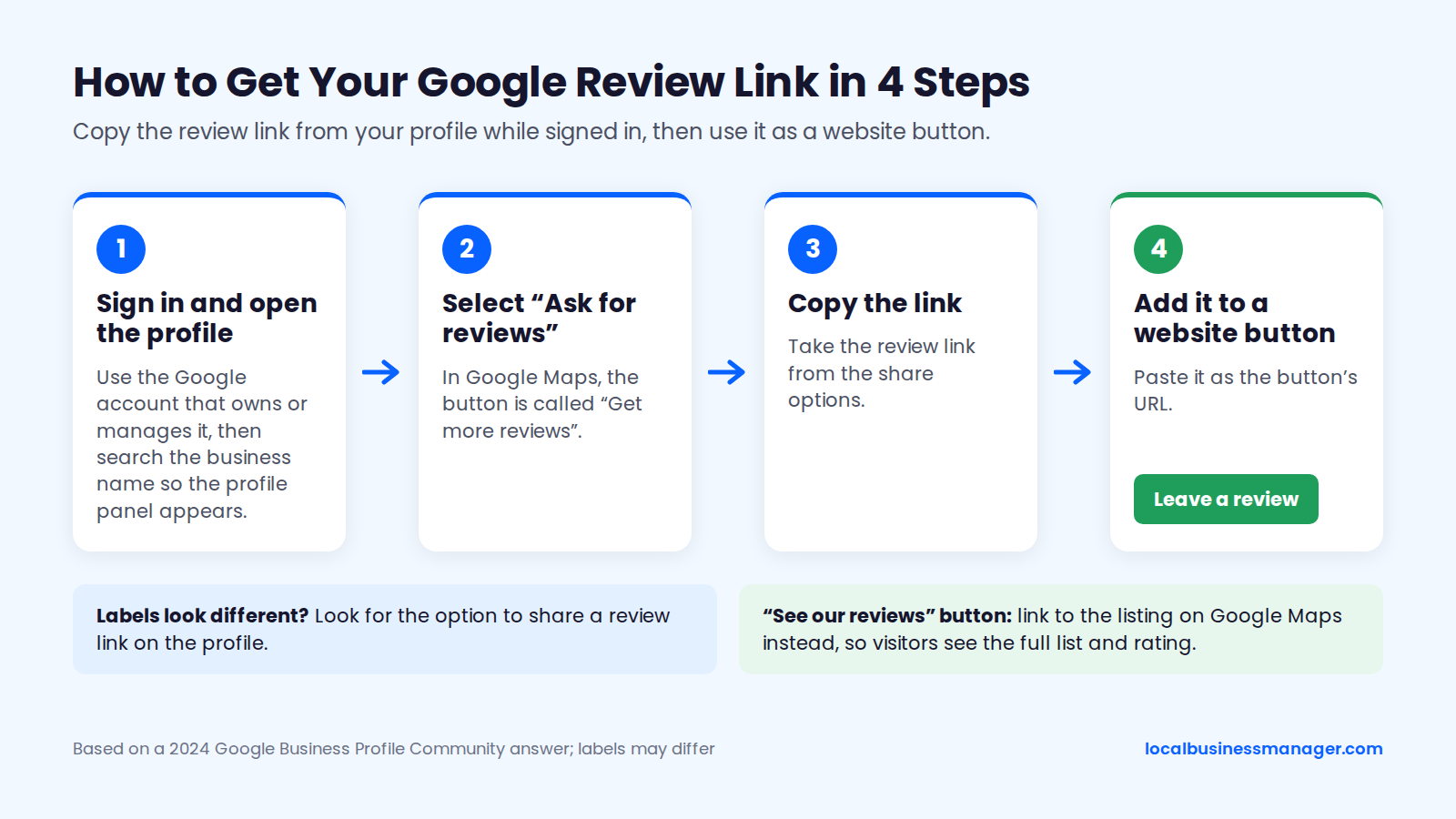
A "See our reviews" button can also point to the business's Google Maps listing instead of the review form. The review link and QR code are built for collecting reviews, while the listing shows visitors the full list and the rating.
Scan any QR code with a phone before printing it. For codes on counters and invoices, see how to make a Google review link and QR code.
Where to Put the Button and Who to Send It To
Put the review button next to any review content, in the site footer, and on the contact and thank-you pages, where visitors who are already convinced can act on it.
Off the site, send the same link by email or text only to customers who agreed to receive those messages, and ask every one of them the same way. Sending the link only to customers you expect to be happy is review gating, which Google's review policies prohibit. Keep the request free of discounts, gifts or any other incentive.
The full request process, with message templates, is in our guide on how to get more Google reviews.
Method 2: Embed Your Business on a Google Map
A Google Maps embed puts the business's location on your page at no cost. Google's Maps Embed API quickstart says embedding a map from Google Maps' Share menu costs nothing. The separate Maps Embed API is also free with unlimited usage, though every request through it needs an API key.
How to Embed the Map or a Single Review
The map embed comes from the Share menu. The 5 steps below follow the paths described in IONOS's and Duda's guides to embedding Google Maps:
- Open Google Maps and search for the business.
- Select Share.
- Choose "Embed a map."
- Copy the HTML, which is an iframe.
- Paste it into your builder's embed or custom-code element (see the builder section below).
To embed one review instead, review-widget vendors' published tutorials describe this path: in Google Maps, open the review, click the 3 dots, choose "Share review," open the Embed tab and copy the HTML. Each single-review embed shows only 1 review and doesn't add new reviews automatically.
We haven't tested what the embedded place card shows for every listing. Open the live preview on your own listing before you count on it as social proof. Both embeds are iframes, so nothing they show becomes text in your page's HTML.
Method 3: Quote Reviews Manually
Manual quoting means copying review text from the profile onto your page, as text or as screenshots. It costs nothing and needs no script. It's also the most reliable free way to get review text into the page's HTML.
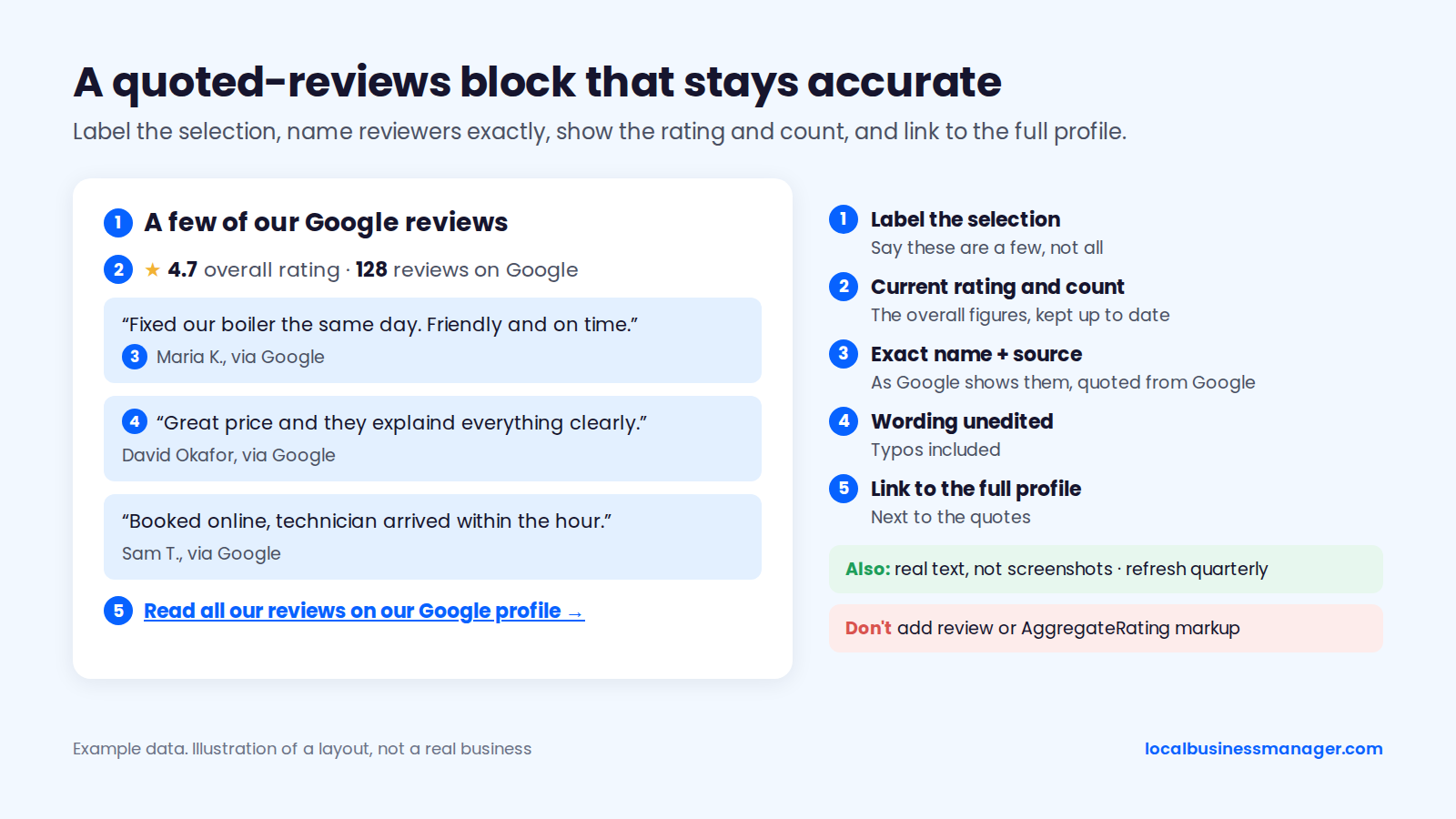
Google publishes no rule on quoting its reviews by hand. The 7 practices below aren't Google requirements. They keep the display accurate and current:
- Name the reviewer exactly as Google shows them, and say the quote comes from Google.
- Don't edit the wording, typos included.
- Link to the full profile next to the quotes.
- Label the selection ("A few of our Google reviews") and show the current overall rating and review count. The FTC section below explains why.
- Refresh the quotes quarterly. Remove any review the customer has since deleted or changed.
- Use real text, not screenshots, where you can. Text inside an image isn't text on the page.
- Don't add review or AggregateRating markup. Google treats these reviews as self-serving and won't show stars for them (details in the SEO section).
Law firms have extra rules for client testimonials. Read the law-firm section before quoting anything.
Method 4: Use a Google Reviews Widget for Your Website
A third-party widget is a script from a review-display service that lets you embed Google reviews on your page as a grid, carousel, list or floating badge. Setup is nearly the same in every tool:
- Create an account with the widget service.
- Connect the business, either by searching its name or Place ID, or by signing in with a Google account that owns or manages the profile.
- Choose a layout: grid, carousel, list or badge.
- Set display options, such as sort order and review length. Read the FTC section before you turn on star filters.
- Copy the embed code and paste it into your site.
How Widgets Get Your Reviews (and Why Many Show Only 5)
A widget built on the Places API shows at most 5 reviews. A full list comes through the Business Profile APIs, which someone with owner or manager access has to connect, or through unofficial collection, where results vary by tool. Google's Places API (New) Place resource reference says reviews are sorted by relevance and a maximum of 5 can be returned.
Google's Places API policies add 2 more requirements. A site must credit the author of every review it shows, and it may not cache or store Places content except place IDs. The table compares the 3 data sources as of November 2026.
Data source | Who can use it | Reviews returned | What it requires |
|---|---|---|---|
Places API | Anyone with an API key | Up to 5, sorted by relevance | An API key and a Google Cloud billing account |
Business Profile APIs | Owners and managers, via Google sign-in | All reviews | Owner/manager sign-in and Google project approval |
Unofficial collection | The widget's operator | Varies by tool | Not applicable; doesn't use Google's APIs and may conflict with Google's terms |
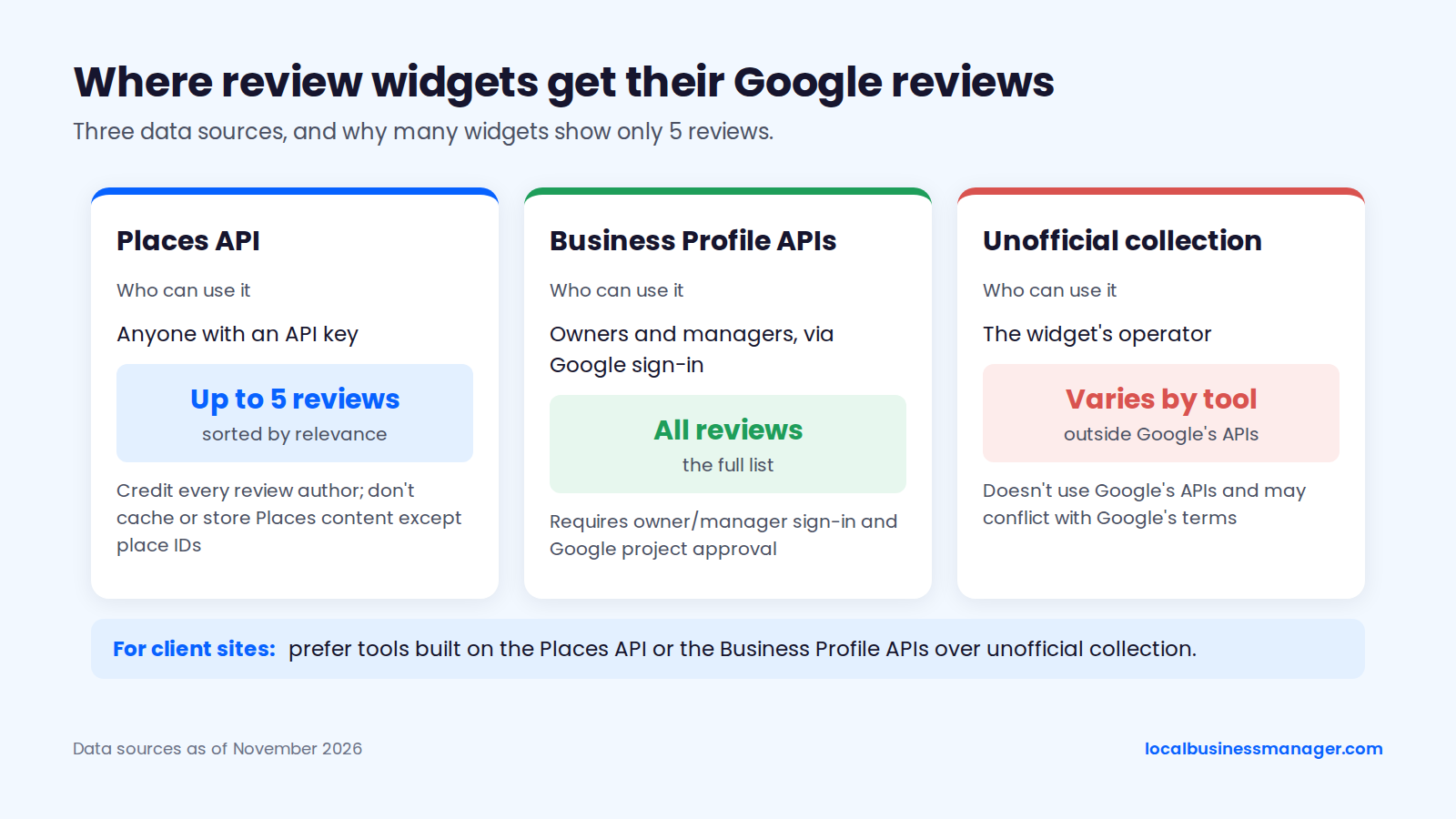
For client sites, choose tools built on the Places API or the Business Profile APIs over unofficial collection.
What to Check Before You Pick a Widget
Before you install a widget, find out its data source, its limits and what happens when you cancel. Ask every vendor these 9 questions:
- Data source: Places API, Business Profile APIs or something else?
- Reviews shown: 5, or the full list?
- Sync frequency: how often do new reviews appear?
- Free-plan limits: one widget vendor's free plan, for example, covers 1 Business Profile, up to 500 reviews and 500 widget views a month, shows the vendor's branding and syncs new reviews every 24 hours.
- Cancellation: some vendors' help docs say the display stops when the subscription ends. Others drop the account to a free plan and switch the widget off once it passes the view cap.
- Script loading: does it load asynchronously, and how heavy is it?
- Consent behaviour: does it set cookies, and does your consent banner block it?
- Multi-location support: can each location have its own feed, and how does pricing scale per source?
- Attribution and filters: does it show author names, and can star filters be labelled?
How Do You Paste Review Code Into Your Website Builder?
Most builders take review code through one embed or code element, though some limit custom code by plan and SharePoint accepts only iframe embeds. The steps below apply to any builder, and the table gives the element for each builder we could confirm. Menu names and plan rules change, so confirm both in the platform's help center.
Steps for Any Site Builder
Follow these 6 steps:
- Find the builder's embed element (see the table below) and confirm its current name in the platform's help center.
- Check that the client's current plan allows custom code before you quote a setup fee. If it doesn't and an upgrade isn't an option, manual quotes and a review link need no code at all.
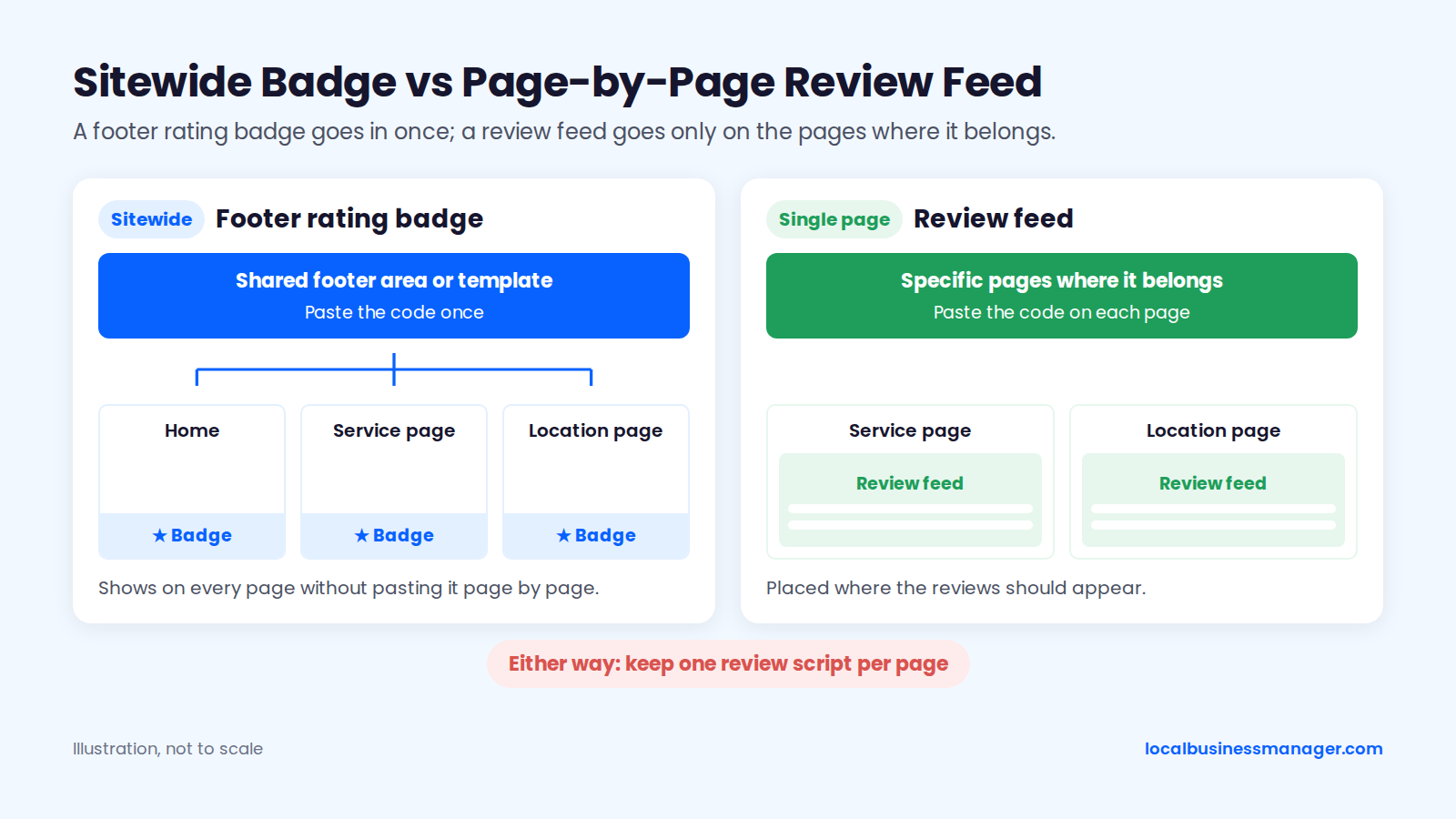
- Decide sitewide or single page. A footer rating badge goes once into the shared footer area or template. A review feed goes on the specific pages where it belongs.
- Paste the code where the reviews should appear.
- Publish, then check the live page in a private window on desktop and mobile. Some builders run widget scripts only on the published site.
- Keep one review script per page.
Where the Embed Element Is in Each Builder
Each builder below takes review code through a single embed or code element. The main traps are plan limits and widgets that run only on the published site. The Webflow and Google Sites paths come from those platforms' help centers; the Framer, Carrd, SharePoint and Elementor details come from review-widget vendors' setup tutorials, as of November 2026.
Builder | Where to paste the code | Watch out for |
|---|---|---|
WordPress | An HTML block in the block editor | Confirm the current block name in WordPress's documentation |
Webflow | Add panel > Code Embed element | The widget appears on the published site, not in the Designer |
Google Sites | Insert > Embed, on the right, then the Embed code tab | Paste widget code in the Embed code tab, not as a URL |
Plain HTML website | Widget container in the page, script loaded with async or defer | Load it after your own key scripts, as Google's web.dev guidance recommends |
Elementor | HTML widget dragged onto the page | None found |
Framer | Insert > Embed | Scripts run only on the published site, not in the editor |
Carrd | + (Add Element) > Embed | Needs a Carrd Pro plan |
SharePoint | Iframe embed only | The widget's domain must be allowed in site settings |
Wix, Shopify and Squarespace each have their own embed or custom-code element. We didn't verify their current menu paths or plan rules, so look both up in the platform's help center before you promise a client a live feed.
How to Add Google Reviews to WordPress Without a Plugin
In WordPress, paste the widget's code into an HTML block in the block editor, placed where the reviews should appear. Block names can change between versions, so confirm the current one in WordPress's own documentation. On Elementor pages, drag in the HTML widget and paste the code there instead.
Pasting code keeps the setup in the widget vendor's account. A plugin keeps it inside the site, and that route is covered in Methods 5 and 6.
Methods 5 and 6: WordPress Plugins and Custom Places API Code
Plugins and custom code are the agency and developer routes. A plugin is a review widget that lives inside WordPress. Custom code calls Google's Places API directly, which gives you full control over design and markup within the Places API's review cap.
Using a WordPress Plugin
A review plugin works like a widget that you manage from the WordPress dashboard. Setup takes 4 steps:
- Install a Google reviews plugin from the Plugins screen in the WordPress dashboard.
- Connect the business, by place search or by owner/manager sign-in, depending on the plugin.
- Choose the layout and display options.
- Place the reviews with the plugin's block or shortcode, as its documentation describes.
All the questions from the widget checklist apply: data source, review cap, sync frequency and what happens if the paid tier lapses. One more question matters for plugins: does it store review content in your WordPress database? A plugin that saves Places API reviews locally should explain how it stays within Google's caching rules (see Method 4).
Keep the plugin updated, and don't run 2 review plugins on one site. Each one adds another script to the page.
How to Use the Google Reviews API (Places API)
People search for "the Google reviews API," but the route open to anyone is Google's Places API (New): you request Place Details for the business and render the reviews yourself. Custom code takes 7 steps:
- Create a Google Cloud project with a billing account, enable the Places API and create an API key. Google's "Set up the Places API (New)" page says the key handles authentication and links usage to your billing account. Check Google's current Maps Platform pricing before you build.
- Build against Places API (New). Google documents the older version separately as Place Details (Legacy), so older sample code may not match the current API.
- Restrict the API key so it only works on the client's domains and only for the Places API. Check Google's API key documentation for the restriction options. Never publish an unrestricted key in front-end code.
- Find the business's Place ID with Google's Place ID Finder.
- Request Place Details with a field mask that includes reviews. Google's Places API (New) quick reference says Place Details (New) has no default field list, so a request without a field mask returns an error. The response includes at most 5 reviews, sorted by relevance.
- Display the reviews with the attributions Google's policies require: each author's name and link, the Google logo when no Google Map is shown, and a note telling users about Google's review policy. Google's Places documentation also recommends showing users how reviews are sorted. The default sort is by relevance.
- Don't cache or store review content beyond what the policies allow. Place IDs are the exception.
If the client needs every review, use the Business Profile APIs. They require owner or manager sign-in and Google's approval of your project.
Where Should Google Reviews Go on a Service-Business Website?
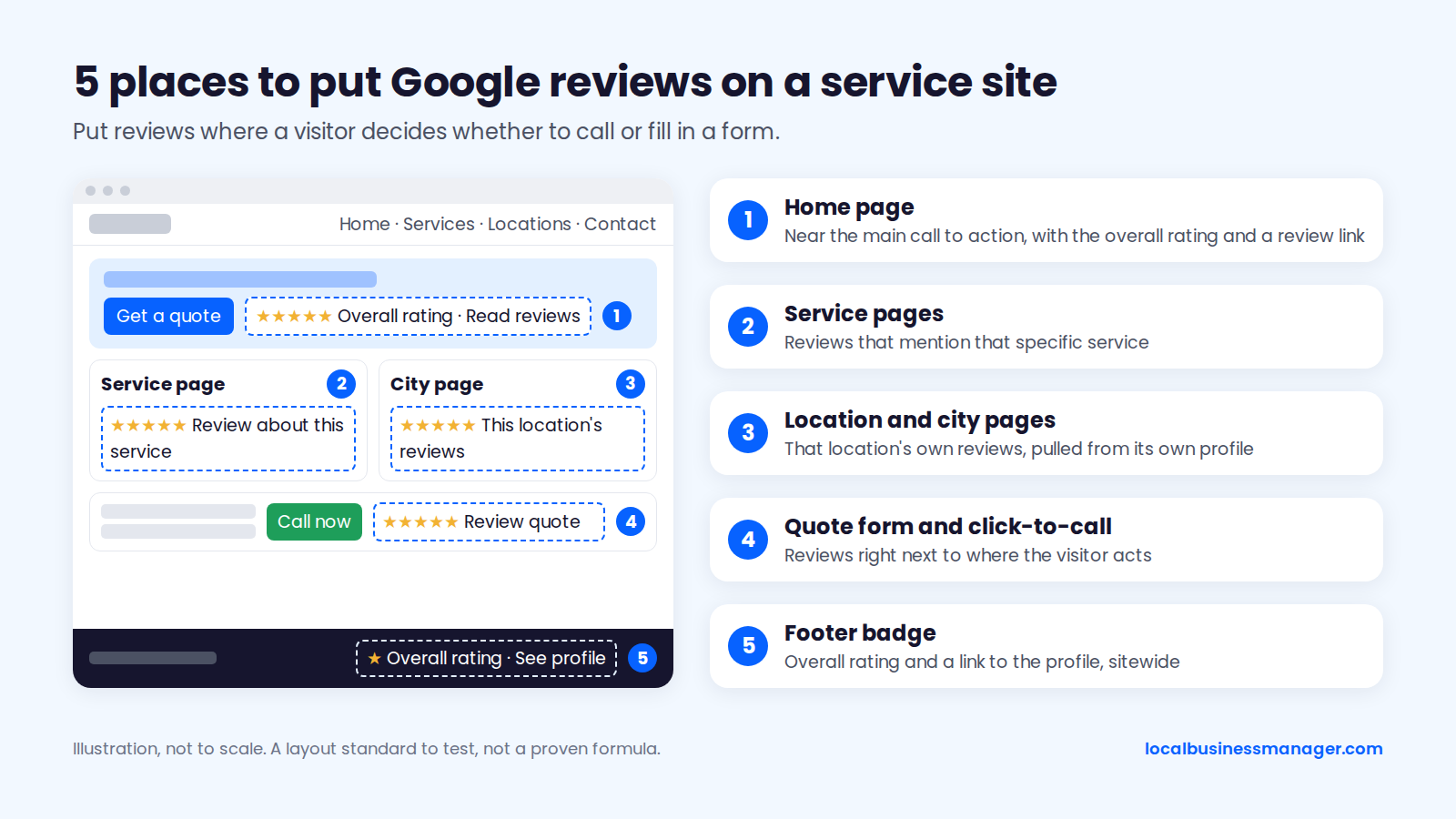
Put reviews where a visitor decides whether to call or fill in a form. We found no published study that measures review placement on service or law-firm sites. Use these 5 spots as a starting layout and test it:
- Home page, near the main call to action, with the overall rating and a review link.
- Service pages, with reviews that mention that specific service.
- Location and city pages, showing that location's own reviews, pulled from its own profile.
- Next to the quote form and click-to-call button.
- Footer badge with the overall rating and a link to the profile, sitewide.
For multi-office businesses, my practice is to link each office's profile to its own city page, with that office's local details on the page. In my view, reviews from customers in that town are a huge plus on a city page. The rest of the multi-location setup is in our local SEO for multiple locations guide.
Can You Show Only Your Best Reviews?
You can choose which reviews to feature, but you can't make a hand-picked set look like all of your reviews. The FTC's rule targets that kind of misrepresentation. Google's policies separately ban filtering who gets asked for a review, and what follows is marketing guidance, not legal advice, so have counsel review anything borderline.
What the FTC Rule Says
The FTC's Consumer Reviews and Testimonials Rule bans implying that the reviews you show are most or all of your reviews when you've hidden some for low ratings or negative sentiment. That provision, 16 CFR 465.7(b), took effect on October 21, 2024. It applies to parts of a site dedicated in whole or in part to receiving and displaying consumer reviews.
The rule and the FTC's related guidance draw 3 lines:
- Permitted hiding: the rule lets you hide reviews for listed reasons, such as defamatory or abusive content, other people's personal information, discriminatory content or clearly false content.
- Sorting: the FTC's Q&A on the rule says that sorting reviews so negative ones appear lower is not suppression.
- Broader guidance: the FTC's 2023 Endorsement Guides, as summarized by the law firm Morgan Lewis, say leaving out reviews under 4 stars is misleading when a site claims to reflect what purchasers think.
How the FTC Enforces Review Rules
The FTC has already acted on hidden negative reviews, and penalties under the rule are set per violation. The record so far:
- Fashion Nova paid $4.2 million in 2022 to settle FTC allegations that it blocked negative reviews. The FTC brought that case before the rule existed, under Section 5 of the FTC Act.
- Warning letters went to 10 companies about the rule in December 2025.
- Penalties can reach $53,088 per violation, according to Arnold & Porter (January 2026).
We found no FTC action on a filtered Google review widget specifically. Whether a widget filtered to 4 and 5 stars falls under the rule depends on 2 things: whether it sits in a part of the site dedicated to displaying reviews, and whether the site implies those are all of its reviews.
Display Filtering Is Not Review Gating
Display filtering (what your website shows) and review gating (who gets asked for a review) fall under different rules. The FTC rule above limits filtering. Gating means sending the review link only to customers you expect to be happy, and it breaks Google's review policies whatever your website displays.
Keep the 2 decisions separate:
- Asking: ask every customer the same way when the job is done.
- Showing: decide honestly what the site displays, and label it.
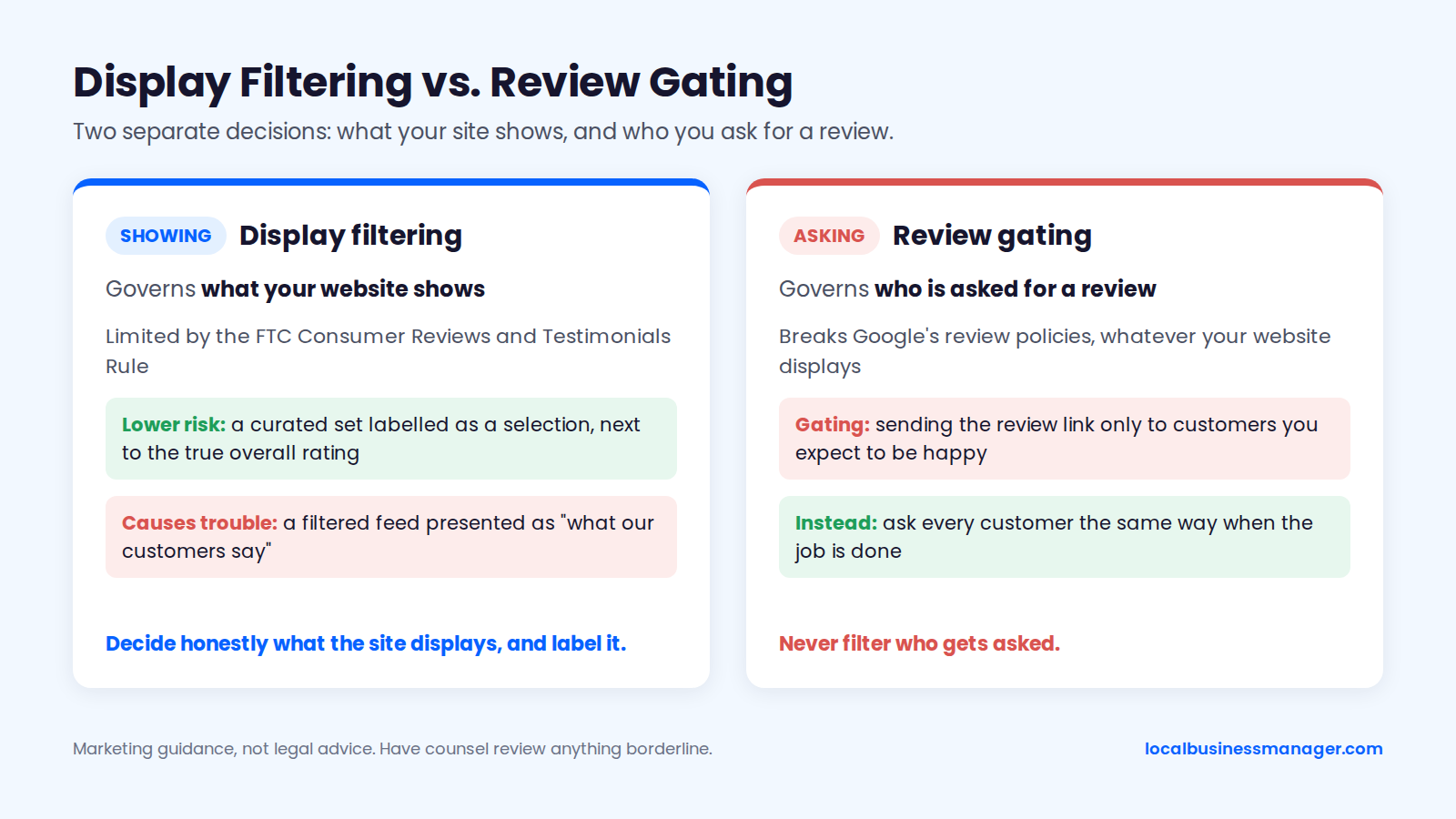
A curated set of strong reviews carries lower risk when it's labelled as a selection and sits next to the true overall rating. A filtered feed presented as "what our customers say" is riskier. Have counsel confirm either way, because the FTC's Endorsement Guides reach further than the rule itself.
An Honest-Display Checklist
Check every review display against these 8 points before it goes live on a client site. They combine the FTC rule, Google's attribution requirements and Google's review snippet guidelines:
- Hand-picked sets are labelled as a selection.
- The overall Google rating and review count appear next to the reviews.
- A link to the full profile sits next to the display.
- No star filter on a reviews section (a part of the site dedicated in whole or in part to receiving and displaying reviews) that's presented as all of your reviews.
- Reviews are hidden only for permitted reasons (abusive, defamatory, personal information, discriminatory, clearly false).
- Author attribution stays on every review.
- Wording is unedited.
- No review or AggregateRating markup for Google reviews.
Extra Rules for Law Firms
Law firms must clear their state bar's advertising rules before showing client reviews, because a review on the firm's site can count as the firm's own advertising. ABA Model Rule 7.1 bars false or misleading communications about a lawyer's services.
The ABA's chart of state variations on Rule 7.1 shows how widely states differ. California's rule, for example, still names testimonials.
New York is strict. The New York State Bar Association's attorney advertising Q&A (2020) lists 3 testimonial requirements under New York Rule 7.1:
- Disclaimer: client testimonials must carry "Prior results do not guarantee a similar outcome."
- Pending matters: a testimonial about a pending matter needs the client's informed consent, confirmed in writing.
- Paid endorsements: they must say they were paid.
The ABA chart also notes that New York requires the "Attorney Advertising" label on a firm's home page. The NYSBA Q&A dates from 2020, so check the current text of New York's Rules of Professional Conduct before you publish.
The FTC rules apply to law firms too. Its December 2025 business blog named lawyers among the services consumers choose through reviews. Check your own state bar's rules before any client review goes on a law-firm site.
Do Google Reviews on Your Website Help SEO or Get Star Ratings?
Reviews help where Google says they do: more reviews and positive ratings on the Business Profile can help local ranking, while reviews re-displayed on your site earn no stars. We found no Google documentation of a ranking benefit from showing reviews on a website, so put your review work into the profile.
Why Review Schema Won't Get You Stars
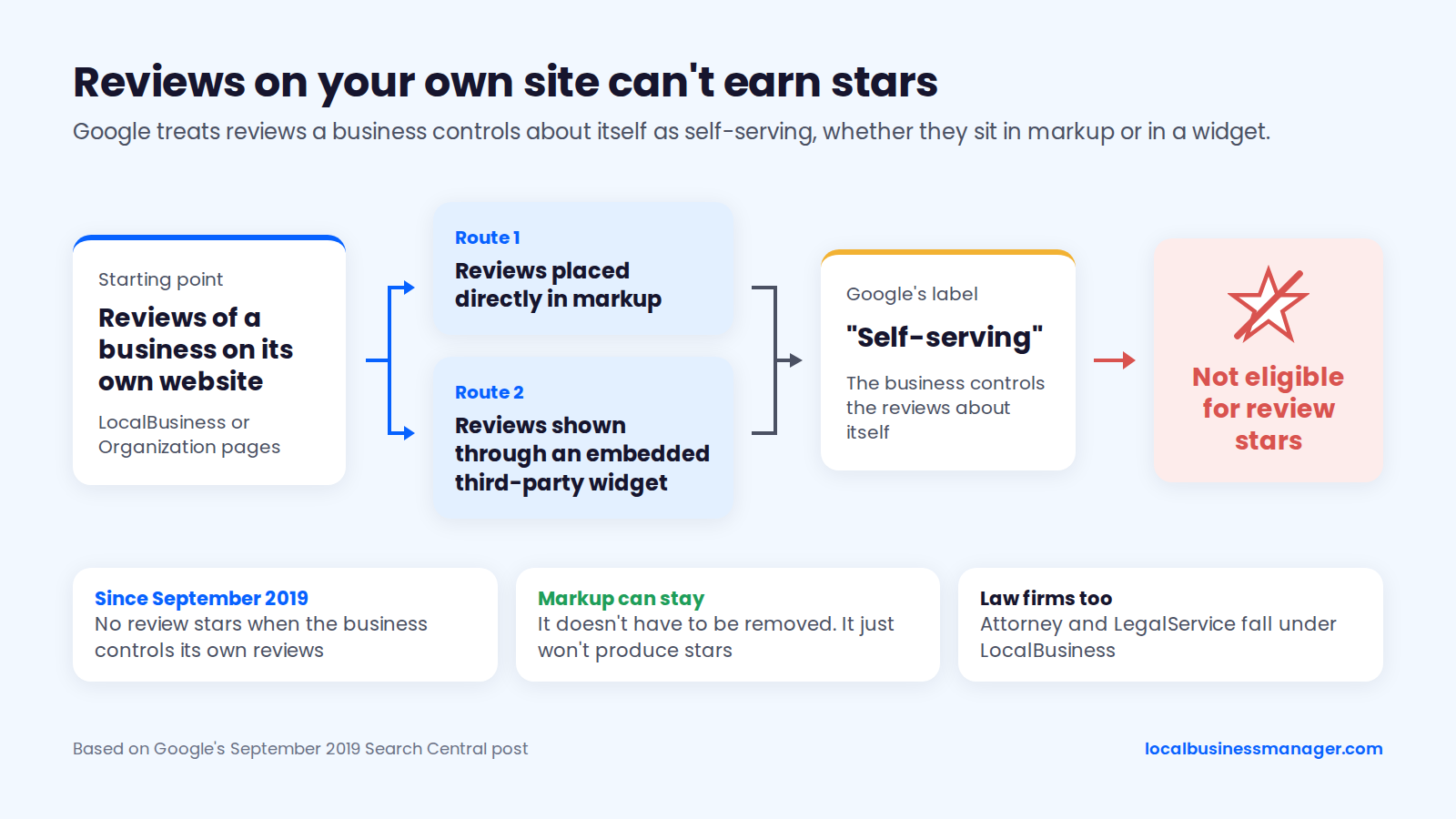
Since September 2019, Google hasn't shown review stars for LocalBusiness or Organization pages when the business controls the reviews about itself. Google calls these reviews "self-serving."
Its September 2019 Search Central post covers both reviews placed directly in markup and reviews shown through an embedded third-party widget. It says the markup doesn't have to be removed, though it won't produce stars.
Three more points apply to client sites:
- Law firms: their Attorney and LegalService markup types fall under LocalBusiness, so the same rule applies.
- Blended ratings: Google's current review snippet documentation says not to aggregate reviews or ratings from other websites. An AggregateRating that blends Google, Yelp and Facebook scores breaks that rule.
- Incentivized reviews: on July 24, 2026, as reported by TechWyse, Google added a line against fake or undisclosed incentivized reviews on the page or in markup.
Secondary sources disagree on whether self-serving markup alone triggers a manual action, and we found no primary Google statement on it. The markup can't earn stars on a business's own pages anyway, so the safer choice is to leave it off.
Do On-Site Reviews Help Local Rankings?
We found no Google statement or published test showing that reviews re-displayed on a website help local rankings. The reviews Google ties to local ranking are the ones on the Business Profile.
Google's "Tips to improve your local ranking on Google" help page lists relevance, distance and prominence as the factors that determine local ranking. It also says "More reviews and positive ratings can help your business's local ranking."
My review goal for a client is to match the average review count of the top 3 map-pack results, and ideally to get as many reviews as possible. All of that work happens on the profile, not on the website. The ranking evidence is covered in do Google reviews help SEO.
Will a Review Widget Slow Down Your Site?
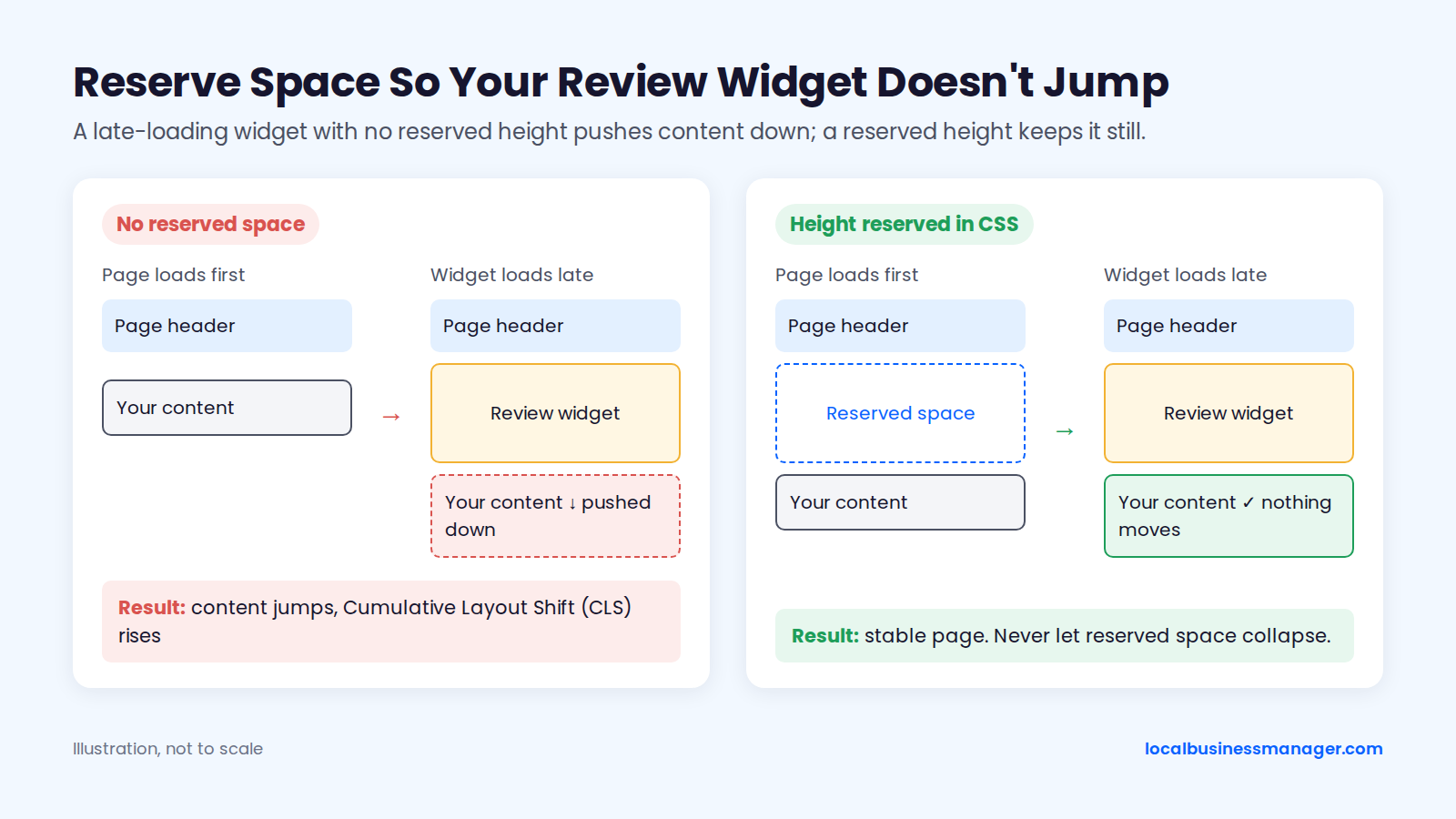
A review widget can slow a page and make it jump. Google's web.dev guidance says third-party embeds often load late, and many don't reserve space for themselves, which pushes content down and raises Cumulative Layout Shift (CLS).
Web.dev's CLS guidance says a good score is 0.1 or less and a poor one is above 0.25. On rankings, Google said in April 2023 that its core ranking systems use Core Web Vitals, and that not every page experience factor is used directly in ranking. These 6 steps combine web.dev's loading advice with a before-and-after test:
- Test the page with PageSpeed Insights before installing and save the results.
- Load the widget script with `async` or `defer`, after your own key scripts, as web.dev recommends.
- Reserve the widget's height in CSS. If you can't, place the widget lower on the page. Never let reserved space collapse; web.dev notes that causes as much shift as inserting content.
- Lazy-load widgets below the fold. According to web.dev, offscreen iframes can use the browser's built-in lazy-loading.
- Run one widget script per page.
- Re-test with PageSpeed Insights and compare CLS with your saved result, aiming for the "good" threshold above.
One shortcut to avoid: copying Places API review text into your HTML as a "static fallback" may conflict with the caching rules covered in Method 4. Quotes copied by hand from the profile are a separate matter.
Troubleshooting: Why Your Google Reviews Aren't Showing
When Google reviews don't show, check the published page and the cache first, then the data source and the widget account. The table lists each symptom with its likely cause and fix, in the order to check them, based on Google's Places API documentation and policies, web.dev's guidance and widget vendors' help docs as of November 2026.
Symptom | Likely cause | Fix |
|---|---|---|
Widget doesn't appear at all | Old cached page, or the change isn't published | Check the published page in a private window and clear the site and CDN cache |
Widget appears only after accepting cookies | Consent banner blocking the script | Categorize the script correctly in the consent tool |
Only 5 reviews show | Widget pulls from the Places API, the usual "Google reviews API" route | Connect through owner or manager sign-in if the tool supports the Business Profile APIs, or accept 5 |
Wrong business shows | Search matched a similarly named place | Reconnect using the exact Place ID or owner/manager sign-in |
Business can't be found | The tool's place search didn't return the listing | Connect with owner or manager sign-in if the tool offers it, or ask the tool's support |
New reviews are missing | Sync interval or plan limit | Check the sync frequency, and refresh manually if the tool offers it |
Widget disappeared | Subscription ended, view cap hit, or the connected Google account lost access | Check billing and plan, and reconnect with an account that still manages the profile |
Page jumps as reviews load | No reserved height | Reserve the height in CSS or move the widget lower |
Reviews show without author names | The widget or custom code isn't displaying author attribution | Add author names back; Google's Places API policies require them |
Agency Checklist: Adding Google Reviews to Client Sites
For agencies, the hard part of review displays is access and ownership. Someone has to manage the profile and pay for the widget, and the widget is connected through some Google account.
On the profile itself, my practice is that the client is the primary owner and the agency is added as a manager. We accept invites through one agency organization account, not personal or shared logins, and when a client leaves, we remove ourselves from the profile.
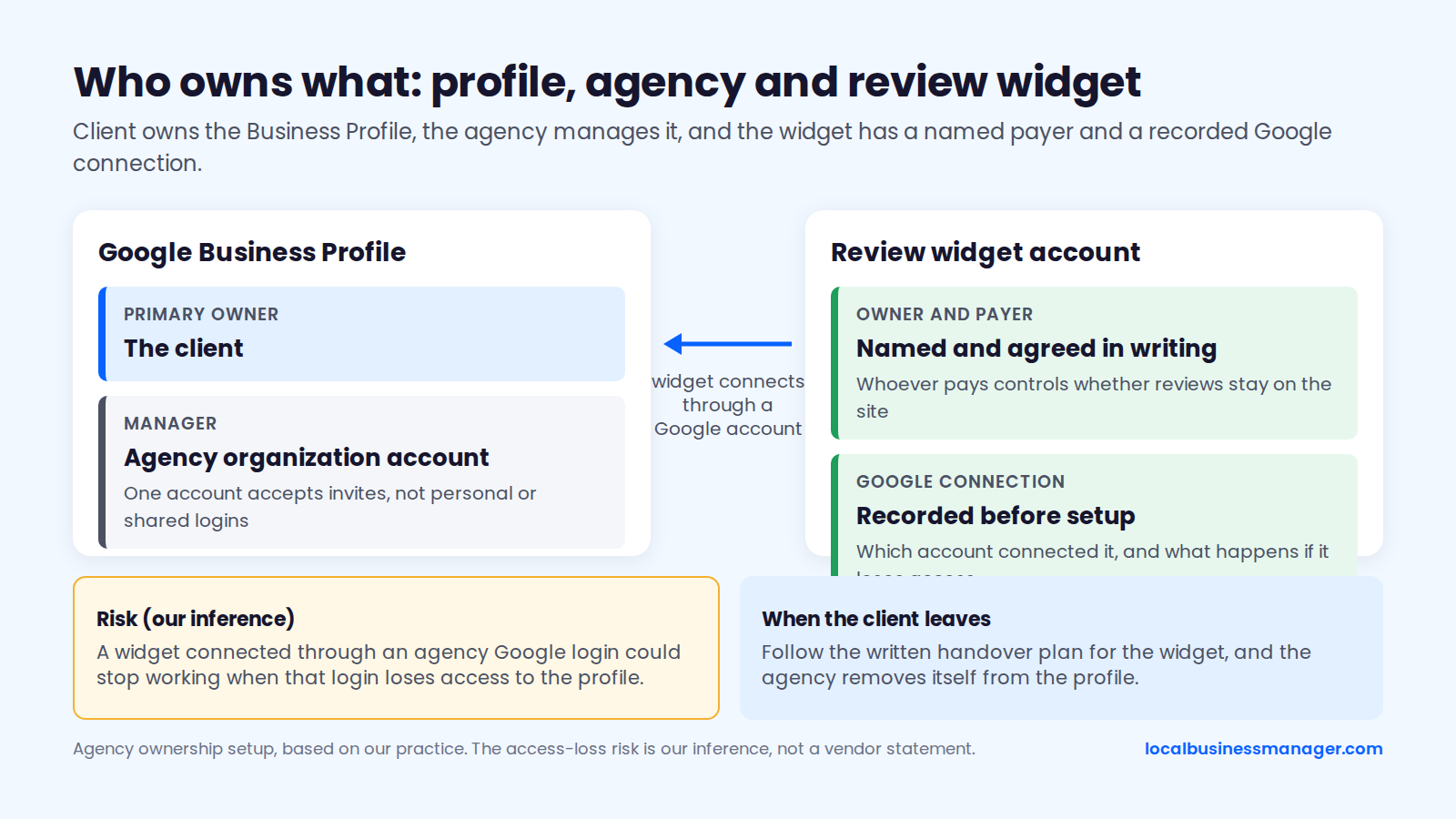
We found no Google rule on who should own a review-widget account. Whoever pays for it controls whether the reviews stay on the site. No vendor states this, but our inference is that a widget connected through an agency Google login could stop working when that login loses access to the profile.
Run these 10 steps on every client site:
- Profile access set up: client as primary owner, agency as manager. See how to add a manager to a Google Business Profile.
- Widget account owner and payer agreed in writing before setup.
- The Google connection is recorded, noting which account connected the widget and what happens if it loses access.
- Data source confirmed: Places API or Business Profile APIs (see Method 4), not unofficial collection.
- One feed or set of quotes per location, with the per-source pricing checked.
- Placement standard applied: home, service pages, location pages, next to forms, footer badge.
- Compliance check passed: the honest-display checklist, author attribution, no review schema, and a state bar check for law firms.
- Consent banner tested with the script categorized correctly.
- Speed tested with PageSpeed Insights before and after.
- Handover plan written: what happens to the widget on cancellation, who replaces it with quotes or a review link, and agency access removed from the profile when the client leaves.
FAQs
How Much Does It Cost to Get Google Reviews?
Asking for Google reviews costs nothing, and paying for them is off-limits under the FTC's Consumer Reviews and Testimonials Rule. The rule, effective October 21, 2024, bans fake reviews under 16 CFR 465.2 and buying reviews that express a particular sentiment under 465.4. The review link and QR code from Method 1 are free, so the real cost is the time spent sending requests. Send them only to customers who agreed to receive them, ask everyone the same way, and offer no incentive.
Can I Use Google Reviews in Ads, Emails or Printed Materials?
You can quote them, but keep the selection representative: the FTC's guidance says using non-representative reviews in marketing could be deceptive under Section 5 of the FTC Act. That guidance comes from the FTC's 2025 Q&A on its reviews rule. Copy the wording exactly and credit the reviewer. If the text came through the Places API, the caching rules in Method 4 apply, so copy quotes by hand from the profile instead. Law firms also need to follow their state bar's testimonial rules, such as New York's "Prior results" disclaimer.
Check One Live Display This Week
Pick one client site this week and put its review display side by side with its Business Profile. If the rating, the review count or the reviewer names don't match, or a hand-picked set isn't labelled as one, fix that before you add anything new.
If you manage Business Profiles for a roster of clients, Local Business Manager is in early access for agencies: request access here.