How to Get Your Google Review Link and QR Code

Your Google review link and QR code are free, and they're already in your Google Business Profile (formerly Google My Business). On a computer, open the profile, select Read reviews, then Get more reviews, and copy the link or save the QR code image.
Google's help page covers the desktop method, a few placement ideas and a policy reminder. This guide adds the rest: sending the link from a phone, building one from a Place ID when you can't access the profile, a test checklist before anything goes to print, templates that stay inside Google's rules, fixes for broken links, and an agency system for one clean link per location.
What Is a Google Review Link?
A Google review link is a URL that opens the "write a review" form for one specific Business Profile, so the customer can rate the business without searching for it. As of November 2026, 3 kinds of review link are in use, and only one comes straight from the profile's own tools.
Use the Get more reviews link whenever you can reach the profile. The Place ID link is the fallback when you can't, and the API field is for agencies pulling links in bulk. The table draws on Google's Business Profile help, its Business Profile API reference and its Maps Platform docs.
Link type | Where you get it | Access needed | Documented by Google | Best use |
|---|---|---|---|---|
Get more reviews link | Profile > Read reviews > Get more reviews | Owner or manager | Yes, but not its URL format | Default for every location |
Business Profile API newReviewUri | Each location's API record | API access to the location | Yes, as a read-only field | Pulling links for many locations at once |
writereview?placeid= link | Built by hand from the Place ID | None | No current Business Profile help page | Profiles you can't access yet |
Google's help page doesn't describe the format of the link it gives you, so copy the link rather than typing it from memory.
A plain Google Maps share link is not a review link. It opens the listing, and the customer still has to find the review button. Custom short names (g.page/yourname) are an older, separate feature: Google stopped allowing new or edited short names in June 2021, and its help page says existing ones still work but no longer appear on the profile.
How Do You Get Your Google Review Link From Your Business Profile?
You get your Google review link by opening your Business Profile on a computer, signed in to an account that owns or manages it, then selecting Read reviews and Get more reviews. Google's help page, Create a Google link or QR code to request reviews, gives this path (checked November 2026):
- Sign in on a computer with the Google Account that owns or manages the profile.
- Go to your Business Profile by searching Google for the business name or opening it in Google Maps.
- Select Read reviews, then Get more reviews, then the Share icon.
- Copy the link, or right-click the QR code and choose Save image as.
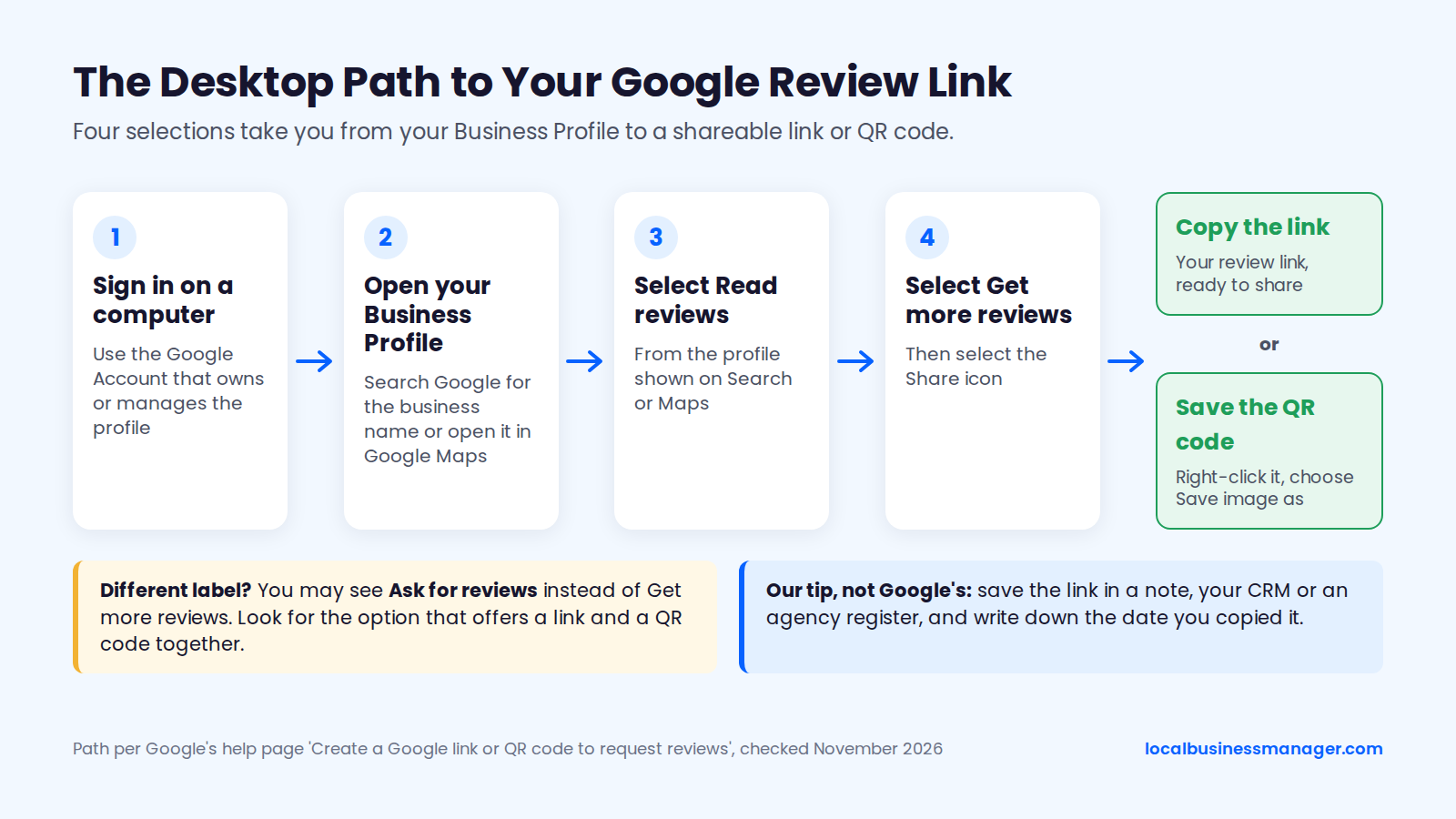
Tip (ours, not Google's): save the link somewhere you'll find it again, such as a note, your CRM or an agency register, and write down the date you copied it.
Which Google Account Has to Be Signed In?
Any owner or manager of the profile can copy the review link. Google's "Manage owners & managers" help page says managers have mostly the same access as owners; the only things they can't do are add or remove users or remove the profile.
Google doesn't document why Get more reviews or Ask for reviews might be missing. If you see Read reviews but neither option, one possible cause is that the signed-in account isn't an owner or manager.
On client work, I set up access this way:
- The client stays primary owner of the profile.
- My agency is added as a manager.
- We accept every invite through one agency organization account, never a personal or shared login.
If you're setting that up, here's how to add a manager to a Google Business Profile.
Get More Reviews or Ask for Reviews: Which Label Will You See?
You may see either label, depending on where you open the profile. Search Engine Journal reported in 2025 that Google added a desktop Ask for reviews option that creates a direct review link or QR code. If your screen differs from the steps above, look for the option that offers a link and a QR code together.
Older guides still send you to a "Share review form" box in the Google My Business dashboard. Business Profiles are now managed on Google Search and Maps, so follow the steps above instead.
How Do You Get and Send the Review Link on Your Phone?
To send your Google review link from your phone, copy it once on a computer and save it where your phone can reach it. Google's help page says review QR codes can only be generated in a computer browser, and the version we checked in November 2026 gave steps written for a computer, with no separate steps for the Google Maps app or the Google app.
Save the Link Once, Share It From Anywhere
The phone fix is a one-time setup: get the link on a computer, then store it in 4 places your phone can reach.
- Email or text the link to yourself, then pin or star the message.
- Save it in your phone's notes app with the location name in the title.
- If your keyboard supports text shortcuts, set one up (for example, typing "rvw" expands to the full link).
- For teams, put it in the shared message template staff already send from, so nobody pastes an old link or another branch's link.
Before the first customer gets it, tap the saved link on your phone in a private browser tab, signed out of Google. Confirm it opens the review form for the right business. If you find a review option inside a phone app instead, run the same check: Google doesn't document an app route, and app menus change.
How Do You Get Your Google Review QR Code?
Google's review QR code is free and sits in the same Get more reviews dialog as the link, but you can only save it from a computer browser. If you need a different design, make a static QR code from the review link rather than paying for a dynamic one.
Download Google's Free QR Code
To download Google's QR code, open your profile on a computer, select Read reviews, then Get more reviews, then the Share icon, and right-click the QR image and choose Save image as. Google's help page says review QR codes can't be generated on mobile, so this step needs a computer even if you got the link on your phone.
The code encodes Google's own review link, so it doesn't depend on any outside service. Save each file with the location name and the month, for example "main-st-review-qr-2026-11.png", so every printed code can be traced back to its source.
Make a QR Code From Your Link Another Way
Any static QR generator can turn your copied review link into a QR code, which helps when a printer needs a specific size, color or file type. Chrome on a computer can also make one: Google's Chrome Help gives the path More > Cast, save, and share > Create QR code, which encodes the page you have open.
Whichever route you use, run 4 checks:
- Use the review link from Get more reviews, not a Google Maps share link. A Maps link opens the listing instead of the review form.
- Confirm the code is static: it should encode the Google URL itself, not a short link on the generator's own domain.
- Read the terms, and check whether a code made on a trial or subscription plan keeps working after the plan ends.
- Ask for a vector (SVG) or high-resolution file for anything going to print.
Scan the finished file before it goes to print. The test checklist further down covers how.
Static vs Dynamic QR Codes and NFC Stands: Which Should You Print?
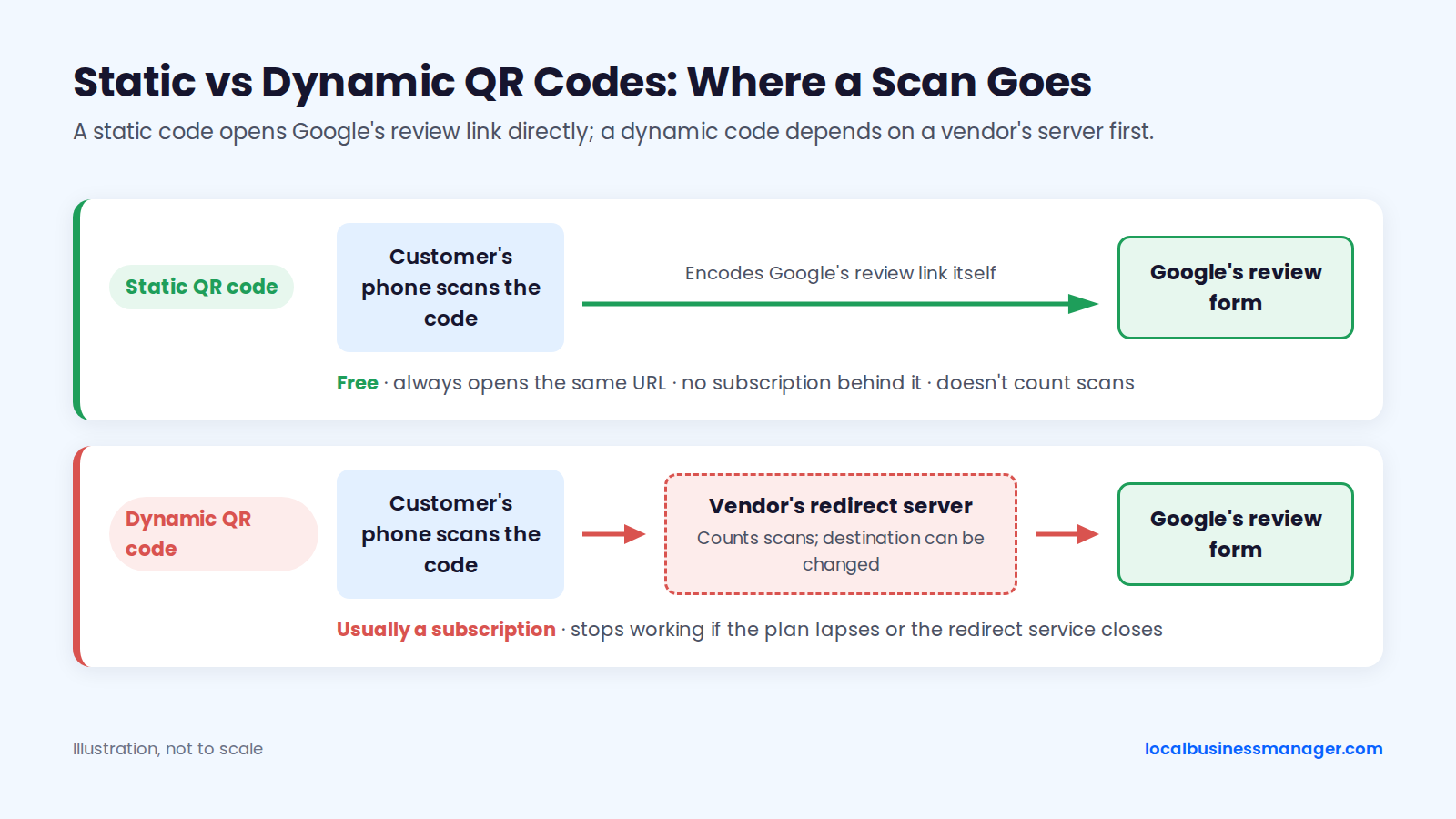
A dynamic QR code points to a redirect, so you can change where it goes after it's printed; a static code always opens the same URL. For a review sign that will hang for years, print Google's own static QR code: it's free and has no subscription behind it.
Dynamic codes and many NFC stands send customers through a vendor's server first. The vendor can count scans that way, but the code depends on that server and your plan staying alive. The table below compares the 4 options as of November 2026, sorted from least to most dependent on an outside service.
Option | Cost | What the code points to | Stops working if | Counts scans |
|---|---|---|---|---|
Google's own QR code | Free | Google's review link | Only if Google changes the underlying link; Google doesn't say whether it does | No |
Static QR from your copied link | Free | Google's review link | Only if the underlying Google link changes | No |
Dynamic QR code | Usually a subscription | The vendor's redirect server | The plan lapses or the redirect service closes | Yes |
NFC stand or card | Varies by seller | Often the seller's server | The seller's service or subscription ends | Not published |
A dead dynamic code looks exactly like a working one, so nobody notices until customers complain (or quietly give up). NFC also needs a phone that supports it with NFC turned on, so any NFC stand you use should carry a printed QR code as well.
How Do You Get a Review Link for a Profile You Don't Own?
You can build a review link for any business from its Place ID. Find the ID in Google's Place ID finder, then add it to the end of https://search.google.com/local/writereview?placeid=. Third-party guides published in 2026 report that the format works, but no current Business Profile help page documents it, so it could change without notice. Treat it as a stopgap.
Find the Place ID
A Place ID is the identifier Google Maps uses for a place. Google's Place ID documentation for the Maps Platform includes a Place ID finder you can search by business name plus city.
Check that the result's address and map marker match the location you want, because branches and businesses with similar names often sit close together.
Google's docs say Place IDs can be stored and reused but may change as the Maps database is updated, and one place can have more than one ID. Google recommends refreshing stored IDs older than 12 months, so record the lookup date next to each ID.
Build and Check the Link
Add the Place ID to the end of the base URL, with nothing in between:
https://search.google.com/local/writereview?placeid=YOUR_PLACE_ID
Open the link signed out first. You should be asked to sign in, then see the review form with the right business name. One vendor's 2026 test found that a dead Place ID gives no visible error, so don't skip this check.
Once you get manager access, replace this link with the one from Get more reviews.
Free Google Review Link Generators
Free Google review link generators do the same job automatically: they take your business's Place ID and add it to search.google.com/local/writereview?placeid=, as third-party guides describe. Before you use the result, check that it starts with a Google address rather than the generator's own short link, and that the form shows the right business. A generator that hands back its own redirect carries the same lock-in risk as a dynamic QR code.
What About Service-Area Businesses With Hidden Addresses?
For a service-area business with a hidden address, skip the Place ID and use Get more reviews from the profile, which needs no Place ID and no visible address.
Google's Maps Platform docs explain why Place ID lookups struggle here. "Pure" service-area businesses have no physical location on Google Maps, and Places API (New) leaves them out of Text Search and Autocomplete results unless a developer specifically asks for them. Google added a pureServiceAreaBusiness field to that API on November 7, 2024.
Practitioners on the Local Search Forum have reported since at least 2017 that Place ID tools often can't find hidden-address businesses. Older workarounds that read the ID out of Google's page code depend on markup that changes often. The reliable fix for a plumber or roofer client is manager access; for setup details, see our service-area business guide.
How Should Agencies Manage Review Links for Many Locations?
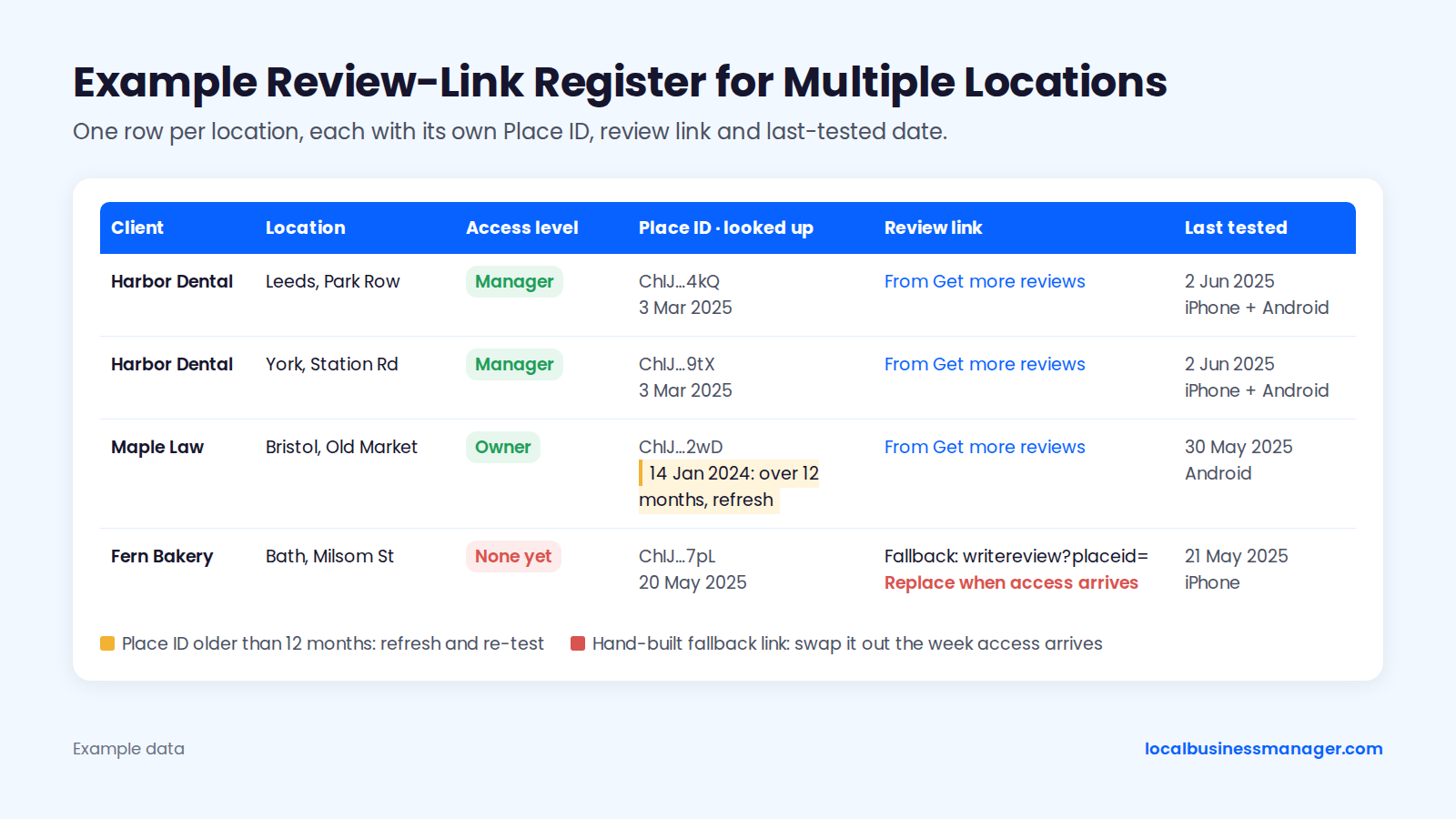
Agencies should keep one review link per location, pulled from that location's own profile, and log it in a register with the date it was last tested. Never reuse one branch's link for another: every review lands on whichever profile the link belongs to.
Pull Every Link From the Location Itself
The cleanest source for each location's review link is that location's own Get more reviews dialog, opened with manager access. Agencies with Business Profile API access have a faster option.
Google's API reference lists a read-only newReviewUri field on each location, described as a link to the Google Search page where a customer can leave a review, plus a read-only placeId field. Those 2 fields let you pull links for dozens of locations at once.
Use hand-built Place ID links only for new clients whose access you're still waiting on, and swap them out the week access arrives. For multi-location brands, each office gets its own link, its own QR file and its own row in the register.
A Review-Link Register Template
A review-link register is a spreadsheet with one row per location and the 10 columns below. Copy them into any sheet.
Column | What to record | Why it matters |
|---|---|---|
Client | Business or brand name | Groups locations for reporting |
Location | Branch name and city | Stops one branch's link going to another |
Profile name | Name exactly as it shows on Google | Flags a name change at a glance |
Access level | Owner, manager or none | Shows who can pull a fresh link |
Place ID | The ID and the date you looked it up | Google recommends refreshing IDs older than 12 months |
Review link | Link from Get more reviews | The link every channel should use |
Fallback link | The writereview?placeid= link, if used | Marks links to replace once access arrives |
QR file | File name and where it's stored | Matches printed codes to their source |
Where it's used | Every place the link or QR code appears | Tells you what to update if the link changes |
Last tested | Date and devices used | Proves the link worked before a client asks |
When to Re-Test a Link
Re-test every location's review link once a month, and right away whenever one of 5 events happens:
- The profile moved to a new address.
- The profile was merged with a duplicate.
- The profile was suspended and then reinstated.
- The business name changed, including a rename after registering a DBA.
- The stored Place ID is more than 12 months old.
I check client profiles weekly for edits to the name, attributes, services and other fields, whether Google or someone else made them. If you run a similar check, add the review link to it, and re-test the link the same day you spot a name change. If a profile gets hit, our guide to suspended Google Business Profiles covers reinstatement.
Test Your Link and QR Code Before You Share or Print It
Test every review link and QR code signed in and signed out, on iPhone and Android, before it goes out. A wrong link sends reviews to the wrong profile, and a printed code can't be fixed after the fact. Run these 11 checks before anything is shared or printed:
- The form shows the right business name, and for storefronts, the right address.
- Signed in on a computer, the link opens the review form directly.
- Signed out in a private window, you're asked to sign in, then the form opens.
- It works on an iPhone with the Google Maps app installed.
- It works on an iPhone without the Maps app, in the browser.
- It works on an Android phone with the Google Maps app.
- Tapped from a real text message and a real email, not just pasted into a browser.
- The QR code scans with the phone's built-in camera app, not only a scanner app.
- The QR code scans from the printed proof, at the distance and in the light where it will hang.
- The link and the test date are written into the register.
- A re-test date is set for next month.
The signed-out checks matter because a customer needs to be signed in to a Google Account to post, as third-party guides note. The account doesn't have to be Gmail: customers can create one with an email address they already have. Either way, a signed-out customer sees more screens than you do on your own phone.
Where Should You Put Your Review Link and QR Code?
Put the review link where the job ends, so the ask arrives while the experience is fresh and the customer can answer on their own time. Google's help page suggests receipts, thank-you emails, the end of a chat, and a printed QR code in the store. The right mix depends on the business type.
The table below is our recommendation for 4 business types, built on Google's suggested placements and the 2026 policy wording covered later. In every row, the link goes on something the customer keeps after the job, such as a receipt, a post-job text, an invoice or a closing email.
Business type | Where the job ends | Best places for the link | Use with care |
|---|---|---|---|
Restaurant | At the table or checkout | Receipt and follow-up email | QR codes on tables or at checkout |
Storefront retail | At the register | Receipt and take-home card | Counter signs inviting reviews on the spot |
Service-area trade | At the customer's home or job site | Post-job text and invoice line | Asking while the tech waits |
Law firm or professional office | At matter close | Closing email and email signature | Asking at signing or mid-matter |
Storefronts and Restaurants
For storefronts and restaurants, print the QR code where customers can take it home: on the receipt, on a card in the bag, or in the follow-up email. Google's help page does suggest a printed QR code in the store, but read the 2026 on-premises wording in the policy section before you put one on a counter.
For printing, use a dark code on a light background, leave a clear white margin around it, and add one line of copy above it ("Tell us how we did on Google"). One QR code generator's sizing guide gives 2 Ã 2 cm (0.8 Ã 0.8 in) as the practical minimum for reliable everyday scanning. QR printing guides also advise printing from a high-resolution or vector file, with no photo or busy graphics behind the code.
Service-Area Businesses
A service-area business has no counter, so the ask goes out after the job. Use a post-job text to customers who agreed to receive texts, a line on the invoice, and a follow-up email. A plumber with 3 vans across 2 counties can send every customer the same link the same way, whichever tech did the job.
Let customers review on their own time rather than with the tech waiting. Leave staff names out of the ask, too: PPC Land reported that Google's April 17, 2026 policy update bars asking for reviews that name a staff member.
Law Firms and Professional Offices
Law firms and professional offices get little walk-in traffic, so the counter QR code that works for a café does little for them. The ask belongs in the closing email, or in a text to clients who agreed to receive texts. An email signature link and a review button on the website catch clients between matters.
My rule for personal-injury firms: ask every client the same way, by text or email, when their matter closes; for clients who recovered, that moment is after they've been paid. Asking only the clients who got a check would be selective solicitation, which Google's review policy prohibits.
Review Request Templates You Can Copy
These 7 templates ask every customer for honest feedback, offer nothing in return and don't steer the rating or the wording, which keeps them within Google's review policy. Replace the braces, add the location's own link, and send texts only to customers who agreed to receive them.
Text and Email Templates
Every text below carries an opt-out line, and every message asks for an honest review, never a good one.
- Text or chat message: "Hi {first name}, thanks for choosing {business}. We'd value your honest Google review: {review link} Reply STOP to opt out"
- Post-job text for service-area businesses: "Hi {first name}, it's {business}. Thanks for having us out today. We'd value your honest Google review: {review link} Reply STOP to opt out"
- One follow-up text, to every customer who hasn't reviewed: "Hi {first name}, a quick reminder from {business}: if you have a minute, we'd value your honest Google review: {review link} Reply STOP to opt out"
- Email: Subject "How did we do, {first name}?" Body: "Thanks for choosing {business}. We ask every customer for an honest review on Google, whatever your experience was. It helps us improve and helps other people decide. You can leave one here: {review link}. Thank you, {your name}, {business}"
Print and Signature Templates
On paper and in signatures, keep it to one line plus the link or code.
- Counter card or sign: "Tell us how we did. Scan to leave an honest Google review." Place the location's own QR code directly below the line.
- Invoice line: "Thank you for your business. We'd value your honest review on Google: {review link}"
- Email signature: "How are we doing? Leave us a Google review: {review link}"
Use the QR file logged for that location in your register, never a code saved from another branch. On paper invoices, print the QR code next to the link, since nobody types a long URL by hand.
When to Send the Ask
Send the review request at the same point in every customer's experience, so timing never decides who gets asked. Tie it to an event you already record, such as an invoice paid, a job closed or a matter closed, rather than leaving staff to choose who gets the ask after a good day.
Send one follow-up at most, to everyone who hasn't left a review, not just the customers you expect to be pleased. Keep review asks out of staff targets (see the policy table below).
What Does Google Allow When You Ask for Reviews?
Google allows you to ask any customer for an honest review of a real experience. It bans everything that tilts the result: incentives, asking only happy customers, discouraging negative reviews, pressure on the premises and requests for specific content. A US federal rule adds legal force to the ban on incentives tied to a review's sentiment.
Of the 9 practices below, only 1 is allowed: asking every customer, the same way, for an honest review. Sources are Google's Maps user-generated content policy, its 2026 wording as quoted by agencies, PPC Land's April 2026 report, and the FTC rule.
Practice | Status | Rule behind it |
|---|---|---|
Asking every customer for an honest review | Allowed | Google Maps content policy |
Offering a discount, gift or prize for a review | Not allowed | Google Maps content policy |
Asking only happy customers, including survey-first filters | Not allowed | Google Maps content policy |
Discouraging negative reviews | Not allowed | Google Maps content policy |
Owners or employees reviewing their own business | Not allowed | Google Maps content policy (conflict of interest) |
Requiring or pressuring reviews on the premises | Not allowed | Google's 2026 policy wording |
Asking customers to include specific content | Not allowed | Google's 2026 policy wording |
Setting staff review quotas or asking for reviews naming staff | Not allowed | Google's April 17, 2026 update |
Threatening customers to suppress reviews | Not allowed | FTC rule, 16 CFR Part 465 |
Google's Maps user-generated content policy bans content based on a conflict of interest, including current or former employment, so owners and staff can't review their own business. The FTC's Rule on the Use of Consumer Reviews and Testimonials (16 CFR Part 465), in force since October 21, 2024, bans fake reviews, incentives tied to a positive or negative review, and threats used to suppress reviews.
Google's ban covers any incentive, which is broader than the FTC rule, so follow Google's. Send review requests by text only to customers who agreed to receive texts from the business.
Survey-First Flows: Where a Feedback Step Becomes Gating
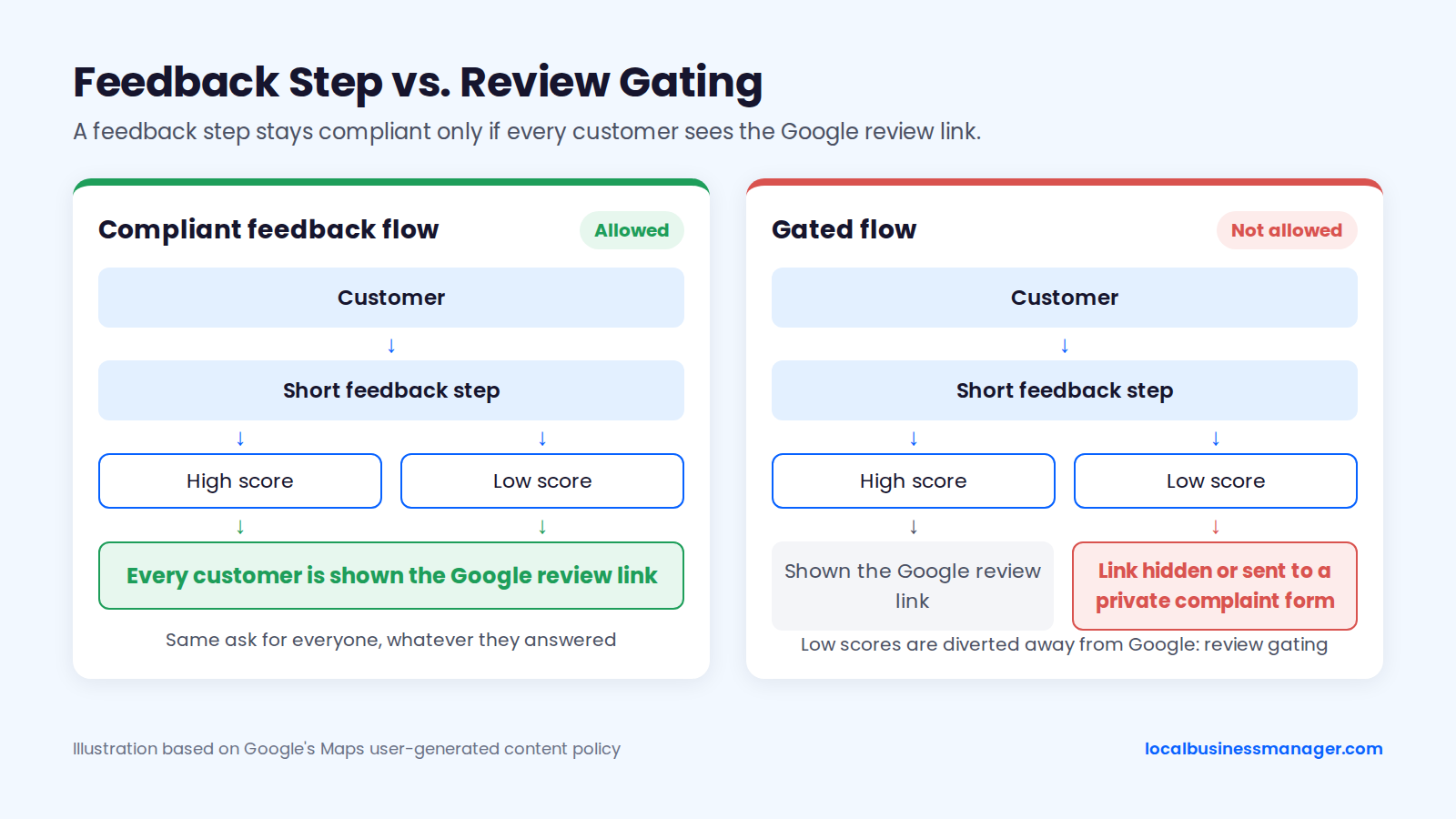
Google's policy bans asking only happy customers, so a feedback step before the review link stays compliant only if every customer is shown the Google link, whatever they answered. If a low score hides the link, or sends the customer to a private complaint form instead, the flow becomes review gating.
In the review flow I use, customers go to a short feedback step first, and every customer is then shown the Google review link, whatever their feedback. Some guides suggest pairing the review link with a satisfaction survey without mentioning that line, so check any tool or template you inherit for a hidden filter before you send a single request.
Asking on the Premises: What Changed in 2026
Google's policy wording, as quoted by agencies in 2026, says: "Merchants should not require or pressure users to leave ratings or write reviews while on the premises, nor should they request that specific content be included." Sources disagree on whether that line arrived in February 2026 or with the April 17, 2026 rewrite.
The quoted text doesn't mention kiosks, tablets or NFC stands, so claims that they're "explicitly banned" are interpretation. In a case analysis published in 2026, Sterling Sky found that 342 of 595 reviews (57.5%) had been removed, and flagged in-store reviews, QR codes at counters, tables or checkout, and bursts of 10 or more reviews a day as likely triggers. That's one case, not a controlled test.
Law Firms: Check Your State Bar Before You Ask
State bar rules can add limits for law firms on top of Google's. This is marketing guidance, not legal advice.
The New York State Bar Association's Committee on Professional Ethics said in Opinion 1286 (2025) that the rules don't prohibit a lawyer from asking a former client for a Google review. It also allowed a nominal gift under 3 conditions:
- The gift doesn't depend on what the review says.
- The client isn't pressured.
- The client writes the review.
A gift the bar allows still breaks Google's ban on incentives, so law firms should offer no gift at all. Rules differ by state: check your own state bar's advertising and testimonial rules before sending review requests or showing reviews on the firm's website.
Why Isn't Your Review Link Working?
When a review link fails, check 3 things in order: the account you're signed in with, the location the link belongs to, and whether the profile or its Place ID changed. Google's help pages say little about failures, so the table combines Google's docs with practitioner reports and says where Google is silent.
5 of the 9 fixes below come down to pulling a fresh link from the right location's profile. Sources are Google's help and developer docs plus practitioner reports, as of November 2026. The rows run in the order you'd hit them: access first, then the link itself, then changes to the profile, and last a review that doesn't show.
Symptom | Possible cause | Fix |
|---|---|---|
Read reviews shows but no Get more reviews or Ask for reviews option | Not documented by Google; the signed-in account may not be an owner or manager | Switch accounts or get manager access |
Option missing on a profile you do manage | Not documented by Google; the profile may be unverified or suspended | Finish verification or reinstatement, then try again |
No QR code shown | You're on a phone | Open the profile in a computer browser |
Link opens the wrong business | Copied from another location or built from the wrong Place ID | Pull a fresh link from the right location's profile |
Place ID link no longer opens the review form | The Place ID changed or became obsolete | Pull the Get more reviews link, or look up the Place ID again |
Place ID finder can't find the business | Service-area business with a hidden address | Get manager access and use Get more reviews |
Old goo.gl review link is dead | goo.gl links not made by Google apps stopped working on August 25, 2025 | Replace with a current link and reprint |
Link opens a profile missing its old reviews after reinstatement | In one forum report, the reinstated profile came back as a new profile | Pull a fresh link and re-test everything printed |
Customer says their review isn't showing | Reviews go through Google's automated checks first, and Google gives no fixed timeframe | Check the profile signed out before assuming removal |
Does the Review Link Ever Change?
Google doesn't say whether a review link stays valid for good. Its docs don't state whether the Get more reviews link is tied to the Place ID, the profile ID or another identifier, or whether it survives a move, merge, name change or reinstatement. Google does document that Place IDs can change, so any link built from one can go stale.
Practitioner reports point to 3 risky situations:
- Reinstatement: in an early-2026 Local Search Forum thread, a reinstated profile came back as an entirely new profile without its old reviews, and Google support said they couldn't be moved.
- Reviews missing after reinstatement: Amy Toman reported on LinkedIn, in a post written up in August 2026, that Google acknowledged reviews going missing after reinstatement, with a fix in progress.
- Merges: a Local Search Forum contributor noted in 2025 that profile identifiers change when profiles are merged, and expected Place IDs to change too.
I've never lost reviews in a reinstatement, and in my experience rankings recover if you act fast. Those forum cases show it does happen to others, though, so treat every reinstatement or merge as a reason to pull and test the link again.
Can You Track How Many People Use Your Review Link?
None of Google's documented Business Profile metrics include review-link clicks or QR scans, and UTM tags on a Google URL never reach your analytics. To count clicks you need a redirect you control, and even then, a click isn't a review.
Why UTM Tags Don't Work on Review Links
UTM tags only work on pages that run your own analytics, and the review form lives on Google. GA4 records a visit only when someone lands on a page that carries your tracking, so adding UTMs to a texted Google link tells your analytics nothing. UTMs can count clicks on a review button on your own website, and that's all.
Google's Performance report for Business Profiles covers searches, views, website clicks, chats and other actions on the profile itself. Counting review-link clicks means routing the link through a short link or dynamic QR code you control, which brings back the lock-in risk from the QR table above.
What to Put in the Monthly Report Instead
In my monthly reports, calls and rankings lead. On reviews, my goal for a client is to match the average review count of the top 3 map-pack results, and ideally to get as many reviews as possible beyond that.
If you track clicks per channel, read them next to the actual change in review count, because Google gives you no way to match a click to a posted review. Report them as link clicks so a client never mistakes them for reviews. For growing the count without breaking policy, see how to get more Google reviews.
How Long Does It Take for a Google Review to Post?
Google doesn't give a set time for a review to appear. A pending review tells the reviewer that content "goes through automated checks before being posted publicly. Timelines can vary." A reply in the Google Maps Help Community adds that there is "no fixed timeframe," so treat any fixed number you see quoted as a guess.
If a customer says their review isn't showing, check the profile while signed out, and ask whether they posted from the Google Account they think they used.
Google Review Link FAQs
Two questions come up once the link is live that the sections above don't answer: whether a link can preselect five stars, and how to send someone to one specific review rather than to the form for writing a new one.
Can You Make a Link That Preselects Five Stars?
Google's own review link doesn't preselect a star rating, and Google doesn't document any link that does. Steering customers toward a rating risks breaking Google's review policies, so use the plain link and let every customer choose.
How Do You Link to One Specific Google Review?
Open the review on Google, select the three-dot menu on it, choose Share review, then copy the link. Third-party walkthroughs describe this path, and some versions show "Send a link" instead of a copy option; we found no Google help page for it. The link lets people read that review; it doesn't open the form to write one.
Start With One Clean Link per Location
If you do one thing this week, pull a fresh link from each location's own profile, test it with the checklist, and log it in a register with today's date. That habit catches a wrong-branch link before a customer finds it for you. Local Business Manager is in early access for agencies and multi-location businesses: request early access.