Google Business Profile Post Image Size (and Every Other Profile Photo Size)

Use a 4:3 horizontal image for a Google Business Profile post: 1200 Ã 900 px works well, saved as JPG or PNG between 10 KB and 5 MB. Only the format and file-size limits come from Google. The 1200 Ã 900 part is convention, and in the sources we checked, nobody has published a dated test of how Google crops posts.
If a client has ever sent you a screenshot of their offer post with the headline sliced off, you know why that matters. Below: which numbers Google publishes, a cautious text box built from published crop advice, logo, cover and video sizes, and fixes for rejected posts.
What Size Should a Google Business Profile (GBP) Post Image Be?
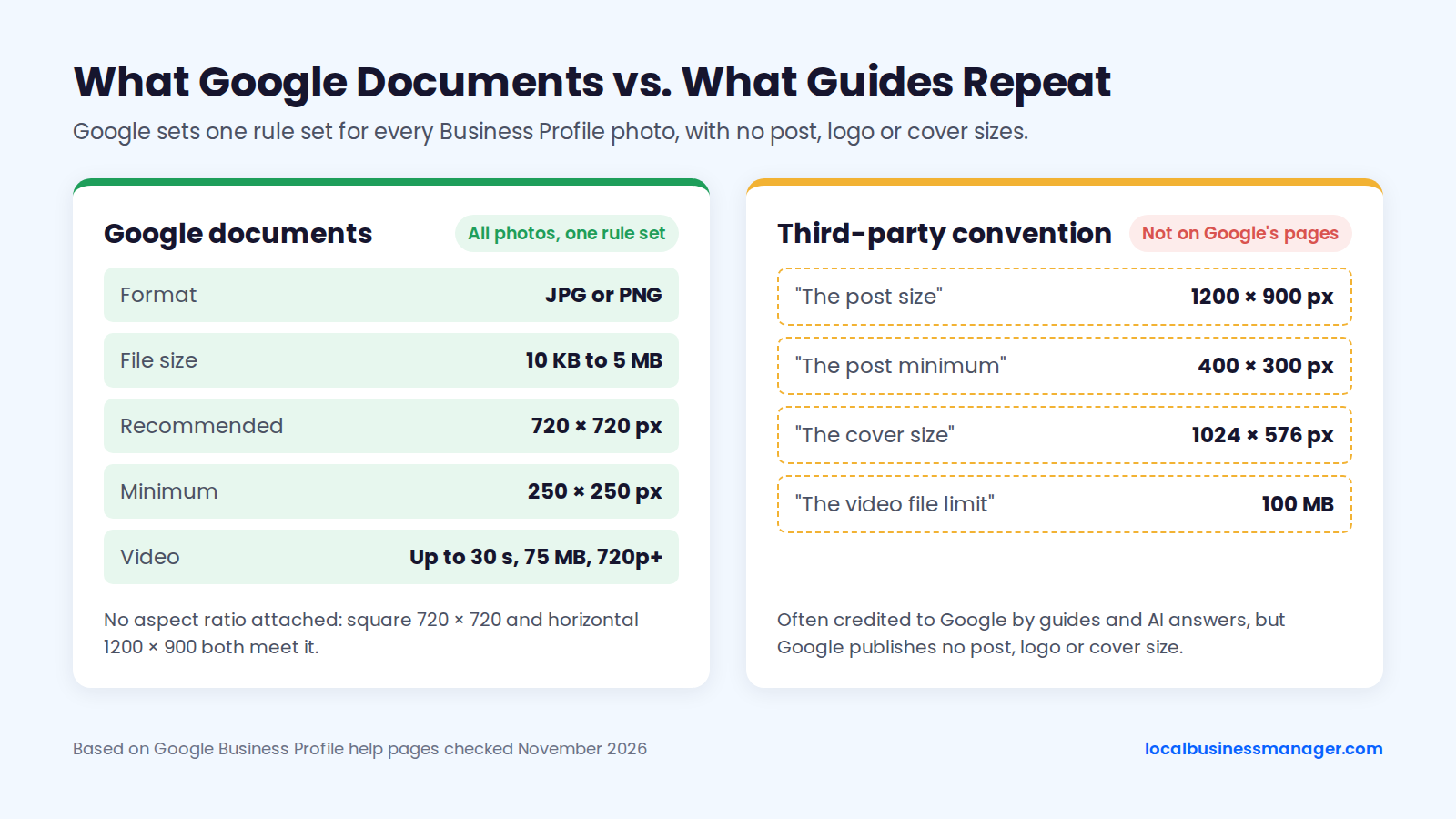
By common convention, a GBP post image is 1200 Ã 900 px at a 4:3 horizontal ratio, saved as JPG or PNG between 10 KB and 5 MB. Google itself documents 4 photo specs for Business Profile (formerly Google My Business) photos: JPG or PNG format, a 10 KB to 5 MB file size, a 720 Ã 720 px recommendation and a 250 Ã 250 px minimum.
Google's posts help page gives no post-specific size or ratio. The GBP post size most guides quote is therefore practitioner convention, and at least one 2026 size guide recommends a 720 Ã 720 square instead.
What Does Google Actually Document, and What Is Convention?
Google documents one set of rules for all Business Profile media, covering format, file size, resolution, quality, video and upload timing. Google publishes no pixel size or aspect ratio specific to posts, logos or covers.
Google Business Profile Image Size Requirements (What Google Documents)
Google's Business Profile photo size guidelines are on its Manage your Business Profile photos & videos help page and its business-specific photo tips page. Both apply one set of rules to every photo on a profile. As of November 2026, Google documents these rules:
- Format: JPG or PNG.
- File size: between 10 KB and 5 MB.
- Resolution: 720 Ã 720 px recommended, 250 Ã 250 px minimum.
- Quality: in focus, well lit, without significant alterations or excessive filters, and representing reality.
- Video: up to 30 seconds, up to 75 MB, at 720p or higher.
- Timing: new photos and videos can take 24 to 48 hours to appear.
Google's 720 Ã 720 recommendation is a width and a height with no aspect ratio attached, so a square 720 Ã 720 file and a horizontal 1200 Ã 900 file both meet it. Few third-party pages mention the 10 KB floor, but it's on Google's list, and tiny compressed thumbnails can fall under it.
Numbers You'll See Elsewhere That Google Doesn't Publish
As of November 2026, none of the 9 figures below, listed by asset starting with posts, appears as quoted on the Google Business Profile help pages we checked, though guides and AI answers often credit them to Google.
Figure quoted | Quoted as | What Google documents |
|---|---|---|
1200 Ã 900 px | The post size | No post-specific size; 720 Ã 720 px recommended for all photos |
400 Ã 300 px | The post minimum | 250 Ã 250 px minimum for all photos |
720 Ã 540 px | A post size | No post-specific size |
480 Ã 270 px min, 2120 Ã 1192 px max | The cover size range | No cover-specific size or range |
1024 Ã 576 px or 1080 Ã 608 px | The cover size | No cover-specific size |
720 Ã 720 px at 1:1 | The logo size | 720 Ã 720 px recommended for all photos, not logo-specific |
100 MB | The video file limit | Up to 75 MB |
Two of these figures, 480 Ã 270 and 2120 Ã 1192, are 16:9 sizes that clash with the 4:3 post advice often printed beside them.
How Does Google Crop Post Images, and Where Should Text Go?
Google doesn't publish how post images are cropped, and in the sources we were able to check, we found no dated crop test from Google or a well-known local SEO publisher. The precaution that fits all the conflicting advice is to keep the subject and any text centered, with margins on every side.
Where Post Images Appear on Desktop and Mobile
Google's Create & manage posts help page says posts show in the Updates or Overview tabs on mobile and under "From the owner" on desktop. That's at least 2 layouts for the same image, and the help page gives no dimensions for either.
Four third-party guides describe the crop, and they don't fully agree:
- A marketing app's 2026 guide says the top and bottom 10% to 20% of a post image can be trimmed. It puts the safe zone in the central 80% to 90%.
- A post-scheduling tool's 2026 guide says to keep key elements in the central 900 Ã 900 px of a 1200 Ã 900 image. It also treats the top and bottom 10% to 20% as a risk area.
- A social-media size reference says to keep the subject in the central square of a 4:3 image.
- A local marketing blog calls the crop "completely random" (which is at least honest).
None of these guides publishes screenshots, a test date or the surface it checked. Crop behavior can also change without notice, so any future test needs a date on it.
A Cautious Safe Zone (Derived, Not Measured)
On a 1200 Ã 900 post image, keep text and logos inside a centered 900 Ã 540 px box: 150 px margins at the sides and 180 px at the top and bottom. We derived this box from the post-scheduling tool's central 900 Ã 900 px advice and from the top and bottom 10% to 20% crop-risk area that both third-party guides describe. Google hasn't published it, and we haven't measured it.
In practice:
- Keep the main subject in the middle of the frame, not touching any edge, so a crop is more likely to remove only background.
- Put text and logos inside the 900 Ã 540 px box, or leave them off the image and put the message in the post text (the policy section explains why).
- Check text and focal points at small widths. The marketing app's guide suggests checking at 360 to 414 px wide.
- Open the published post on a phone and on desktop before you call it done.
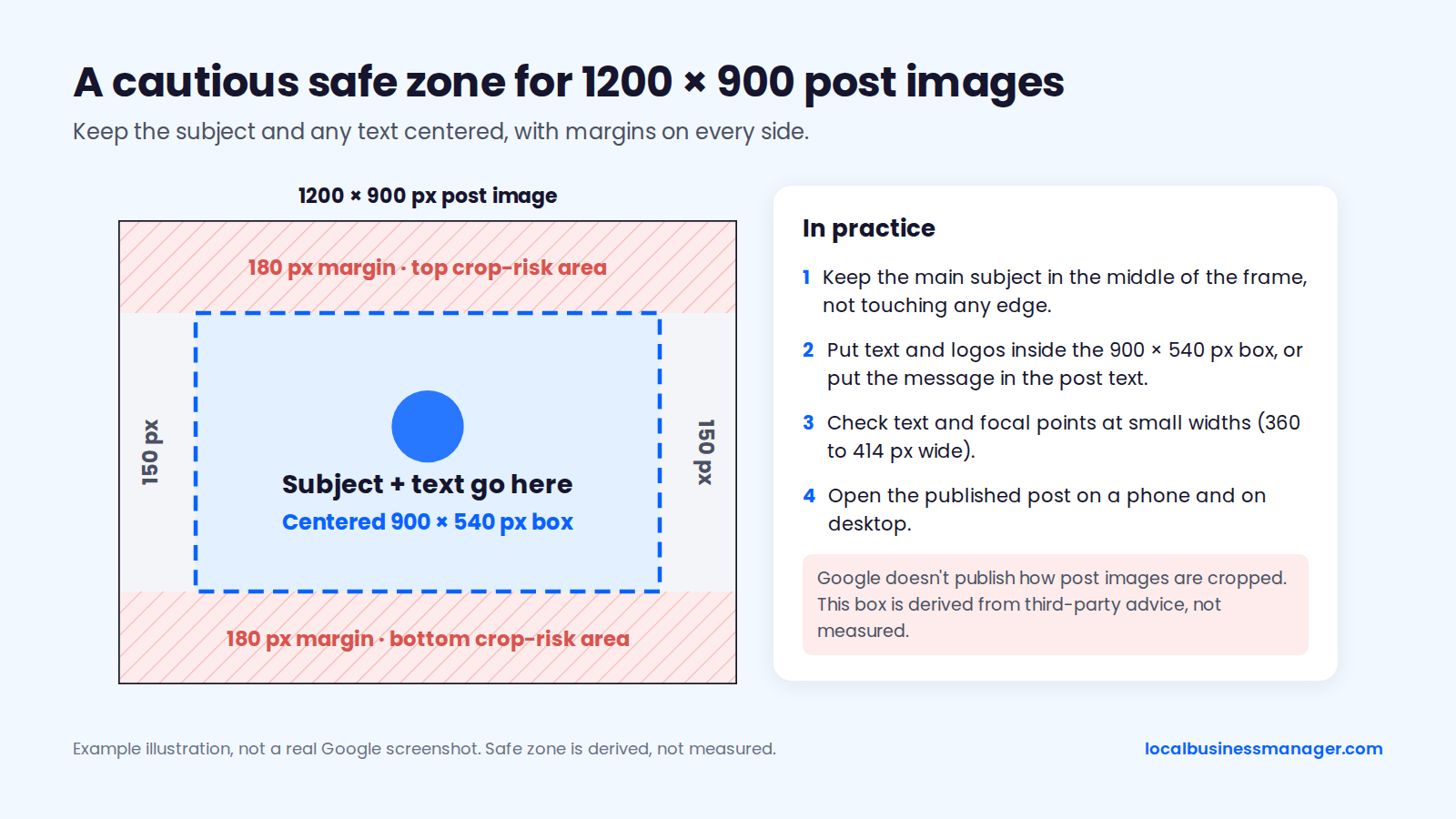
Example illustration, not a real Google screenshot. It shows the centered-subject precaution, not a measured crop.
Should Post Images Be 4:3, 16:9 or Square?
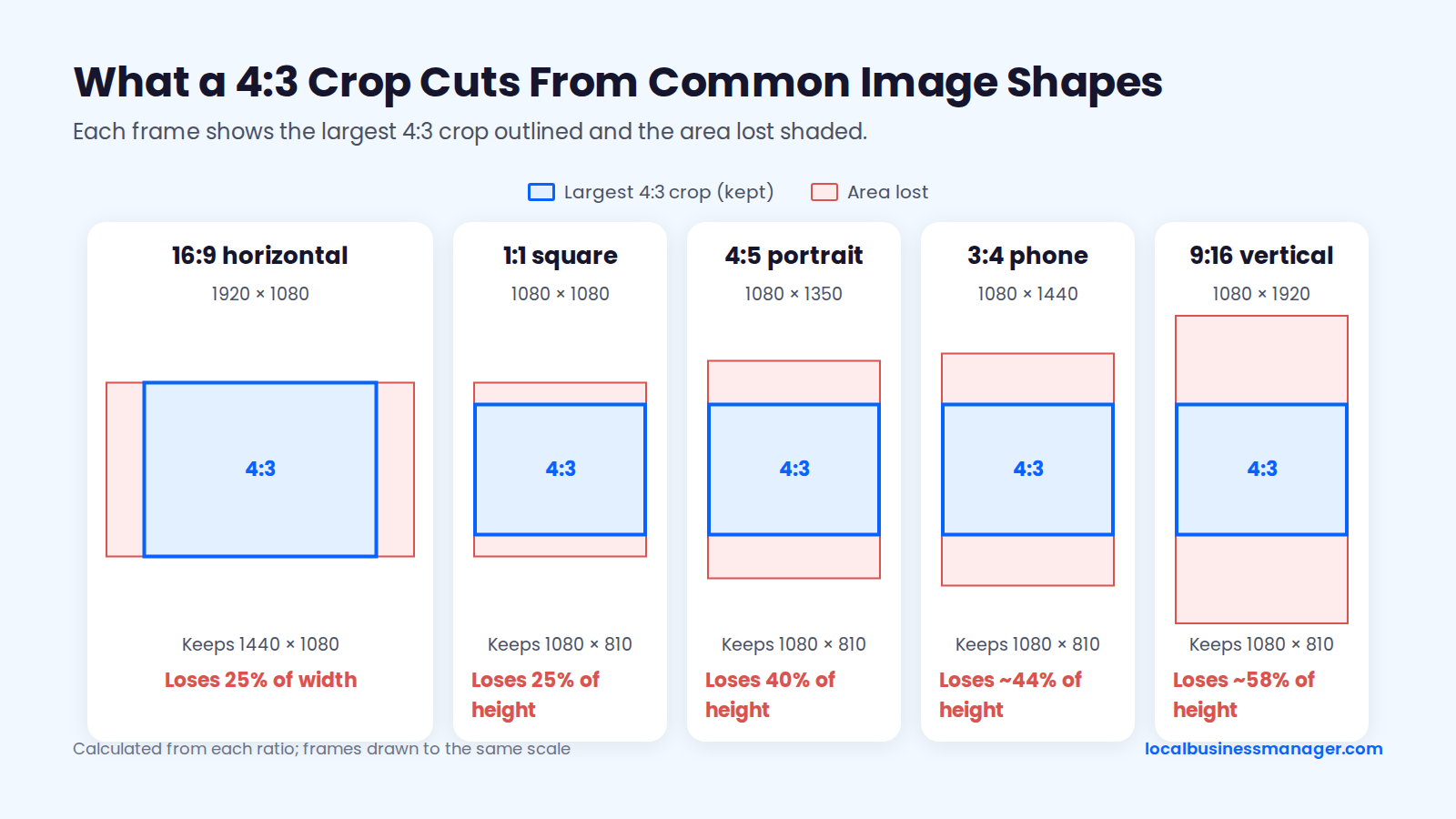
Use 4:3 horizontal for post images, because 4:3 is the convention most guides follow. Google's photo rules set no aspect ratio, so shape alone isn't one of Google's documented rejection reasons, but other common shapes lose between 25% and 58% of their frame when cropped to 4:3.
What a 4:3 Crop Cuts From Common Phone and Social Sizes
Cropped to 4:3 at full size, a 16:9 or square image loses 25% of its frame, a 4:5 portrait loses 40%, a 3:4 phone photo loses about 44% and a 9:16 vertical image loses about 58%. The table below is calculated from each ratio and sorted by how much of the frame is lost.
Google may not crop mismatched shapes at all: a 2026 posts guide from a local SEO software company reports black bands at the sides instead. Cropping to 4:3 before upload means you pick what's lost.
Source ratio | Example size (px) | Largest 4:3 crop (px) | Share of frame lost | Fix |
|---|---|---|---|---|
16:9 horizontal | 1920 Ã 1080 | 1440 Ã 1080 | 25% of the width | Crop to 4:3 with the subject centered |
1:1 square | 1080 Ã 1080 | 1080 Ã 810 | 25% of the height | Crop to 4:3 or rebuild on a 1200 Ã 900 canvas |
4:5 portrait | 1080 Ã 1350 | 1080 Ã 810 | 40% of the height | Reframe on a 1200 Ã 900 canvas |
3:4 portrait | 1080 Ã 1440 | 1080 Ã 810 | 44% of the height | Reshoot horizontally or reframe |
9:16 vertical | 1080 Ã 1920 | 1080 Ã 810 | 58% of the height | Rebuild horizontally instead of cropping |
A 1080 Ã 810 crop is still larger than Google's 720 Ã 720 recommendation. Enlarging that crop to 1200 Ã 900 makes the file bigger without adding any detail the crop didn't already have.
Is 1080 Ã 1440 a 4:3 Image?
No. A 1080 à 1440 image is 3:4, the same proportions as 4:3 turned on its side (1080 ÷ 1440 = 0.75). That's the vertical shape you get from a phone held upright.
If a 1080 Ã 1440 image is center-cropped to fill a 4:3 frame at full width, only 810 of its 1,440 px of height are kept, which cuts about 44%. A marketing app's 2026 guide says 16:9 and portrait images get clipped in the Maps carousel and Search preview cards, but shows no test data. You have 3 options:
- Crop to 1080 Ã 810 to keep the full width at 4:3.
- Crop, then resize to 1200 Ã 900 to match the convention.
- Turn the phone sideways and reshoot, which is the only option that keeps everything in frame.
Can You Reuse Facebook and Instagram Images?
Yes, if you re-crop them to 4:3 first. The table above shows how much a square or 4:5 post loses. Two third-party guides call the top and bottom 10% to 20% of a post image a risk area that Google may crop, so text placed there for portrait social formats can get cut off.
The fastest fix is to open the original design file, change the canvas to 1200 Ã 900, and move the text and subject into the centered 900 Ã 540 px box from the safe-zone section. If you only have the exported social image, place it on a 1200 Ã 900 canvas with a plain background on the sides.
Image Sizes for the Logo, Cover Photo, Gallery Photos and Video
As of November 2026, Google sets asset-specific limits only for video, and posts, logos, covers and gallery photos share the general Google Business Profile photo size requirements. The table below draws on Google's photo help pages and third-party guides, sorted from least to most documented.
Asset | What Google documents | Common practice | Why |
|---|---|---|---|
Post image | JPG or PNG, 10 KB to 5 MB, 720 Ã 720 px recommended, 250 Ã 250 px minimum | 1200 Ã 900 px at 4:3 | Practitioners describe a horizontal post card |
Gallery and product photos | Same general photo rules | 720 Ã 720 px | Matches Google's general recommendation |
Cover photo | Same general photo rules; not guaranteed to show first | 1024 Ã 576 px at 16:9 | Guides report a wide, horizontal display |
Logo | Same general photo rules; shown when basic info is complete | 720 Ã 720 px at 1:1 | Matches Google's 720 Ã 720 recommendation exactly |
Video | Up to 30 s, up to 75 MB, 720p or higher | Same as Google's limits | The documented limits are the only reliable ones |
Logo
Upload a square logo at 720 Ã 720 px, as JPG or PNG. Google gives no logo-specific size; 720 Ã 720 is its general recommendation, and a 1:1 file matches it exactly.
Google's photo help page says the logo helps customers recognize the business and shows on profiles that have basic information such as a phone number or hours. If the logo doesn't appear, Google's advice is to fill in the missing profile information.
Cover Photo (and Why It May Not Show First)
Use a wide, horizontal photo with the subject centered. Most third-party guides give 1024 Ã 576 px (16:9), and Sterling Sky recommends 1332 Ã 750 px, but Google publishes no cover size.
Setting a cover doesn't lock it in, either. Google's photo help page says choosing a cover "doesn't guarantee the cover photo will show up as the first image," and a user-submitted photo may be shown instead if the cover is low quality or "other sources suggest" it isn't the best photo of the business. Practitioner reports add 3 details:
- Sterling Sky found that Google can swap the chosen cover for a recent owner upload that was never set as the cover.
- Sterling Sky also found that some images, such as logos and pixelated photos, are never used as the cover.
- In a December 2025 Local Search Forum thread, reporting a patient's photo as unrelated did nothing to stop it replacing a doctor's chosen cover, and replies said there's no way to force the default image.
That's also the honest answer to "how do I change the photo that shows on Google Maps": set a sharp, real cover, then check what shows first after every new upload, because Google makes the final choice.
How Do I Change My Business Profile Picture or Cover Photo on Google?
You change the logo or cover photo from Google Search or Maps. Google's Manage your Business Profile photos & videos help page gives these 4 desktop steps:
- On your computer, open Google Search or Maps and search for your business name and city.
- Click Photos.
- Click Add a cover photo or Add a logo.
- To replace an existing one, click Change cover or Change logo, then select your photo.
Gallery and Product Photos
Gallery and product photos follow the same general rules as every other photo, and Google requires no aspect ratio, so shoot whatever frames the subject best.
Google's quality rules ask for photos that represent reality, which makes a strong case against stock imagery. What to photograph, and how many photos a profile needs, belongs in a broader Google Business Profile optimization guide.
Video
Video is the only asset with its own documented limits: up to 30 seconds, up to 75 MB, at 720p or higher, per Google's photo and video help page. Google says media can take 24 to 48 hours to appear and is reviewed against its photo and video policies.
A 2026 posts guide from a local SEO software company reports that longer videos can still go through if the file stays under 75 MB. That's one practitioner's finding, so keep client videos inside Google's 30 seconds.
Do Update, Offer and Event Posts Need Different Image Sizes?
No. Google documents no image size for any post type, so Updates, Offers and Events all follow the same general photo rules. What differs between them is the fields around the image, such as an Offer's coupon code and terms.
Google's posts help page lists 3 post types: Update, Offer and Event. Updates and Offers can include a description, a photo or video, and a button, and Offers add a coupon code and terms.
Lists that include COVID-19 updates, product posts or FAQ posts as post types are out of date. Products are managed in Google's product editor, which you open by going to your Business Profile and selecting Edit products; Google's About product editor help page says the editor is meant for local stores that sell physical goods.
We haven't verified a current click path for adding a post image, so follow the labels in the live post editor rather than older screenshots. Guides that still show the retired dashboard with its own photo tabs no longer match how profiles are managed from Search, Maps or Business Profile Manager.
Can One Post Have Several Images or a Video?
Video in posts is documented by Google, but multiple images per post are reported only by third parties. Google's posts help page refers to "a photo" and "a video", in the singular, and gives no per-post limit.
Third-party reports on multiple images go back to 2020:
- Search Engine Roundtable reported in 2020 that the upload screen showed "X out of 10".
- A 2020 Local Search Forum thread confirmed up to 10 photos per post; early testers said the extra images couldn't be scrolled on mobile and sometimes appeared out of order.
- A 2026 posts guide from a local SEO software company describes up to 10 photos or videos shown as a carousel.
Where you post from matters too. Google's Business Home beta post flow asks for a single photo (JPG, PNG or WEBP, at least 200 Ã 200 px), and some scheduling tools publish only one image per post. Put the strongest image first, and make sure the post works if that's the only one people see.
Can a Post Image Include Text, a Logo or an Offer?
None of the Google pages we checked sets a rule for text, logos or prices on a post image. Google's contact-information rule targets the post text. Whether overlay text gets a post rejected comes down to practitioner reports, and they conflict.
What Google's Content Policy Says
Google's Business Profile content policy for photos, videos and posts says Google may remove posts with unverified contact information, including phone numbers, email addresses and social media handles. The policy suggests a Call now button instead, which uses the profile's verified number.
Google's help pages add 4 more points:
- A phone number in the post description might be rejected if Google can't connect it to the business, per the posts help page.
- An earlier version of the policy, still served on some help-page URLs under "Avoid phone stuffing", banned phone numbers in post content outright.
- Google's prohibited and restricted content policies apply to everything submitted to a profile, photos included, but none of the Google pages checked sets a limit for text, logos or prices on a post image.
- Hotels can't create Offer posts, or any post that mentions or links to deals, promotions or discounts.
How Much Text Is Safe on a Post Image?
Nobody has published a controlled test, and the reports point both ways. From the strongest evidence to the weakest:
- Sterling Sky reported in 2025 that a phone number in the post image didn't get the post rejected at the time of writing, while phone numbers or addresses in the post text did trigger rejection.
- Local Search Forum members say images are safe and only the post text can't contain a number. One noted that the filter treats any phone-length run of digits as a phone number.
- In a 2024 forum thread, an agency publishing several hundred posts a month said it keeps text off images and rarely sees rejections.
- Igniting Business wrote in 2025 that it has seen images with phone numbers or large logos rejected automatically, and several software vendors' blogs say promotional overlays get images rejected. None published a controlled test.
- The "no more than 10% text" rule appears on several blogs, and none of them cites a Google page. It isn't Google policy.
Given that conflict, the cautious approach (based on these reports, not on a Google rule) is to keep any overlay to a short headline, put offer terms in the Offer fields, and let the Call now button carry the phone number. For law firm clients, check the state bar's advertising rules before putting results, offers or claims on an image.
Why Was My Post Image Rejected or Not Showing?
A failed or missing post image usually comes down to file size, format, resolution, image quality, an unverified profile, a policy breach, a review still in progress, or Google's own display choices for the cover and logo.
Re-exporting the file fixes the first 4 rows of the table below; the other 6 depend on verification, Google's policies, its review or its display choices. The table draws on Google's photo, posts and policy help pages as of November 2026, sorted by when the problem appears, from upload to after publishing.
Symptom | Likely cause | Fix |
|---|---|---|
Upload fails | File under 10 KB or over 5 MB | Re-export as JPG, adjusting quality, not dimensions |
Upload may fail or be rejected | HEIC, WebP, GIF or another format; Google's photo page lists only JPG and PNG | Convert to JPG, or PNG for text graphics |
Upload rejected | Image smaller than 250 Ã 250 px | Export from the original, larger file |
Image looks soft | Small source file enlarged to 1200 Ã 900 | Start from the full-size original |
Photos don't appear at all | Business Profile not verified yet | Complete verification; Google shows photos only on verified profiles |
Photo removed | Blurry, dark, heavily filtered or not representing reality | Replace with a real, sharp photo of the business |
Post shows Not approved | Unverified contact info in the post text, or another policy breach | Read the question mark next to the status; remove the number and use the Call now button |
Post shows Pending | Google's review isn't finished | Wait for the review to finish, then check again |
Chosen cover not shown first | Google picked another photo | Set a sharper cover; check again after new uploads |
Logo not showing | Basic profile info is incomplete | Add the phone number and hours |
What Live, Pending and Not Approved Mean
Google's posts help page uses 3 statuses for posts:
- Live: the post is public.
- Pending: the post is under review and not showing yet.
- Not approved: the post doesn't show on Search or Maps, and a question mark next to the status shows which policy it broke.
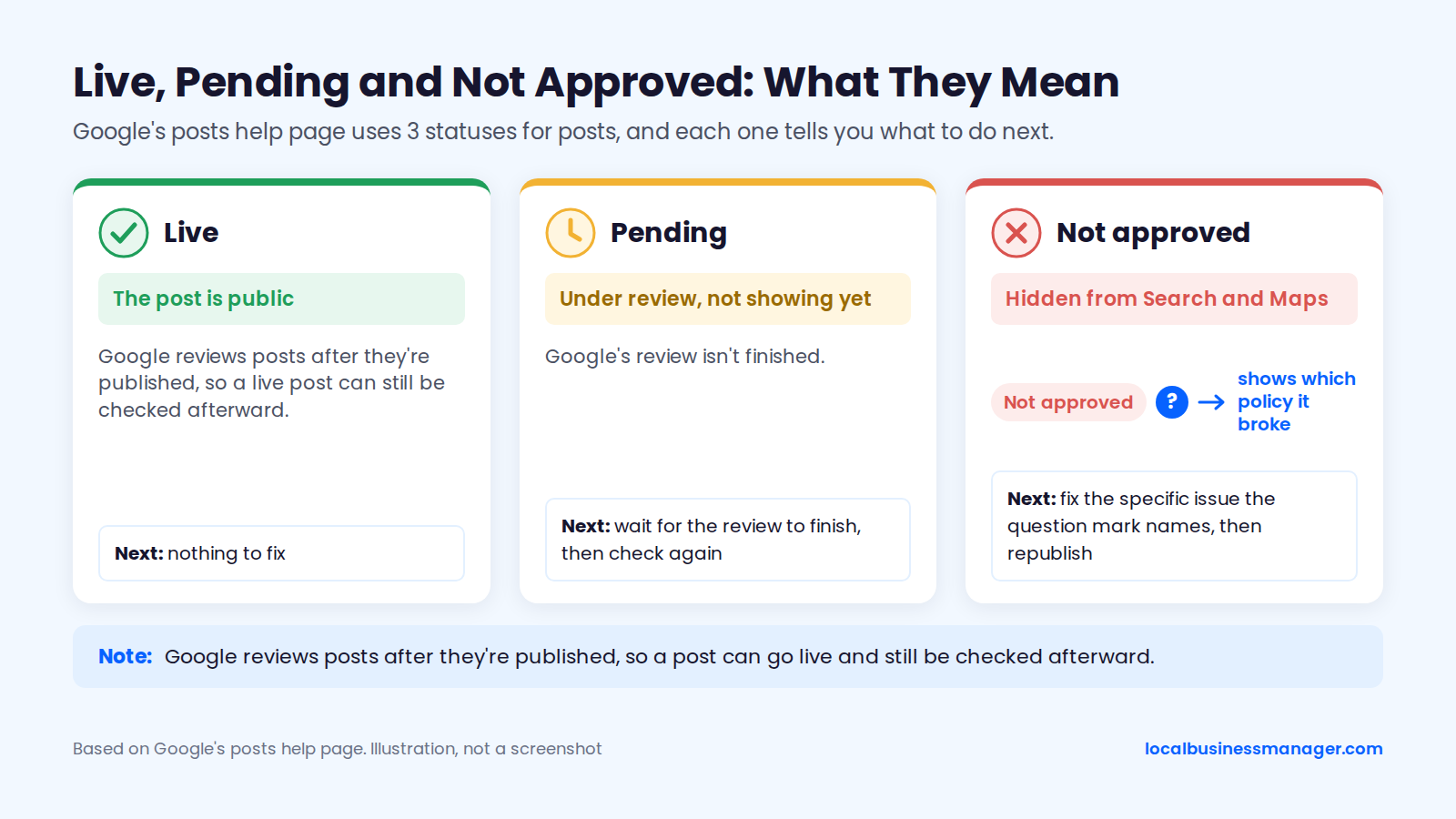
Google reviews posts after they're published, so a post can go live and still be checked afterward. When a post comes back Not approved, fix the specific issue the question mark names before you republish.
If whole profiles start disappearing from Search and Maps, that's a different issue: see why Google Business Profiles get suspended.
How to Export a Phone Photo for a Post Without Losing Quality
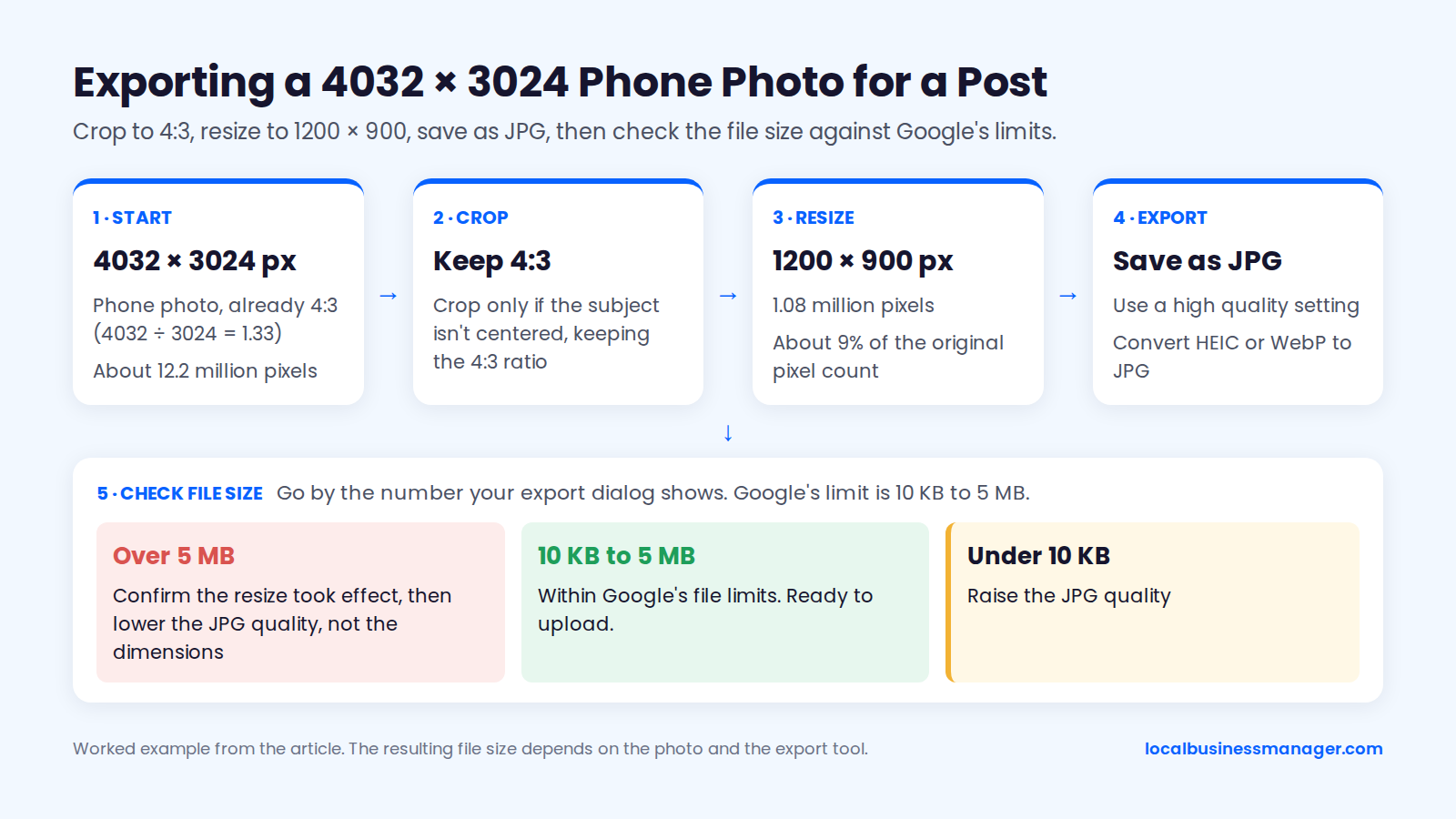
Crop the photo to 4:3, resize it to 1200 Ã 900 px, and save it as JPG. If the file is still over 5 MB, lower the JPG quality before you lower the pixel size.
Should a Post Image Be JPG or PNG?
Use JPG for photos and PNG for graphics with text, logos or sharp edges. Google accepts both and documents no preference. A post-scheduling tool's 2026 guide gives that split, because PNG keeps edges clear and JPG keeps photo files smaller.
The same guide says Google compresses uploaded images, so files of 300 KB to 1 MB are usually enough. That's the guide's claim, which we haven't tested and Google doesn't document; Google's only file limits are the format and the 10 KB to 5 MB range.
Can You Upload HEIC or WebP Images?
Google's photo page lists only JPG and PNG, so convert HEIC and WebP to JPG before uploading. Use the built-in export on the phone or computer: open the photo, export or save a copy, and choose JPEG as the format.
Google's Business Home beta post flow does accept WebP, but JPG appears on every Google list, so it's the safer default for client work.
Getting Under 5 MB Without Shrinking the Image
Adjust the JPG quality setting, not the dimensions. No source gives a recommended quality setting, and Google's only file-size limit is 5 MB, so judge by eye and by the file size shown in the export dialog. Here's a worked example with a 4032 Ã 3024 px phone photo:
- Start with the 4032 à 3024 px photo. That's already 4:3 (4032 ÷ 3024 = 1.33), about 12.2 million pixels.
- Crop if the subject isn't centered, keeping the 4:3 ratio.
- Resize to 1200 Ã 900 px. That's 1.08 million pixels, about 9% of the original pixel count.
- Export as JPG at a high quality setting.
- Check the file size. If it's over 5 MB, confirm the resize took effect, then lower the quality. If it's under 10 KB, raise the quality.
The resulting file size depends on the photo and the export tool, so go by the number your export dialog shows rather than a fixed target.
What Should You Check Before Uploading a Post Image?
These 8 checks cover Google's documented rules plus the cropping precautions above. The first 5 come from Google's photo rules and content policy, the 6th is convention, and the last 2 are precautions drawn from third-party crop advice.
- The file is JPG or PNG, the only formats Google's photo page lists (convert HEIC and WebP first).
- The file is between 10 KB and 5 MB.
- The image is at least 250 Ã 250 px, Google's documented minimum.
- The post text has no unverified phone number, email or social handle, and the Call now button carries the number.
- The photo is real, sharp and unfiltered, showing the business as it is.
- You cropped it yourself to 1200 Ã 900 px at 4:3 horizontal.
- The main subject sits in the middle of the frame, away from every edge.
- Any text or logo is a short headline inside the centered 900 Ã 540 px box.
After publishing, check the status and view the post on a phone and on desktop.
A Post Image Workflow for Agencies and Multi-Location Brands
Build one master image, make a version for each location, name the files so nobody uploads the wrong one, then publish and check each post. The first decision is whether a post needs a shared image or one per location.
Shared Image or One Per Location?
Sterling Sky says multi-location businesses can use the same post for each location, because posts aren't indexed or a ranking factor, so no duplicate-content filter applies. Google's wording on "duplicate" posts is vague, and a Local Search Forum discussion read it as repeats within one profile, not one post across a chain.
Shared images suit brand-wide promotions. For everyday posts, a real photo from each location is the safer choice. That's a precaution, not a Google rule: Google's photo guidance asks for images that represent reality, and Sterling Sky advises avoiding stock or copyrighted photos so posts don't get rejected.
The Workflow, Step by Step
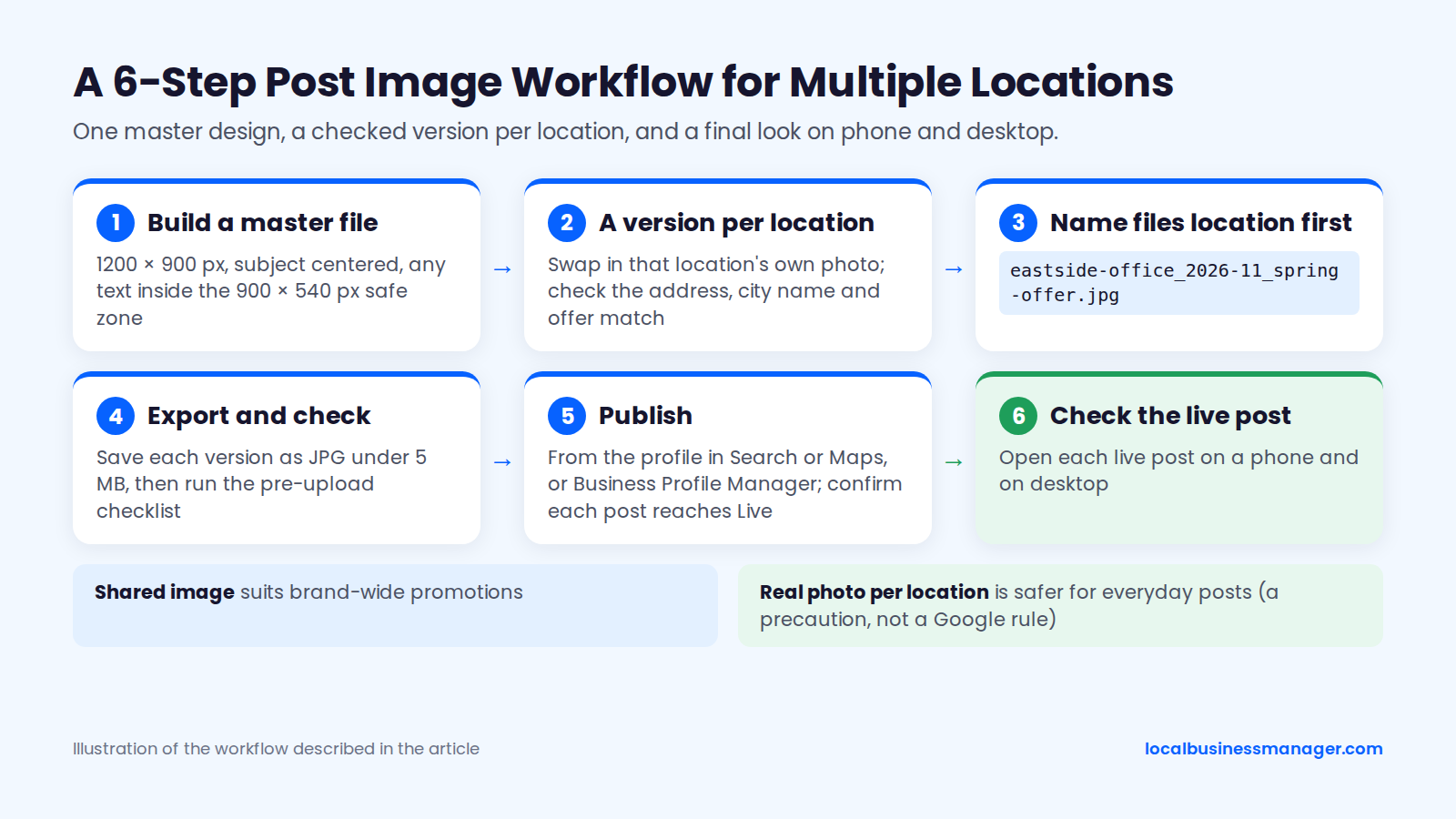
This 6-step workflow keeps one design consistent across many profiles without mixing up locations:
- Build a master 1200 Ã 900 file with the subject centered and any text inside the 900 Ã 540 px box from the safe-zone section.
- Make a version for each location. Swap in that location's own photo, and check that any address, city name or offer matches that location.
- Name files location first, for example
eastside-office_2026-11_spring-offer.jpg, so the right image goes to the right profile. - Export each version as JPG under 5 MB and run the pre-upload checklist.
- Publish from the profile in Search or Maps, or from Business Profile Manager, and confirm each post reaches Live.
- Open each live post on a phone and on desktop.
Google's photo help page says that if your business has 10 or more locations, you can bulk upload photos through a spreadsheet, but that covers profile photos, not posts. We couldn't confirm on a Google help page whether Business Profile Manager can post to several locations at once, so check the current interface before planning around it. The wider process is covered in managing local SEO for multiple locations.
Do Image Size, Photos or Geotags Affect Local Rankings?
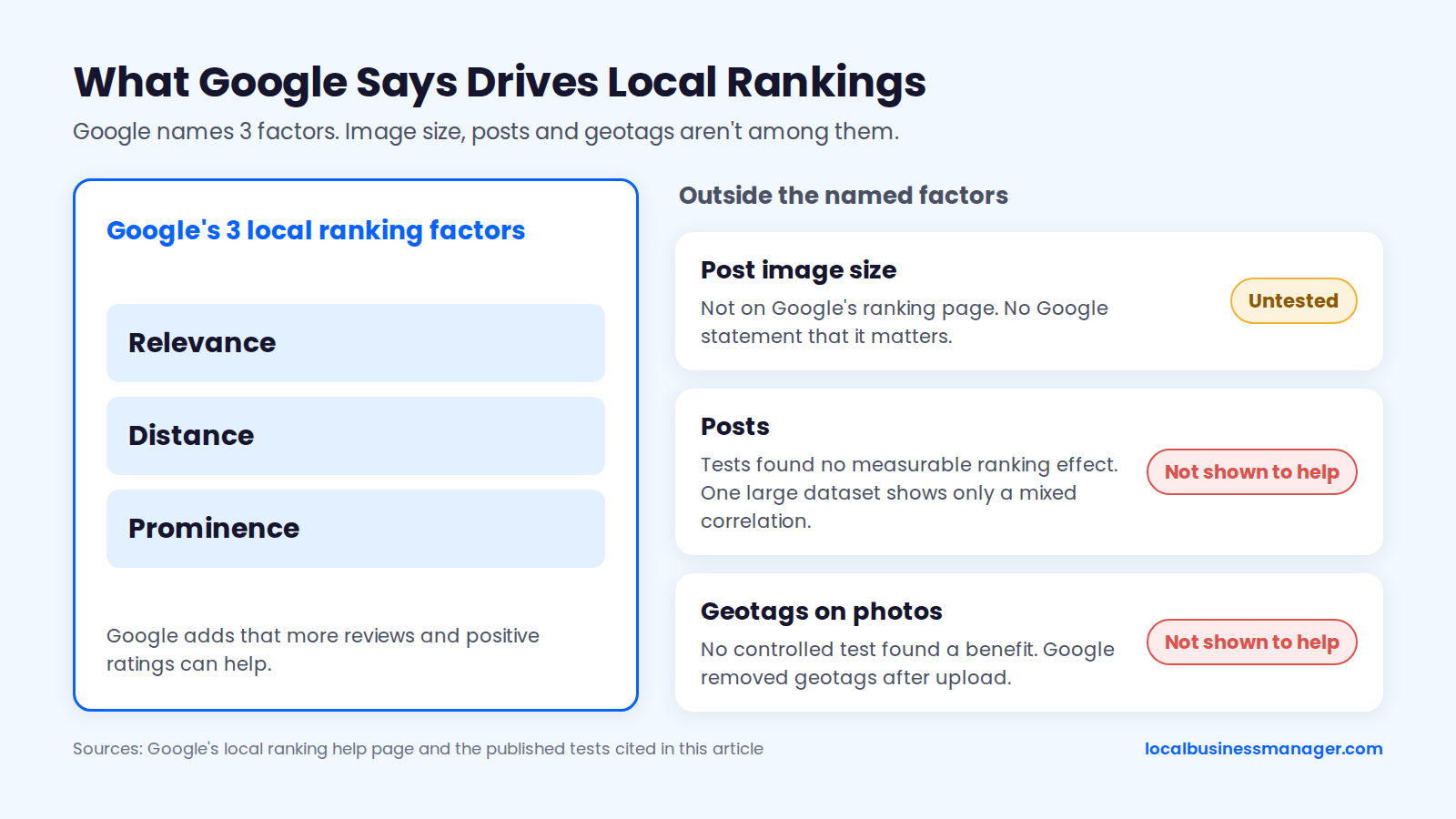
No controlled test has shown that post image size, posts or geotags move local-pack rankings. Google names 3 ranking factors, and image size isn't among them. Tests on posts and geotags found no measurable effect, and the one large dataset on posts shows only a mixed correlation.
What Google Says About Local Ranking
Google's Tips to improve your local ranking help page says local results are based mainly on relevance, distance and prominence. The page adds that more reviews and positive ratings can help.
Google's local ranking page doesn't mention posts, image size or photo metadata, and we found no Google statement that image size matters for ranking. If rankings are the real problem, the bigger levers are covered in how to rank higher on Google Maps.
Is It Worth Posting if Posts Don't Move Rankings?
Yes, for clicks, conversions and getting a message in front of customers, but published tests found no ranking effect from posts. Three sources cover it:
- In an undated test, Sterling Sky added posts to 3 inactive listings and found they "had no measurable impact on rankings in the local pack". It recommends using posts for conversions and messaging instead.
- The 2026 Local Search Ranking Factors survey, published in 2025 and based on expert opinion rather than measurement, ranks keywords in posts #160 and post quantity #168 for Maps rankings, but posting frequency #78 among conversion factors.
- A local SEO software company's 2026 comparison of that survey with data from 16,098 profiles found only a mixed correlation: profiles with 10 or more posts reached the top 3 more often than profiles with none (+9.3 points), while posting frequency showed a slightly negative link (-2.5 points).
Does Geotagging Photos Help?
No controlled test has found that geotagging Business Profile photos helps rankings. Three tests and a survey point the same way:
- Sterling Sky added geotags to photos on 5 listings with no other SEO work running and found no measurable effect on local-pack rankings; Google Business Profile also removed the geotags after upload. The test date is unclear: the post carries 2021 comments, while Search Engine Land dates it to January 2024.
- Hypetrix concluded in February 2024 that the tactic "currently has no effect on the local rankings."
- A 2025 study published on Search Engine Land tracked 27 lawn-care profiles with SEO work paused, comparing a 5-week control period with a 5-week test period. Geotagging had no positive effect, and in 4 of the 6 tracked "service + city" cases, rankings were lower when images were geotagged.
- The company behind the Local Search Ranking Factors survey wrote in 2024 that geotagging ranked as the #1 local search myth in that survey.
Google hasn't said whether it reads EXIF data before removing it, and the tests are small (5 to 27 profiles), none covering law firms. With every controlled test so far showing no benefit, there's no evidence-based reason to spend client hours on geotagging.
Frequently Asked Questions
Two follow-up questions the sections above don't settle: how long a post and its image stay up, and whether posts can be scheduled.
How Long Does a Google Business Profile Post Stay Visible?
Google archives posts after 6 months unless the post has a date range set, according to Google's posts help page. If a post has a date range, make sure any dates printed on the image match it. When an offer ends, retire its image from your template folder so nobody reposts it by mistake.
Can Google Business Profile Posts Be Scheduled?
Yes. Google's posts help page says posts can be scheduled and set to repeat. Scheduling makes image prep easier, because you can build a month of 1200 Ã 900 images in one batch, run them through the pre-upload checklist together, and queue them. Check each scheduled post once it goes live, since Google reviews posts after publishing, and a Pending or Not approved status is easy to miss in a queue.
What to Fix Before the Next Post Goes Out
Before your next post goes out, crop its image to 4:3 yourself and keep any text inside the centered 900 Ã 540 px box. Cropping it yourself means you choose what gets cut, and it heads off the "why is our headline cut off?" email. If you manage profiles for clients, join the Local Business Manager early access list.